


Daily Work
Manage workspaces
Use My Workspaces to find, start, stop, open, update, schedule, inspect and delete workspaces, and understand what a workspace link does.
Last updated
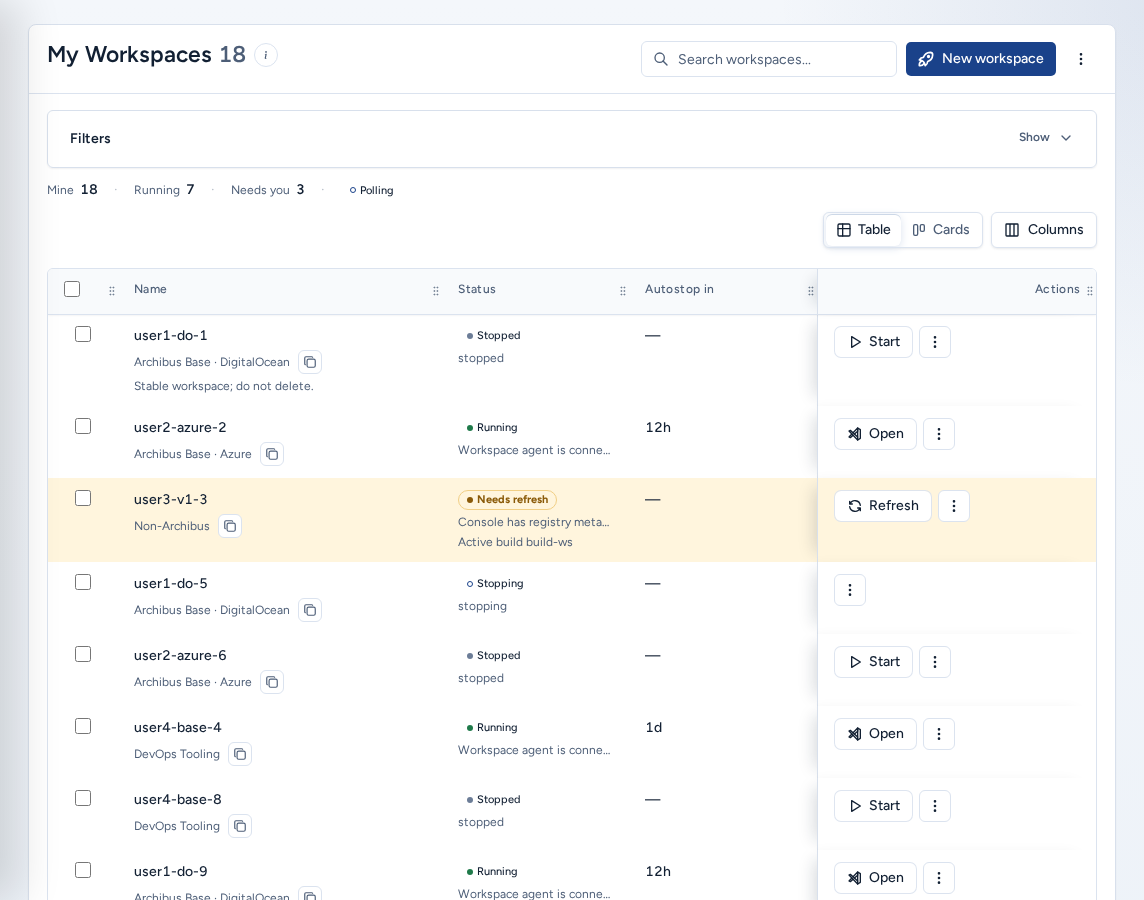
My Workspaces (/workspaces, also the Console start page after sign-in) lists every workspace you can see. Each row has the actions you need for daily work. Open it from My Workspaces in the navigation (Workspaces in the phone bottom bar).
If you have no workspace yet, the page shows No workspaces yet. Choose New workspace and follow Create a workspace.
Who can see it
- Team members and team admins see the workspaces their team scope allows. Actions depend on the workspace’s state and your role.
- Platform operators and platform admins see workspaces across the teams they manage. Anyone can open Dormancy policy, but only platform operators can apply its actions.
Find a workspace
The header shows the workspace count, Search workspaces…, New workspace and More options (Refresh, Dormancy policy and Reset view). The summary strip shows a Polling indicator while Console refreshes status.
- Type in Search workspaces….
- Open Filters to narrow by status, owner, template, target, source or update state. Active filters shows what is applied; Reset view clears everything.
- The summary strip shows Mine or Tracked, Running and Needs you counts for the current filters.
- Switch Workspace view between Table and Cards. In table view, Columns chooses what is shown.
“None of the N workspaces match” means a filter hides them. It is not an access problem. Choose Show all N.
| Status | Meaning | Common action |
|---|---|---|
| Running | The runtime is active. | Open Browser, or Stop when done. |
| Stopped | The runtime is not active. | Start before working. |
| Active build | A start, update or create build is running. | Wait, or Cancel build. |
| Dormant | Idle past the team’s dormancy window. | Start to activate it again. |
| Failed or unhealthy | A build or the runtime needs review. | Open Logs or Support before deleting anything. |
Start, stop and cancel a build
- Start brings a stopped or dormant workspace back with its existing storage. It does not recreate the workspace.
- Stop ends runtime usage. The workspace and its storage stay. Runtime hours are covered in Usage and analytics.
- While a build runs, most actions wait. Cancel build asks you to confirm with Cancel active build, or choose Keep build running.
Open a workspace
Choose Browser on a running row to open the in-browser editor. The Connect menu lists Connect to in chat, Archibot Desktop, Coder Remote (legacy) (desktop VS Code), JetBrains Gateway and SSH config. Windows workspaces add Remote Desktop, and workspaces with an application endpoint add Tomcat. For editor choices, see Use the ArchiBot VS Code extension.
A workspace link has the form https://<console>/w/<workspace-id>. Opening one:
- Asks you to sign in to Console if you aren’t already.
- Shows Opening Workspace (“Console is resolving the correct workspace target and redirecting you there.”) with Redirecting to your workspace….
- Sends you to the workspace editor on its target. If the target uses its own sign-in, that sign-in starts automatically.
If the workspace can’t be opened, for example because it is stopped, it no longer exists or you can’t access it, the page shows the reason with Retry and Back to Workspaces. The link does not start a stopped workspace. Start it from My Workspaces, then choose Retry. More detail: Open a workspace.
For Windows workspaces, Remote Desktop shows Connection details for your RDP client. Some Windows workspaces open Remote Desktop in the browser instead. Remote Desktop stays inside the workspace tunnel. Never expose port 3389 to the internet.
Update safely
Update when Update available shows. Updates bring newer editor tools, ArchiBot extension versions and runtime improvements. A running workspace keeps the image it started with until it is updated.
- Choose Update in the row’s actions menu. Console checks the new version against the workspace’s saved values.
- If everything resolves from saved values and template defaults, the update starts straight away and the build logs open.
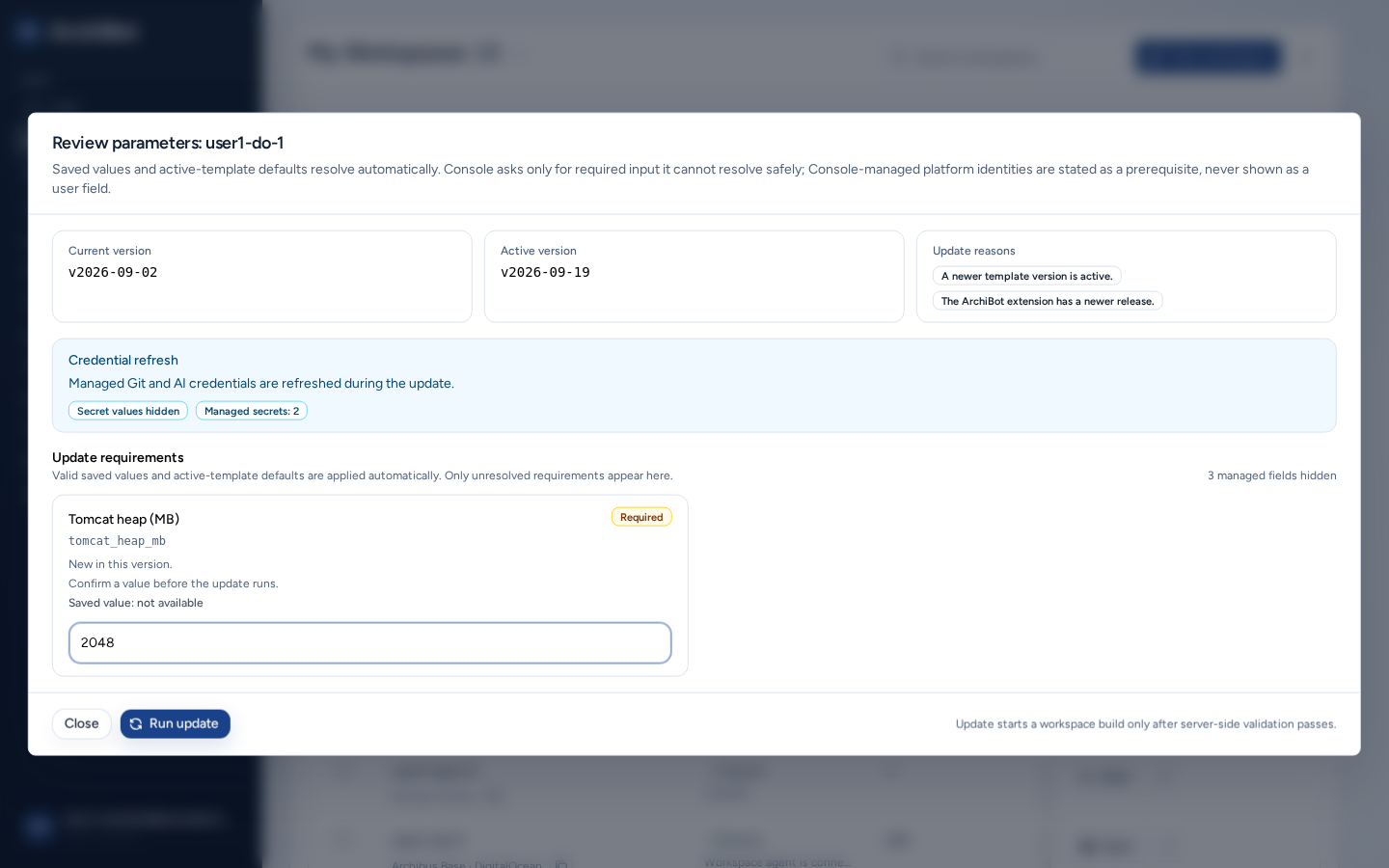
- If something needs you, Console opens Review parameters instead. It shows Current version, Active version and the Update reasons, and a Credential refresh note: managed credentials are refreshed and Secret values hidden stays in place.
- Under Update requirements, fill in each field marked Required. Only unresolved values appear there; the count of hidden managed fields is shown on the right.
- Choose Run update, or Close to back out.
If Managed configuration required appears, Console did not start the update: a platform-managed setting is missing. Ask ISM. The template validates your values before the build starts, so fix field errors in the review instead of retrying.
Edit the schedule and extend autostop
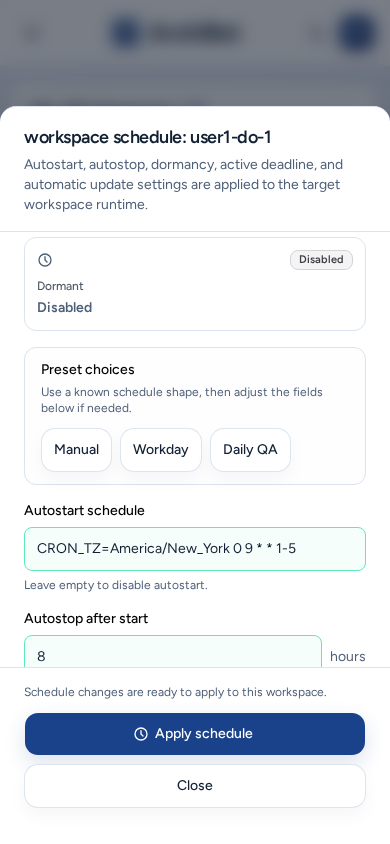
- Choose Schedule in the row’s actions menu.
- Start from a Preset choices option (Manual, Workday or Daily QA), then adjust.
- Set the Autostart schedule (leave empty to turn autostart off) and Autostop after start in hours. Optionally set Automatic updates and a New active deadline.
- Choose Apply schedule.
The Autostop in column shows when each running workspace stops. To keep one running longer this time only, use Extend autostop +1h or +4h from the row’s actions, or +1h, +4h or +8h in Details. The recurring schedule doesn’t change.
Details, logs and support
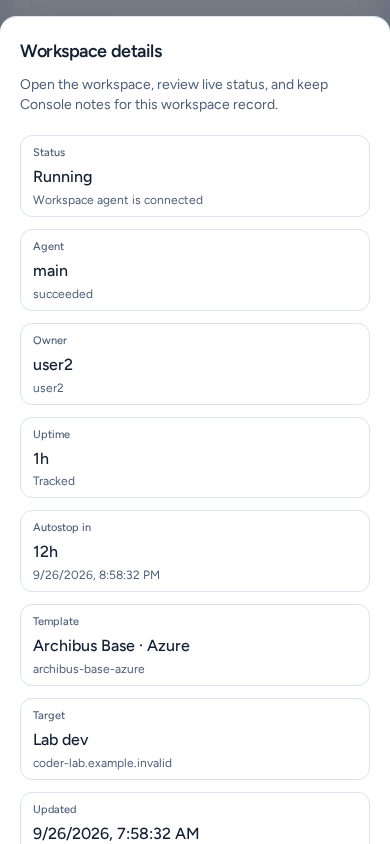
- Details shows status, agent, owner, uptime, autostop, template, target, source and Git health, with launch buttons. You can set a Console-only Display name and a Comment, then choose Save details. Don’t put secrets in either field.
- Logs opens Workspace Logs: the live runtime tail or the latest build output (Workspace Build Logs).
- Support gathers Health checks, Runtime agents, storage, Shared Drive, managed access, integrations and usage for the workspace. Use it before a support handoff.
- Git Health checks repository status without opening a terminal.
Delete a workspace
- Choose Delete in the row’s actions menu.
- Delete workspace explains that the ArchiBot workspace and its managed runtime resources will be removed. This can’t be undone from Console.
- Type the exact workspace name. The delete button enables only when it matches.
Use the Console delete action rather than removing runtime objects by hand, so that cleanup follows the supported path.
Bulk actions
Select rows with their checkboxes (Select all visible workspaces selects every row shown). The bulk bar shows “N selected” and offers Start, Stop, Update, Cancel builds and Delete. Each action applies only to eligible workspaces, and Console shows the eligible count. Bulk delete requires typing DELETE. Clear drops the selection.
Dormancy policy (platform operators)
Dormancy policy (Workspace dormancy policy) reviews idle workspaces against each team’s window. Under Team policy setup, set Mark dormant after and Delete dormant after, then Save policy. Choose Apply dormant marks or Apply dormant deletes, use Preview, then Apply dormancy actions. Autostart and autostop stay on each workspace’s schedule.
On a phone
-
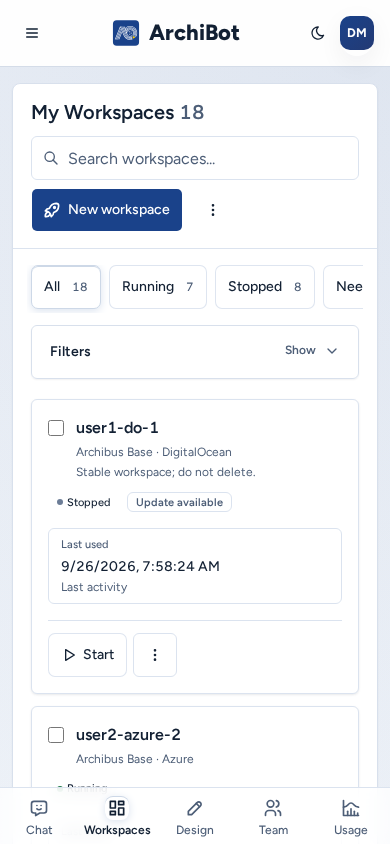
Workspaces appear as cards instead of a table. The filters and the bulk-action bar stack above the list.
-
Each card’s checkbox has a full-size tap area.
-
Details, Schedule, Review parameters, Delete workspace, the bulk delete confirmation and Dormancy policy open as full-width sheets from the bottom of the screen. Their buttons are full width, and a long sheet scrolls on its own.
-
Remote Desktop connection details open as a centred dialog rather than a sheet.
-
More options and the row’s actions menu open as menus with full-size items.
Troubleshooting
- A workspace is missing: clear the search and filters, choose Refresh, and check your team. Ask a team admin if your membership is wrong.
- Start or Stop is missing: another build is running, or the state doesn’t allow it. Check Active build.
- Update fails validation: fix the field that Review parameters reports.
- A workspace link shows an error: start the workspace, then choose Retry. If it keeps failing, note the workspace name, the time and the error text, and use Support handoff.
Related guides
Done When
- The workspace row shows the expected status.
- Start is available for stopped or dormant workspaces; Stop for running ones.
- If Review parameters opens, every required value is filled before Run update.
- The Delete confirmation names the workspace you intend to remove.