


Plan The Change
Design
Use Design to turn a conversation into a brief, mockup directions and a reviewed implementation issue that goes to a workspace and then to CI & Review.
Last updated
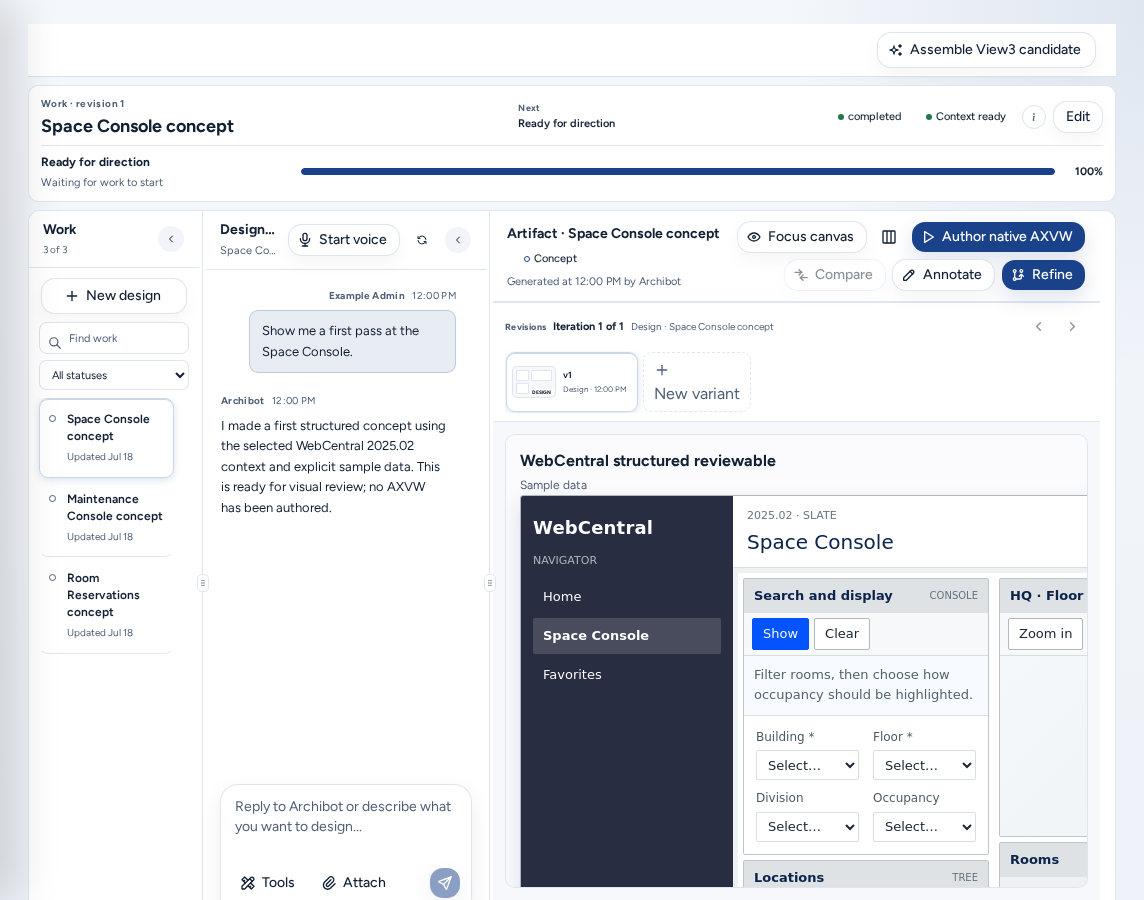
Design (/design) plans a change before anyone writes code. You describe the change in a conversation, ArchiBot builds a brief and mockup directions, and you approve an implementation issue that a developer then builds in a workspace. Each design project has its own address, /design/<project>.
Who can see it
Everyone with a team: team members, team admins, and platform operators and admins. It’s under Build in the navigation and Design in the phone bottom bar. Publishing to Linear requires a Linear connection for your account.
Start a design
- Open Design and choose New design. A conversation starts right away.
- Describe the change: the screen or workflow, who uses it, what should change, what must stay, and what a good result looks like. The First-message guide suggests this. Attach a screenshot or name the WebCentral view when you can. The starters Redesign this experience, Explore the missing states and Draft the implementation issue are shortcuts.
- ArchiBot asks focused questions and builds the brief as you talk: Describe the outcome → Ground it in context → Review the brief. “Nothing moves forward until you approve it.”
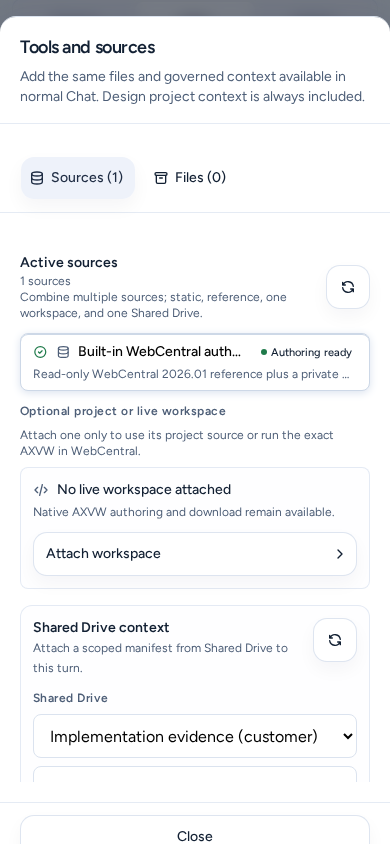
- To add files or governed context, open Tools and sources. Design project context is always included.
Work with the artifact
The artifact workspace shows the current mockup. The first time, choose Generate first direction.
- Compare a revision with the previous one, Annotate it, or Refine the selected direction.
- Add comment records a comment on this revision only.
- Revisions lists every version (v1, v2, …). New variant starts another direction.
- Each revision says whether it was checked in a real runtime: “Validated in the authenticated target runtime.” or “No runtime verification has been recorded for this revision.” A mockup without runtime verification is a concept, not proof that the change works.
- For WebCentral views, Design can prepare AXVW source and, with a writable WebCentral workspace attached, render the native view for review.
Focus canvas, Restore work panes and Reset panes change the layout.
Work details
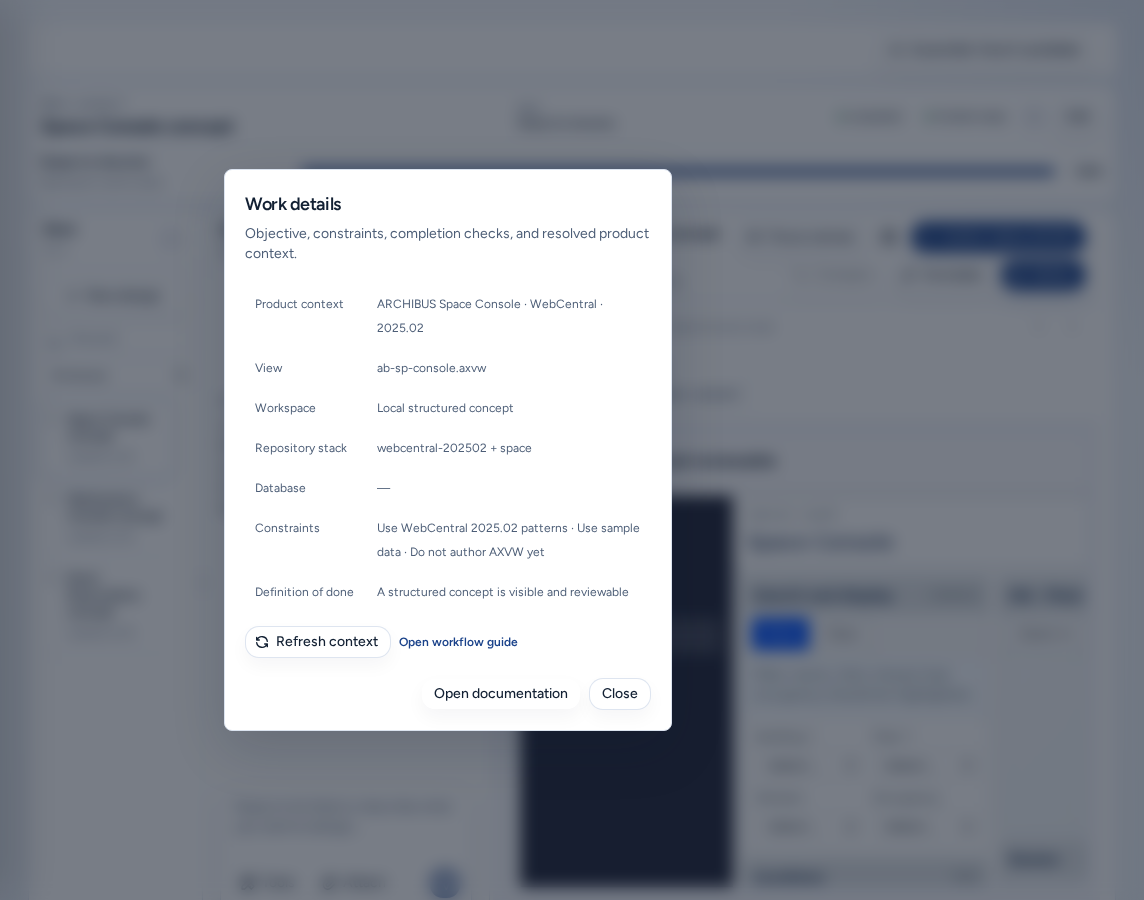
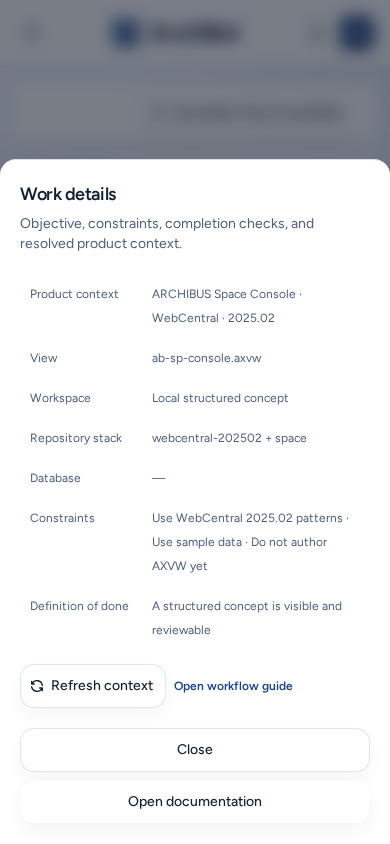
The header of a design shows the work revision, what comes Next, a status badge, and Context ready or Context needs attention. The (i) Work details button (“Objective, constraints, completion checks, and resolved product context.”) shows:
| Field | Meaning |
|---|---|
| Product context | The product, host and version the design targets. |
| View | The WebCentral view or module. |
| Workspace | The workspace used for runtime checks. |
| Repository stack | The repositories the change touches. |
| Database | The database used for checks. |
| Constraints | What must not change. |
| Definition of done | The checks that must pass. |
Choose Refresh context after the workspace or product changes, then check the values again. Open workflow guide opens Create a workspace. It doesn’t start anything.
Edit changes the objective. Pause and Resume stop and continue ArchiBot’s work on the design.
Review and hand off the implementation issue
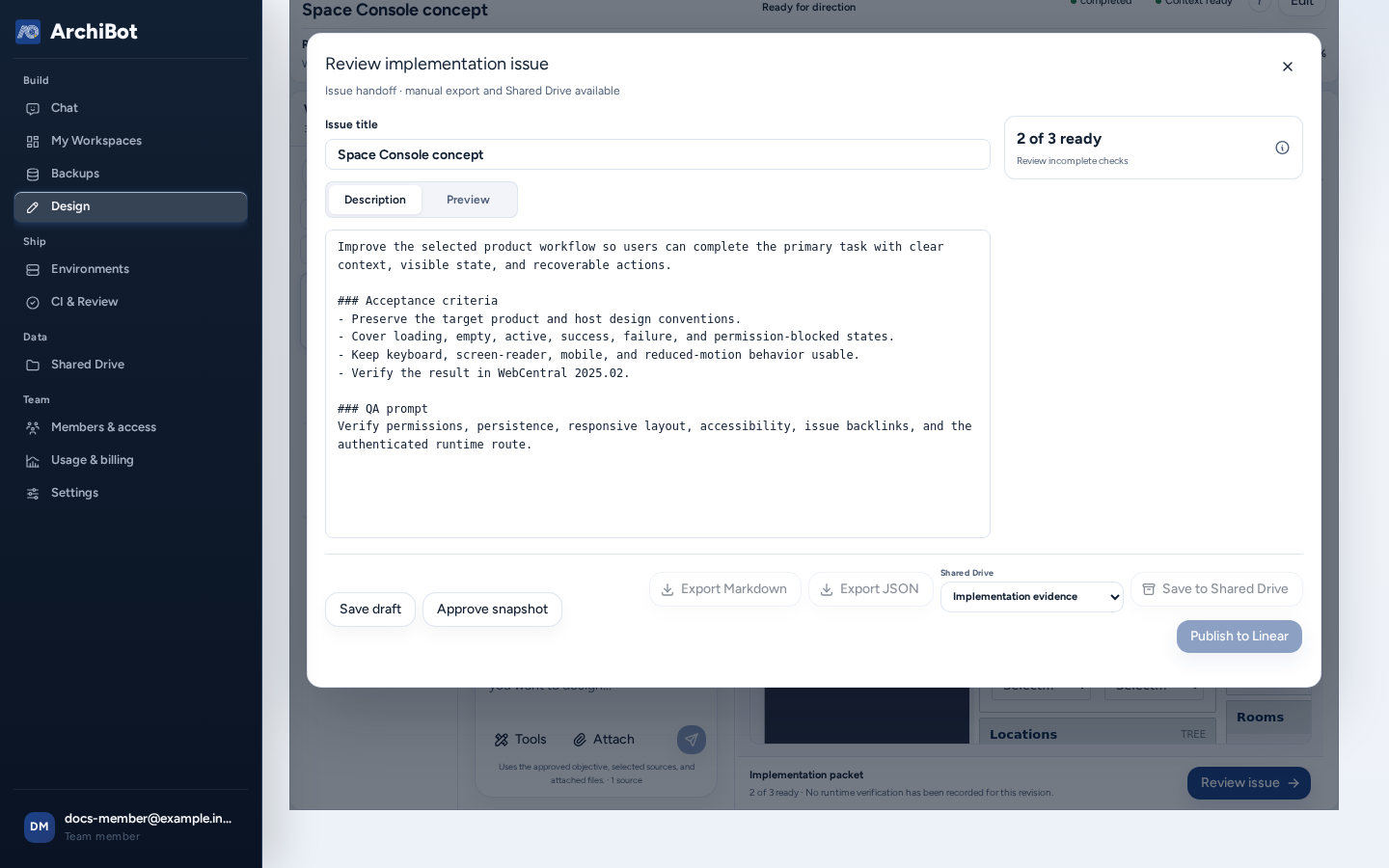
When the packet is ready, the header shows Review packet (or choose Review issue). Review implementation issue opens:
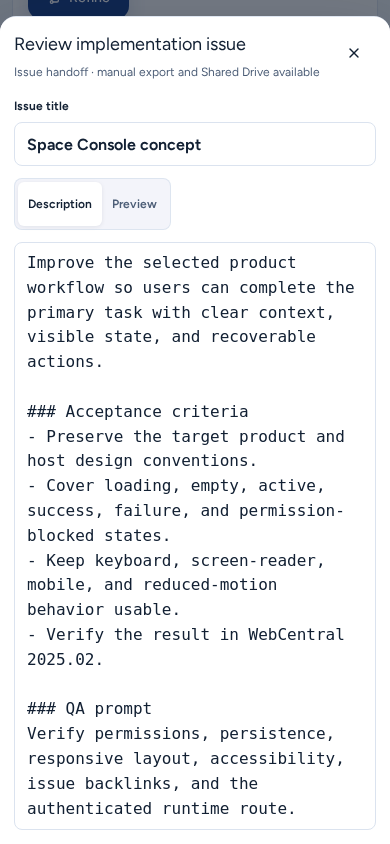
- Edit the Issue title and Issue description and acceptance criteria. Check it on the Preview tab.
- Choose Save draft. Approval waits for unsaved changes to be saved.
- Open the checklist (“N of M ready”) and resolve anything incomplete.
- Choose Approve snapshot. This approves the design snapshot, not the code.
- Choose a destination: Export Markdown, Export JSON, Save to Shared Drive or Publish to Linear. After publishing, Open issue links to it.
None of these create a workspace or change code. A developer builds the issue in a workspace, and the change then goes through review. How implementation review works in the checklist opens Implementation review.
On a phone
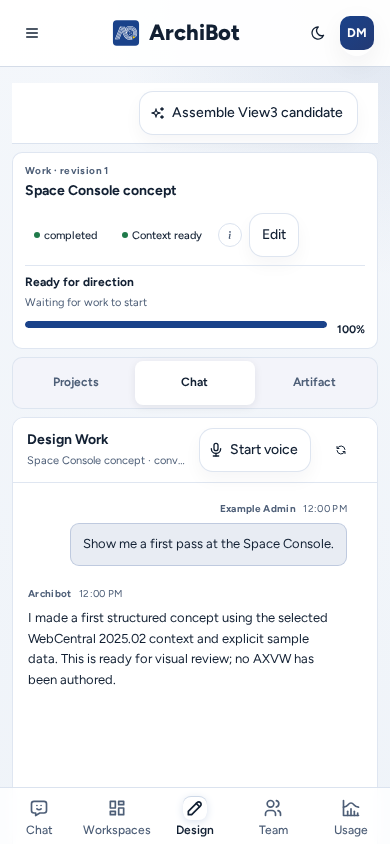
- A Projects / Chat / Artifact switcher at the top shows one pane at a time. While the brief is still being shaped, only Projects and Chat appear.
- Tools and sources opens as a full-width sheet from the bottom of the screen, with a Close button.
- Tabs and buttons have full-size tap targets, and Open workflow guide in Work details is a full-size link.
- Review implementation issue also opens as a full-width sheet from the bottom of the screen. Scroll the sheet to reach Approve snapshot and the export buttons.
Troubleshooting
- “Conversation-first Design intake is not available yet.” Refresh the page and try again.
- Context needs attention: open Work details, choose Refresh context, and check the workspace and repository.
- Approve is disabled: save the draft first (“Unsaved changes · save the draft before approval.”).
- Export or publish is disabled: the checklist isn’t complete, or the snapshot isn’t approved.
- The preview can’t render a WebCentral view: attach a writable WebCentral workspace, or sign in to WebCentral in a new tab when Design asks.
Related guides
Done When
- Work details shows the product, view, workspace and repository you expect.
- A mockup is treated as a concept until runtime verification is recorded.
- The implementation issue is saved, approved and ready before it is exported or published.