


Daily Work
Workspace ArchiBot and Shared Drive
Manage Shared Drive in Console across its six tabs (Drives, Files, Access, Backups, Capture, Memory), grant ArchiBot scoped access, request staged restores and create team drives.
Last updated
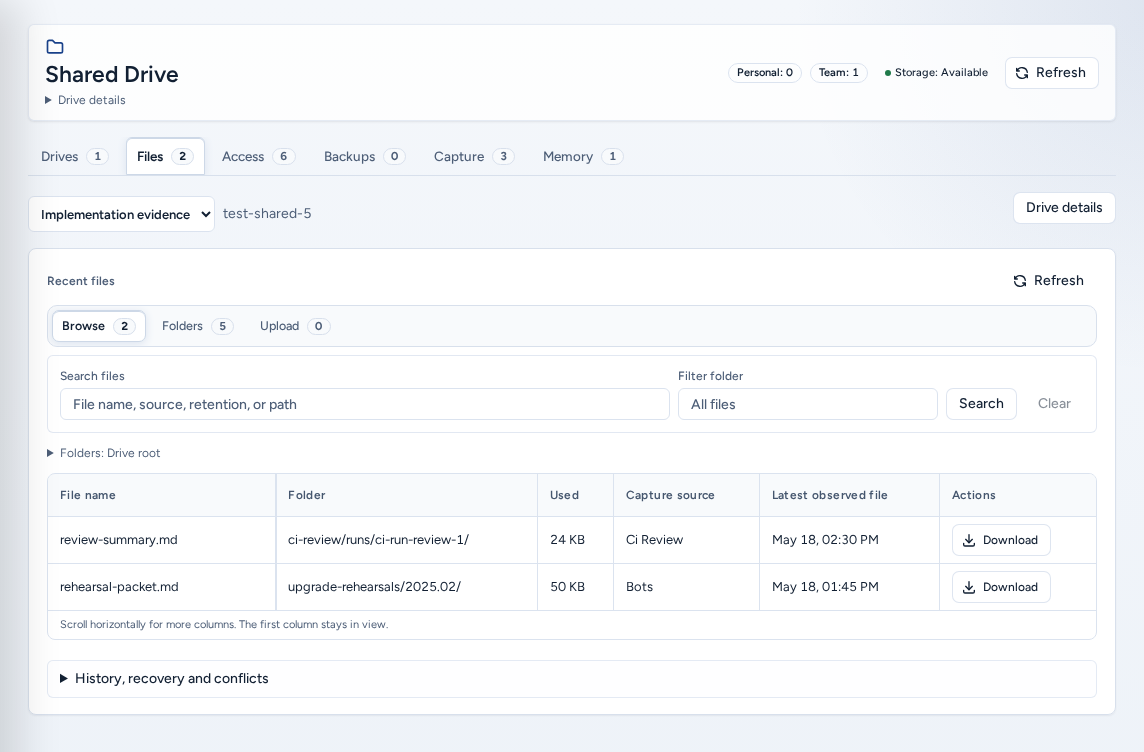
Shared Drive (/shared-drive) is persistent storage that ArchiBot can use across Chat, VS Code, API sessions, workspaces, review and QA. You manage it here in Console, not from inside a workspace editor. Your personal drive (My Shared Drive) stays scoped to you. Team drives are shared across the team.
Who can see it
- Everyone with a team can open Shared Drive and use their personal drive.
- Team admins and platform operators can create Team drives and change team-drive policy.
- Write actions on a team drive depend on its policy: Members can write files by default, or admins only.
The six tabs
Each tab lists your drives in a grid, with the columns for that task. Search drives… filters every tab.
| Tab | What it is for |
|---|---|
| Drives | Each drive’s Scope (Personal or Team), Status, Used / quota, policy and actions such as Open drive and Request expansion. |
| Files | Browse, organize and upload files in a drive. |
| Access | Grant scope and expiry: scoped ArchiBot access for tasks. |
| Backups | Latest storage backup and staged restore requests. |
| Capture | The workspace-generated files that were copied in. |
| Memory | Each drive’s memory: Private account preferences or Customer project knowledge. |
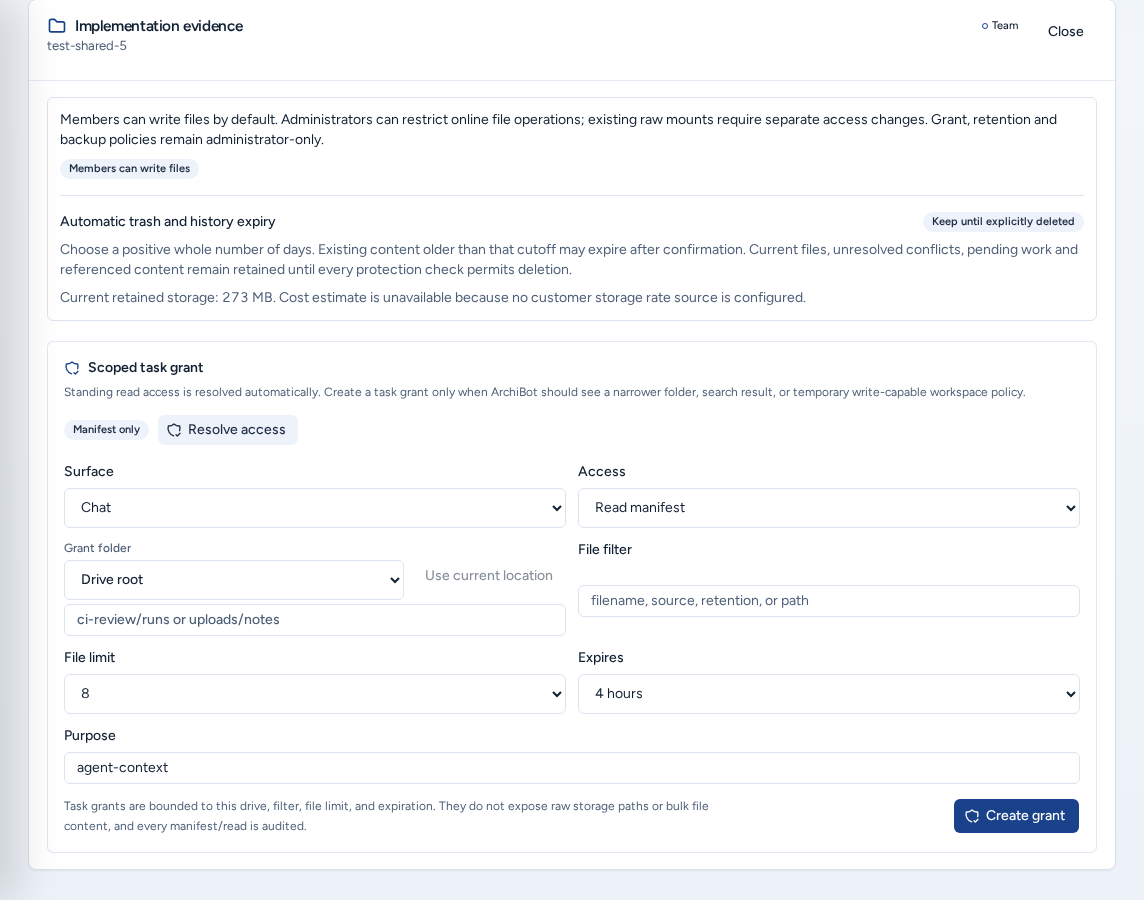
Selecting a drive opens Drive details beside the grid, or below it on a phone.
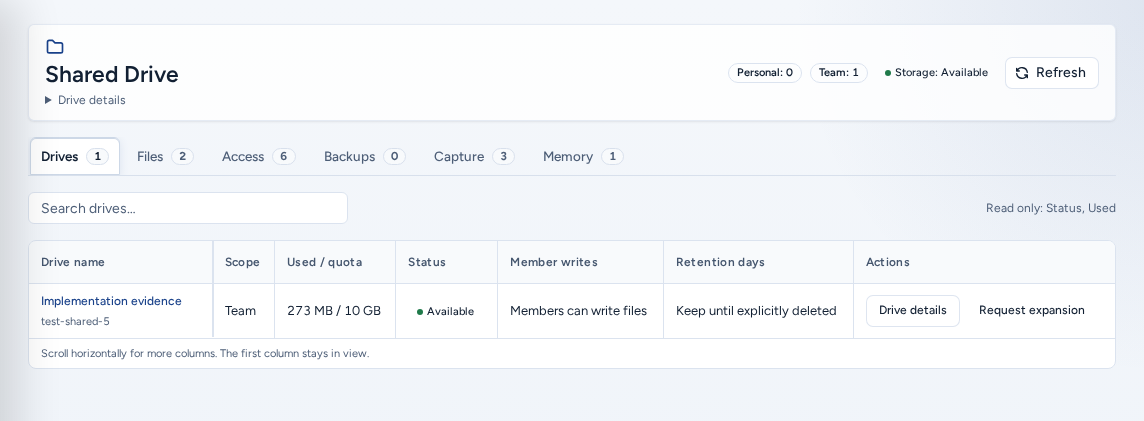
Work with files
Open Files, or choose Open drive on a drive. The folder tree shows the Current location. File tools has three tabs:
- Browse: filter with the file search (“File name, source, retention, or path”), then Download, Rename or Remove a file. Removing asks you to Confirm remove.
- Folders: enter a New folder path (for example
uploads/notes) or Start from current location, then Create folder. Renaming a folder moves its contents. - Upload: set the File name, the Destination folder (or Use current location) and the Retention (Implementation evidence, Workspace notes or Team reference). Type the content, or use Pick local file. Text files become editable notes, and other files upload as attachments up to 25 MB.
Good Shared Drive content is short and sanitized: session summaries, reproduction steps, approved screenshots and draft deliverables. Never store passwords, API keys, cookies, credential files, private transcripts, customer data dumps or license files.
Grant ArchiBot scoped access
ArchiBot surfaces get standing read-only access automatically. Resolve access shows what that covers. Create a Scoped task grant only when ArchiBot should see a narrow set of files for one task:
- Choose the Surface: Chat, API, VS Code, Workspaces, Review or Review and QA.
- Choose the Access: Read manifest, or Read/write policy if you can write.
- Set the Grant folder (for example
ci-review/runs). Optionally add a File filter and a File limit. - Choose Expires: 30 minutes, 4 hours, 24 hours or 7 days.
- Enter a Purpose (for example
review-evidence) and choose Create grant.
Manifest ready then lists the files included. Grants are limited to the drive, filter, file limit and expiry. They never expose raw storage paths, and every read is audited.
Backups and staged restore
Backups and restore: “Backups run from the dedicated Shared Drive storage layer.” The status and size describe the storage backup, not individual drive snapshots.
- Open Backups and choose the drive.
- Under Request staged restore, describe what should be recovered. Don’t include secrets or raw data.
- Submit. Console confirms “Staged restore request recorded.”
Restores go to a separate staged path first and never overwrite the live drive. An operator or team admin moves reviewed files back.
Workspace capture
“Workspace-generated material can be copied into the drive when the user or team policy allows it.” Capture follows workspace and agent workflows, so there is no schedule to set here. The tab shows the Capture source, the Destination and the Latest observed file. For important work, save a short summary to a drive folder yourself.
Memory
Memory opens a drive’s memory namespace. Load memory shows it. Suggested edits need a retained source version. Accepting, pinning and removing entries need permission.
Create a team drive
Team admins and platform operators see a Team drive panel (“Prepare a team-wide drive for reusable artifacts, runbooks, uploads, and agent context”):
- Enter a Drive name (for example
CI review evidence). - Choose the Default access.
- Set Retention days, or Keep until explicitly deleted.
- Describe the Purpose: what belongs here and how ArchiBot should use it.
- Choose Create team drive.
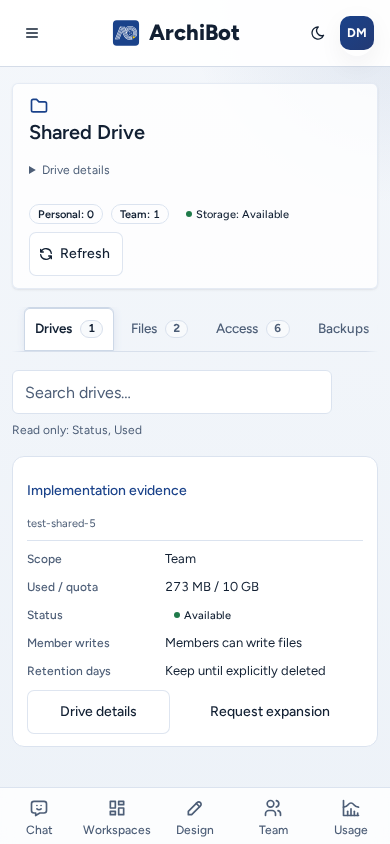
On a phone
- Every drive grid becomes a list of labelled cards, one card per drive. Each card shows the same fields as the table, and its actions are a row of full-width buttons at the bottom of the card.
- The six tabs and the File tools tabs scroll sideways. The folder tree rows, folder chips and upload fields have full-size tap targets.
- Drive details and the create panel stack below the list. Opening one scrolls it into view, and Close returns you to the list.
Troubleshooting
- A drive shows Storage service pending: storage isn’t ready yet. Try again later, or contact support.
- Write actions are missing: the drive is read-only for you. Ask a team admin.
- ArchiBot can’t see a file: check the grant folder, the filter and the expiry, or use Resolve access.
- You need more space: choose Request expansion. It opens the Catalog with storage selected.
When you contact support, include the drive name, the action and the time. See Support handoff.
Related guides
- Create a workspace: mount a drive in a workspace.
- Settings → Integrations: reusable Shared Drive access.
- Backups: database restore sources.
Done When
- Your personal drive (My Shared Drive) shows Available.
- Task grants are scoped to one folder and a short expiry.
- Staged restores are requested with a note and no secrets.