


Platform Operations
Tenant admin for operators
Use Access operations (/access) to choose a tenant and team, onboard the team, manage members and permissions, and attach workspace targets.
Last updated
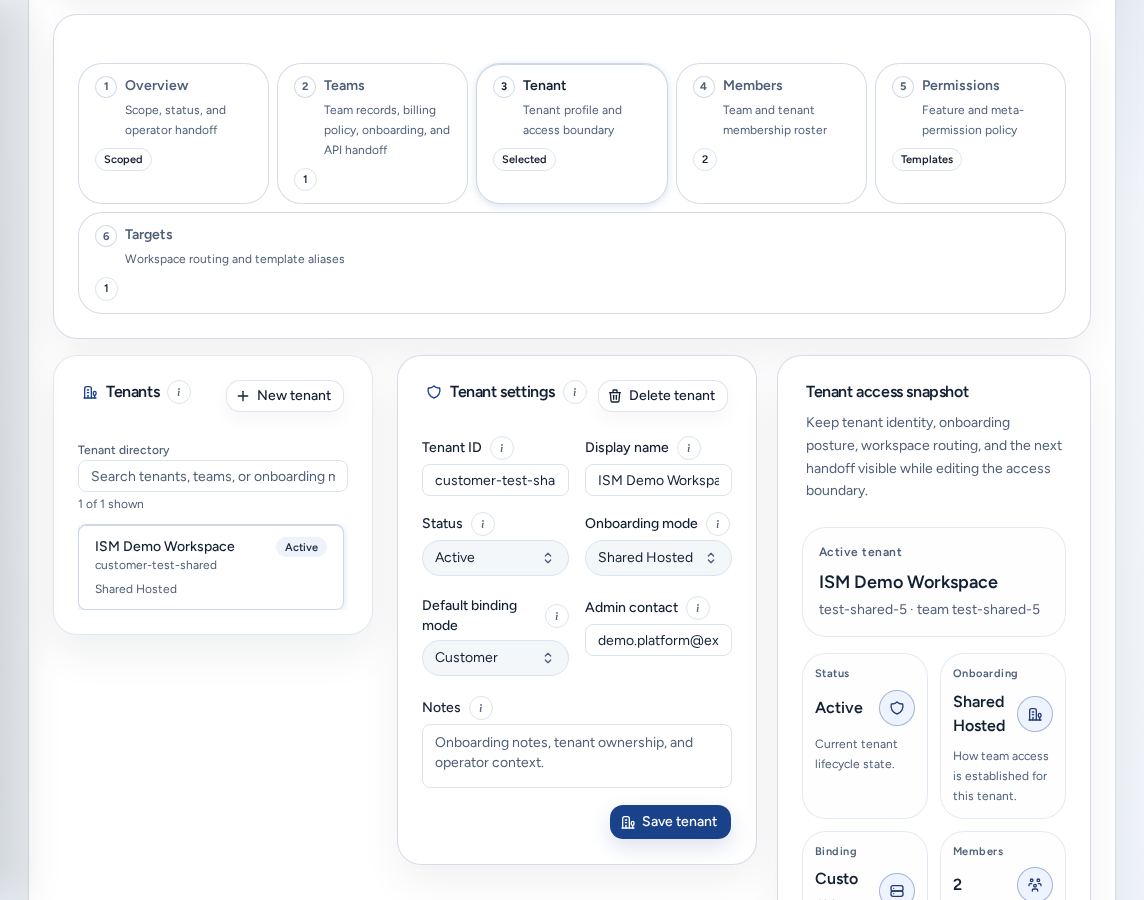
Access operations (/access, also /tenants) is where platform teams run a team’s launch: identity scope, members and permissions, workspace targets, onboarding, billing readiness and usage handoff. Platform operators and admins open it from Members & access in the navigation.
Who can see it
- Platform operators and platform admins only.
- Team admins who open
/accessare sent to their own Account Setup. Links to/access?access_tab=membersgo to their Members page. - Team members are sent to Account access.
Choose the scope first
The page answers four questions before you change anything: who you are signed in as, which team account you are managing, where its workspaces will run, and whether usage can be attributed to that team. (i) Bootstrap and scope check explains them. A team account is the billable company, a tenant is that company’s slice of Console access, and a workspace target is the cluster where workspaces run.
Always confirm the tenant and team before saving. If the SSO access labels are empty, pages such as Analytics may not know which team to use. Sign in again through SSO before testing workspace creation.
The sub-tabs
| Sub-tab | What you do there |
|---|---|
| Overview | Confirm the scope and open the pages that own support, review, environments, storage, billing and audit. |
| Tenant | The Tenant directory and Tenant settings. |
| Teams | Team records, with Profile, Plan, Onboarding, Billing and API tabs. |
| Members | The member list for the tenant or one team. |
| Permissions | Permission policies for each membership. |
| Targets | Workspace targets and the template aliases Create offers. |
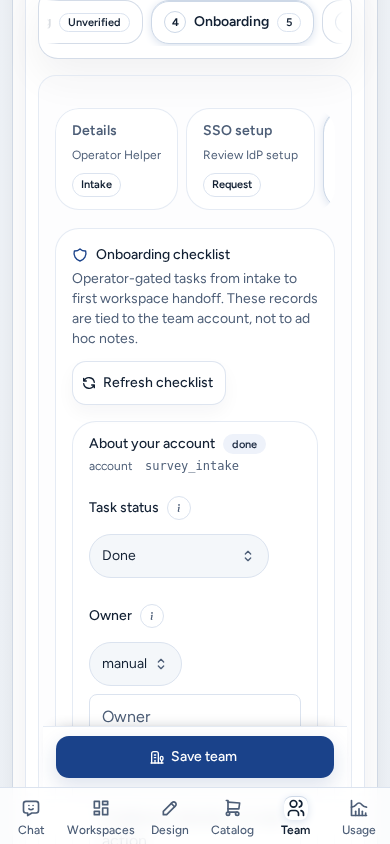
| Onboarding | Details, SSO setup, Checklist, Lifecycle and Notifications. |
Tenant directory and settings
Tenants (“Operator directory of registered tenants”) lists every tenant with its mode and status. Use Search tenants, teams, or onboarding mode to find one, and New tenant to add one. Selecting a tenant scopes the rest of the page.
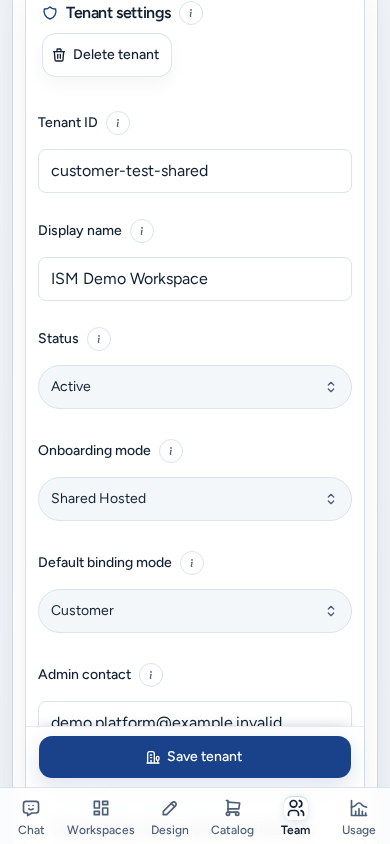
Tenant settings creates a tenant or edits the selected tenant’s profile. A new tenant starts in Draft status. Delete tenant is an operator-only destructive action. Target policies and bindings are managed on Targets, not here.
The (i) buttons on Tenants and Tenant settings link here.
Team onboarding
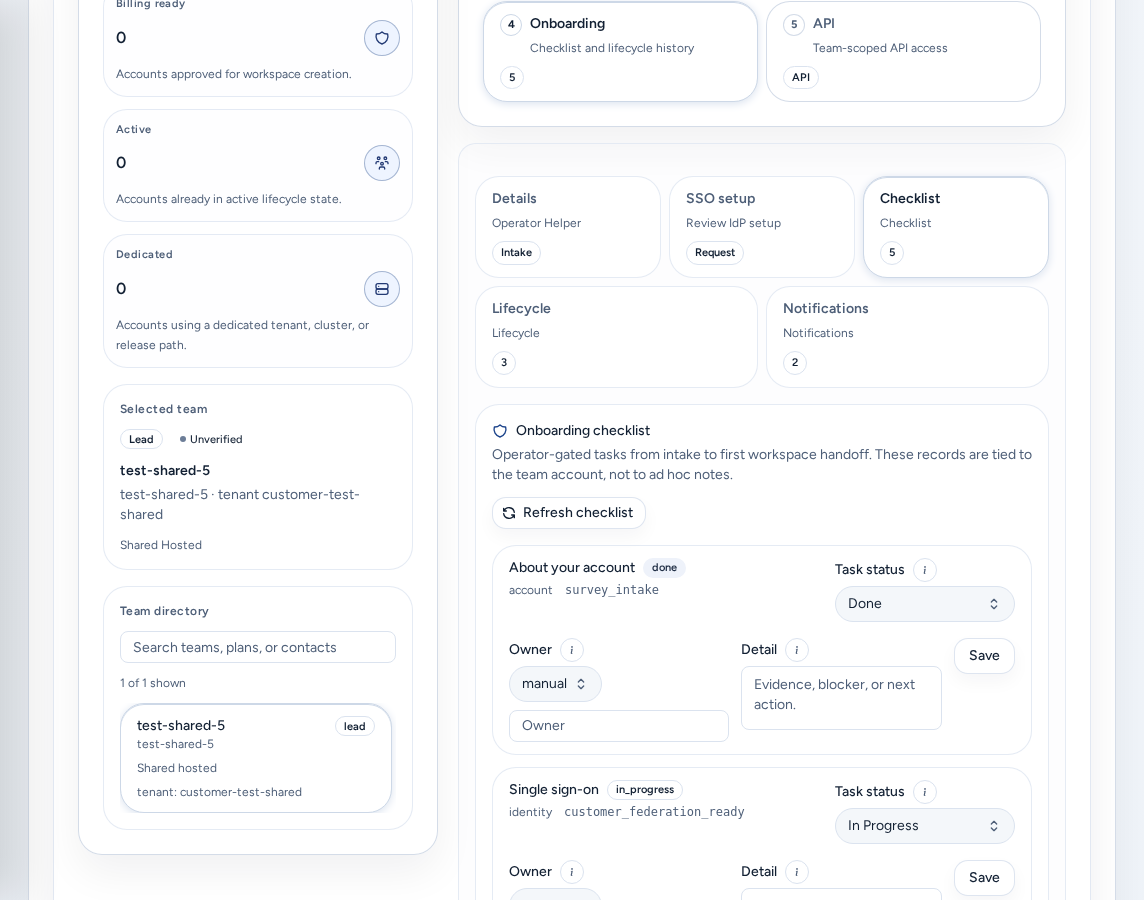
Open Teams, choose the team, then open Onboarding. Team onboarding tracks and records setup details for the team. Operators still decide on provisioning and completion.
- Details: account context and contacts.
- SSO setup: the team’s SSO setup request, covering protocol and domains, claims and groups, and callbacks and validation (see Submit and verify SSO). Review what the team submitted, or record it for them.
- Checklist: the shared launch record. Keep statuses and blockers current (Update launch tasks) so ISM and the team see the same state. Refresh checklist reloads it.
- Lifecycle: state history.
- Notifications: the notification history for the account.
If no tenant-admin membership exists yet, Draft tenant setup creates the tenant in Draft status and adds the current account as its first tenant admin.
Keep the two note types separate. ISM launch context can be seen by the team. Internal operator notes are ISM-only. Never put credentials, payment details, private keys or invitation links in either.
The Team-admin workspace panel on the overview lists the setup actions that team admins own: Submit SSO details, Update launch tasks, Invite your team and Watch workspace readiness.
Members and permissions
Members manages people across the selected tenant, or narrows the list to one team. Invite, change roles, disable and remove members there. Most people should be tenant members. Give tenant admin only to people who manage invites or onboarding. New-member access defaults for a team are also here (see Access roles).
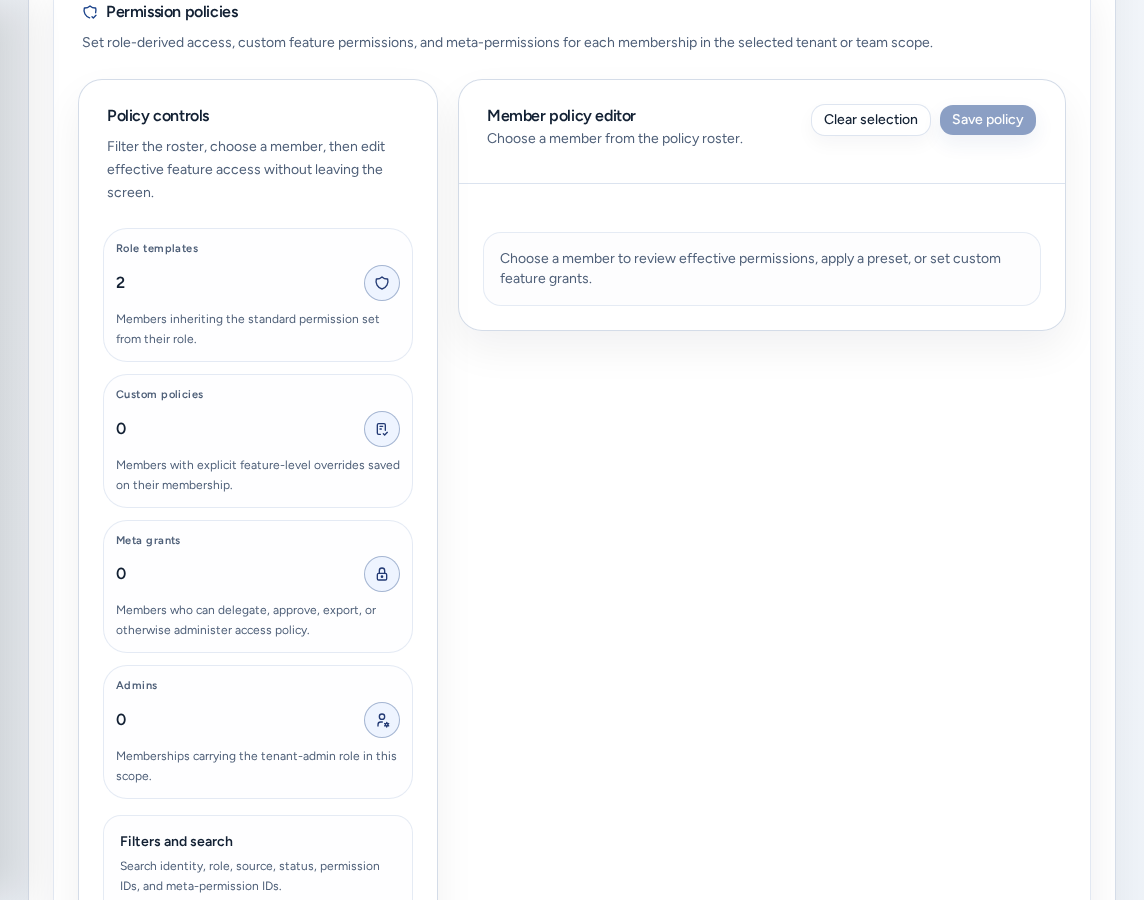
Permissions opens Permission policies:
- Narrow the list with Policy controls, then pick a member.
- In Member policy editor, choose the Policy mode: Role template (permissions follow the role) or Custom grants (saved on the membership).
- Start from a preset (Tenant admin, Workspace lead, Billing manager, Auditor), adjust the grants, then choose Save policy.
Grant meta-permissions, such as delegating roles or approving exceptions, only to people who administer access policy.
Workspace targets and defaults
Create can only place workspaces once a workspace target is attached. On Targets:
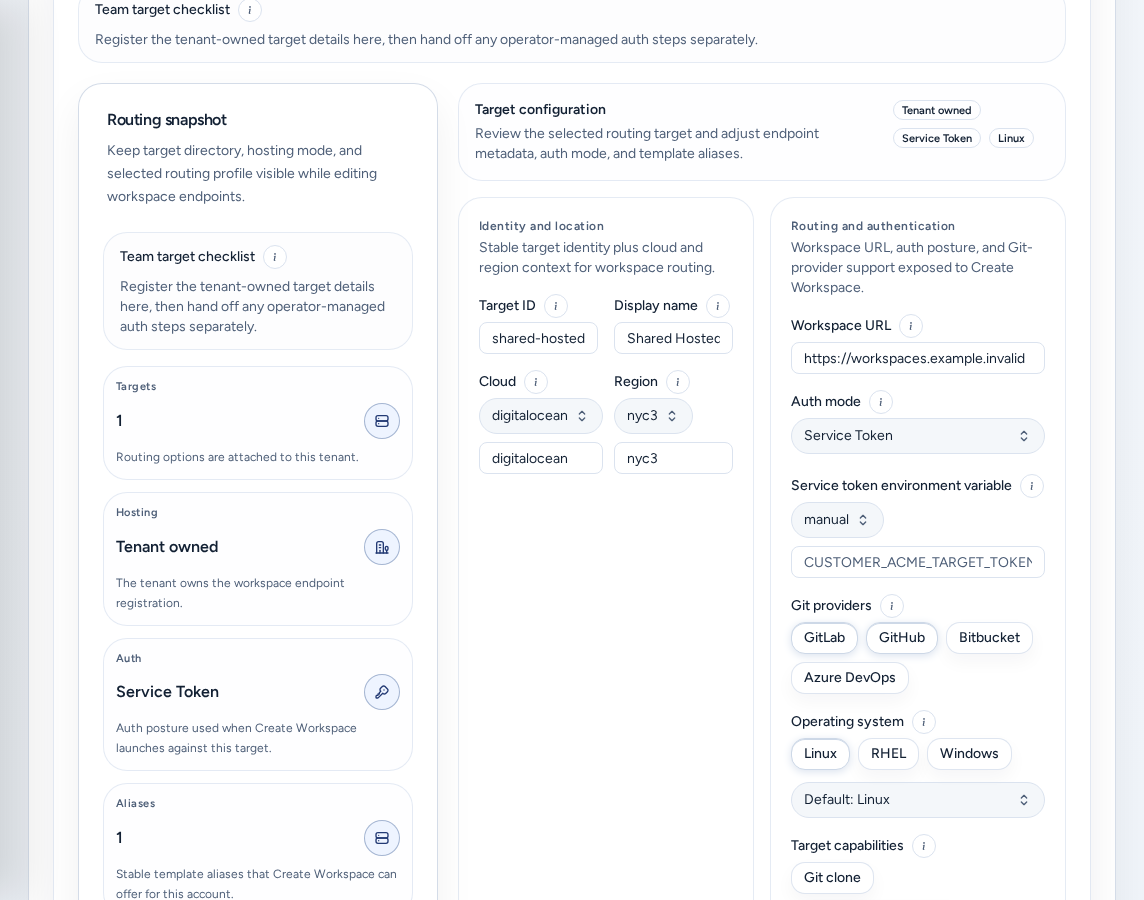
- Shared-hosted target checklist: ISM attaches the shared target for the tenant. Console records the workspace URL, auth mode, template aliases and supported Git providers. Team admins review readiness in Account Setup.
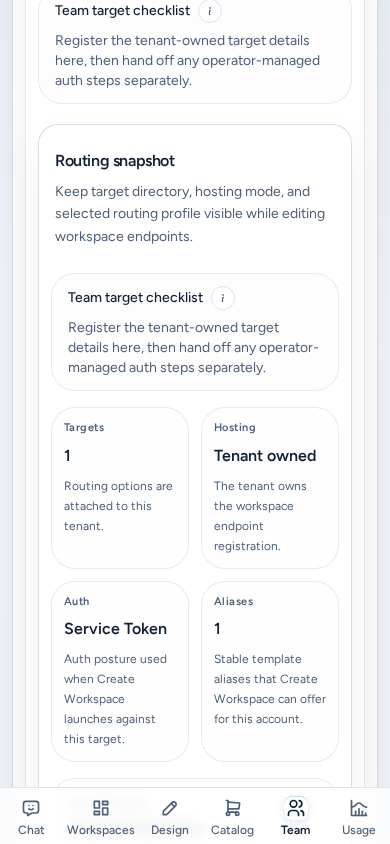
- Team target checklist (dedicated hosting): the team deploys its own control plane, exposes a stable HTTPS URL, and reuses shared OIDC or a compatible login. The target is then registered here.
- New target / Add target registers a target. Only platform operators and tenant-wide admins can change targets.
- Routing snapshot keeps the target directory, hosting mode and routing profile visible while you edit. It shows Hosting, Auth (the posture Create uses) and Aliases (the template names Create offers).
- Workspace defaults sets the values Create starts with for this team.
Service-token and other secret target fields stay operator-only.
Billing and pricing
On the team’s Billing tab, record the payment rail and mark the account trial-approved or verified before the team creates workspaces. Billing state is the gate for creating workspaces. Resource pricing policy overrides deployment defaults for one team’s Analytics and overage accounting. Start from Estimated pricing presets (Pilot, Team, Enterprise) or Start from deployment defaults, then Save policy. Stripe stays the record for invoices and payments. For support cases, see Billing Help.
On a phone
Access operations works on a phone:
- The sub-tabs and the team tabs become one row of compact tabs that scrolls sideways. The active tab stays in view, and the helper text under each tab is hidden.
- Cards are single-column, with their header actions stacked under the title. Metrics use two columns.
- Save team, Save tenant and Add target stay pinned to the bottom of the screen while their form is on screen.
- Member and permission pickers open as dialogs that fit the screen.
- Field help (i) buttons have full-size tap areas.
Troubleshooting
- You land on Account Setup or Account access: you aren’t a platform operator.
- Nothing to manage: “No tenants to manage yet.” Create one with New tenant, or check your platform role.
- “Target CRUD is limited to platform operators or tenant-wide admins.” Ask a platform operator.
- Analytics doesn’t know the team: sign in again through SSO and check the SSO access labels.
Related guides
Done When
- The selected tenant and team are correct before any change.
- Team-visible context and internal operator notes are kept in separate fields.
- A workspace target is attached before the team creates workspaces.
- Credentials, payment details, private keys and invitation links stay out of every field.