

Getting Started
Welcome to ArchiBot
Learn what ArchiBot Console is for, how first sign-in works, where you land, which guide covers each Console area, and what is safe to share.
Last updated
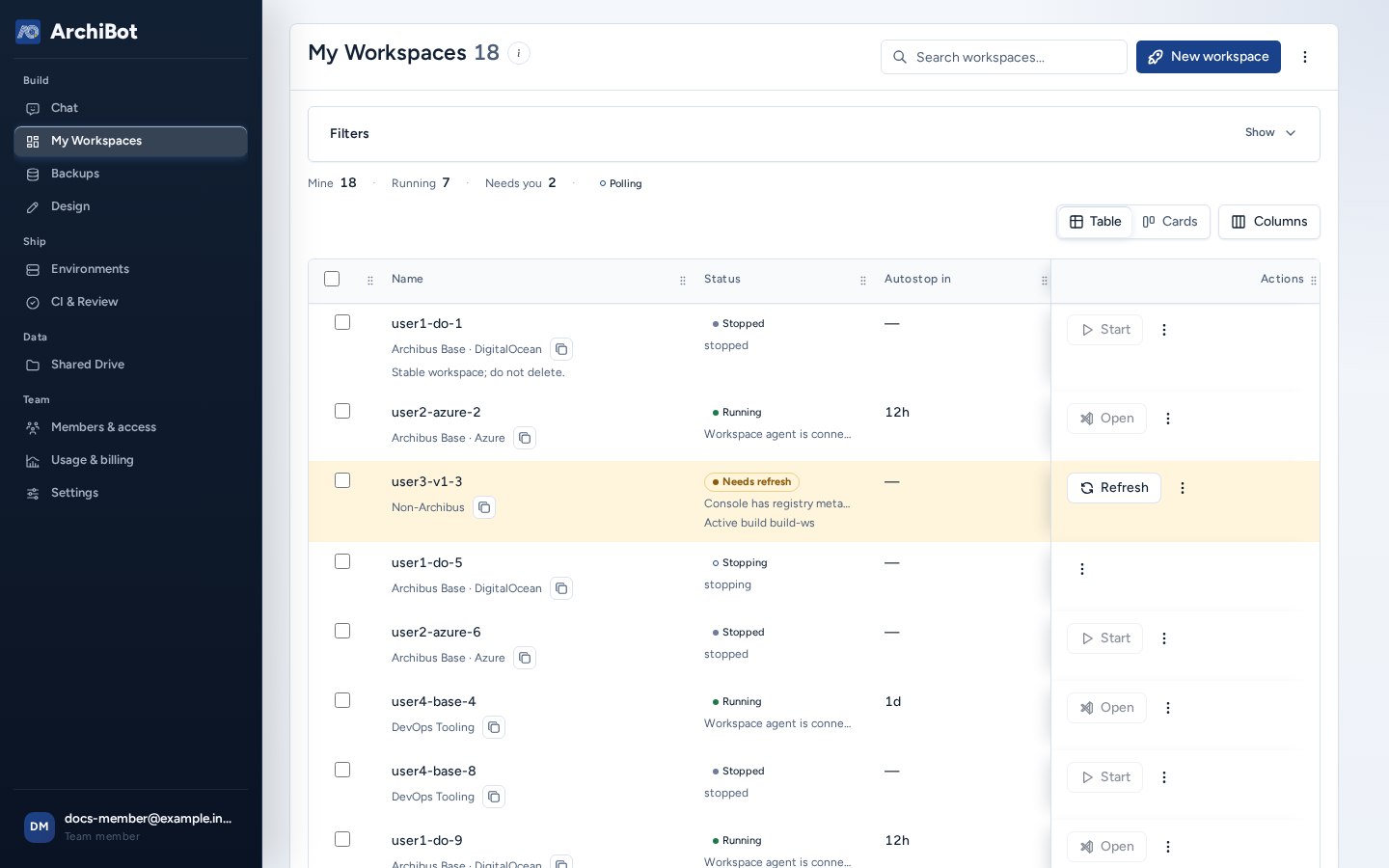
ArchiBot Console is where your team sets up its account, creates and opens ArchiBot workspaces, plans and reviews changes, shares files with ArchiBot, and follows usage and billing. Normal work never needs service tokens, cluster access or internal service addresses.
Sign in for the first time
- Open the Console address ISM gave you.
- Choose Sign in to Console, then your organization’s provider (often Login via IdP). New organizations choose Create a new organization, and invited people choose Accept an invitation.
- Sign in with your work identity.
Details and recovery steps: Sign-in, members and access roles.
Where you land
- Accounts that are set up for Chat with credits available open Chat.
- Everyone else lands on My Workspaces.
- A login that isn’t on a team yet goes to Account Setup (or, for operators, to Access) until setup is done.
Console areas and their guides
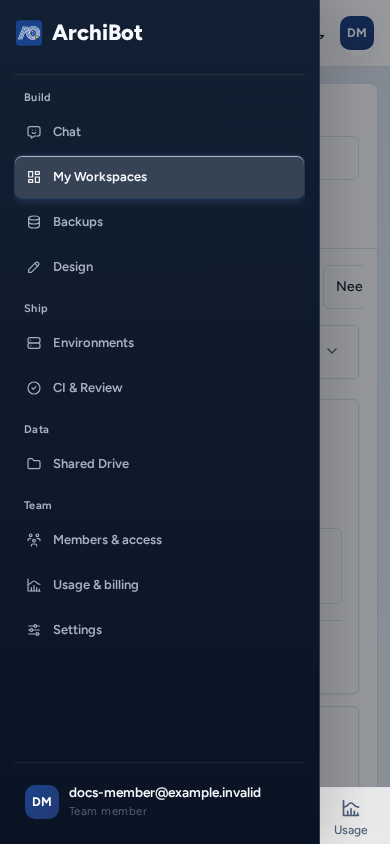
The navigation groups areas under Build, Ship, Data and Team, and only shows what your role can open.
| Area | Address | Who sees it | Guide |
|---|---|---|---|
| Chat | /chat | Everyone | ArchiBot Chat getting started |
| My Workspaces | /workspaces | Everyone with a team | Manage workspaces |
| New workspace (Create) | /create | Everyone with a team | Create a workspace |
| Opening a workspace link | /w/<id> | Anyone who can use that workspace | Open a workspace |
| Backups | /backups | Everyone with a team | Backups and restore sources |
| Design | /design | Everyone with a team | Design |
| Environments | /environments | Everyone with a team | Environments and CI & Review |
| CI & Review | /ci-review | Everyone with a team | Environments and CI & Review |
| Bots | /bots | Team admins, platform roles | Console Bots |
| Operations | /operations | Team admins, platform roles | Operations center |
| Shared Drive | /shared-drive | Everyone with a team | Shared Drive |
| Catalog | /catalog | Team admins, platform roles | Product Catalog |
| Members & access | /account, /account/access or /access | Everyone | Access roles, Customer admin setup, Tenant admin |
| Usage & billing | /analytics, /account/billing | Everyone with a team (billing: admins) | Usage and analytics, Billing |
| Settings | /settings | Everyone with a team | Settings |
| Workspace Help | /workspace-help | Team admins, platform roles | Workspace Help |
| Billing Help | /billing-help | Platform operators | Billing Help |
Workspace Help and Billing Help are not in the rail; open them by address. Help (i) buttons in Console have an Open documentation link to the matching section of these guides, in the language Console is set to. Pages that are not translated yet show English. Console sites used for testing link to the test copy of these docs.
The rail and its footer
The rail footer has the Console language selector, Feedback (Sending feedback), the theme toggle, Collapse navigation, your account chip and sign-out. The account chip shows the role Console is using: Team admin, Team member, Team viewer, Platform operator or Platform admin. Some operator accounts can View as a team role to preview what a team sees, and Stop preview ends it.
On a phone
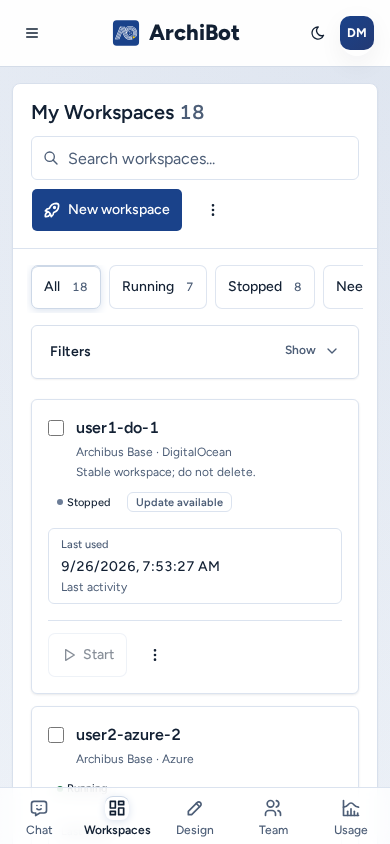
- A bottom bar replaces the rail. It shows Chat, Workspaces, Design, Catalog (admins), Team and Usage (or Billing), depending on your role. Expand navigation at the top opens the full navigation as a panel.
- Console areas work on a phone, including Settings and the Access admin pages. Wide tables become labelled cards or scroll sideways inside their own box, most dialogs open as full-width sheets from the bottom of the screen, and long forms keep their main button pinned to the bottom while the form is on screen.
- Each guide has an On a phone section for its area.
Safe information sharing
Share company contacts, repository locations, backup choices, non-secret identity-provider details, role expectations and visible Console error messages. Never share passwords, private keys, API keys, cookies, tokens, invitation links, webhook secrets, database URLs, payment details, cluster credentials, or screenshots that show them.
Quick recovery
| Symptom | First step | Next |
|---|---|---|
| An expected area is missing | Check your role on the account chip, then sign out and back in. | Access roles |
| An invitation fails | Sign in with the invited email address. | Access roles |
| Create is blocked | Read the Create Summary’s “N things left”. | Create a workspace |
| Anything else | Note the page, time and error text. | Troubleshooting |
Done When
- You can sign in through the expected identity provider.
- The navigation matches your role.
- You know which guide covers the Console area you need.