


Run Triage
Operations center
Use Operations to triage active CI, QA, bot and workspace work, review capacity alerts and, for operators, work the ArchiBot skill reviews queue.
Last updated
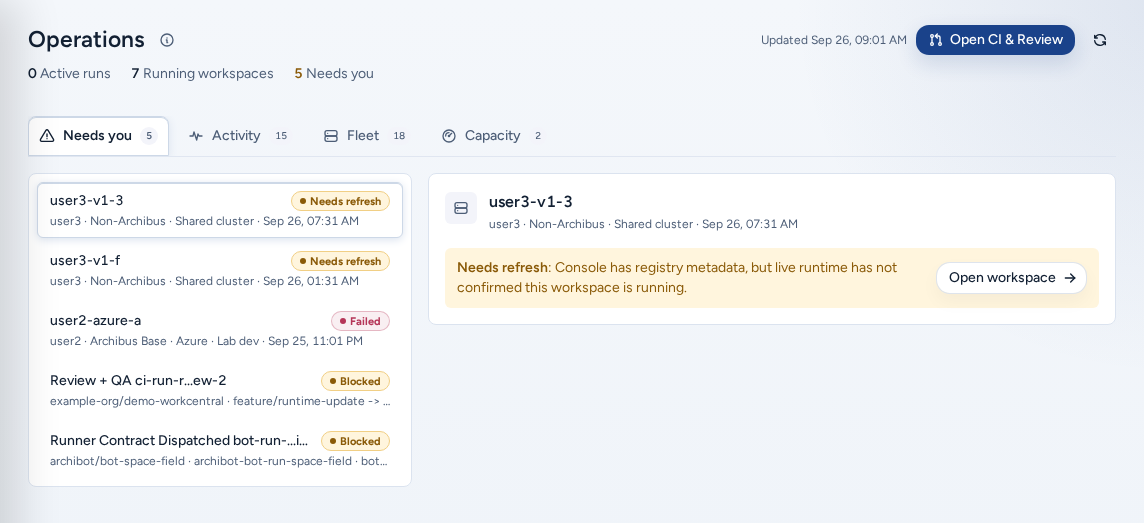
Operations (/operations) is for work that is already running: “Watch active review, QA, bot, and workspace work from one operations view.” Use it to find what needs attention, then open the page that owns each item. It’s under Ship in the navigation.
Who can see it
- Team admins see their team’s operations.
- Platform operators and platform admins see the teams they manage, plus Archibot skill reviews and DevOps chat.
- Everyone else sees Operations access required (“This run center is available to team admins and platform operators.”).
Layout
The header shows live counts and the last refresh time. Data refreshes on its own every few seconds, and Refresh reloads it immediately. The (i) next to the title explains the page and links here.
The inbox on the left lists counters for active runs, running workspaces and attention items, then the top items that need you, current capacity alerts, and workspace filter pills. Selecting a pill opens Fleet with that filter.
The views on the right:
| View | What it shows |
|---|---|
| Needs you | Blocked, failed or canceled runs and unhealthy workspaces. Run cards include Latest logs. |
| Archibot skill reviews | Operators only. Proposed skill edits in Active, Approved and Done buckets. |
| Activity | Recent CI and QA runs, Bot runs and workspace activity, with All as the combined feed. |
| Fleet | The full workspace list, with filter pills and search. |
| Capacity | Capacity alerts and their details. |
Team admins start on Needs you.
Triage
- Start with Needs you. Each card links to its owning page: Open run (CI & Review), Open bot run (Bots) or Open workspace (My Workspaces).
- Read Latest logs on a run card to judge severity. “No recent log lines are available for this run.” is normal early in a run.
- Make changes on the owning page. Operations only shows state.
Skill reviews (operators)
Pick a review to see Edit (the Proposed edit and Operator notes), Evidence and Validation. Then choose Save, Defer, Reject or Approve. Search skill corpus finds related skills.
Capacity
Check capacity before starting more CI, QA, bot or persistent-environment work.
| Alert | What to check |
|---|---|
| ”target is at capacity” / “target is unavailable” | Target availability and scheduling. |
| ”Shared Drive storage is unavailable” | The storage mount. |
| ”drive storage is filling up” | Drive quota use. |
| ”Shared Drive backup needs attention” | Backup freshness. |
Operators can queue sanitized notifications to team admins for current alerts. This runs as a dry run first and reports what would be sent. Only send notifications when ISM support asks.
On a phone
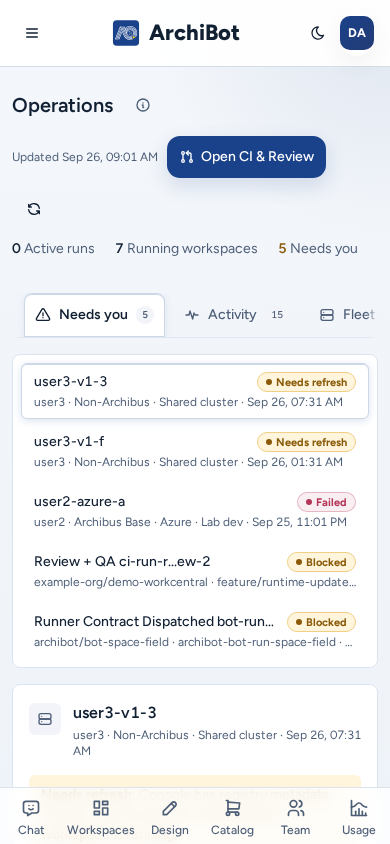
- The inbox and the selected view stack in a single column. The views scroll sideways as a tab row.
- Every button, pill and link has a full-size tap target.
- The (i) popover next to Operations fits the screen.
Troubleshooting
- “The workspace list did not confirm the selected team.” Choose Refresh, or pick the team again.
- “Recent logs could not be loaded.” Open the run in CI & Review for full evidence.
- Operations is missing: you need team admin or platform access.
For support, share the team, the run or workspace ID, the visible status, the time and timezone, and the sanitized alert text. Never share raw logs, credentials or tokens. See Support handoff.
Related guides
Done When
- Operations is in the navigation for your role.
- Needs you, Activity and Fleet match the selected team.
- Capacity alerts are reviewed before starting more long-running work.