

Permissions
Sign-in, members and access roles
Sign in with the right identity, read the Account access view, understand each Console role, and invite or approve team members.
Last updated
Console shows different areas to different people. What you see depends on your role and on the team (customer) and tenant you belong to. This page covers signing in, reading your access, the roles, and team membership.
Sign in
Which identity to use
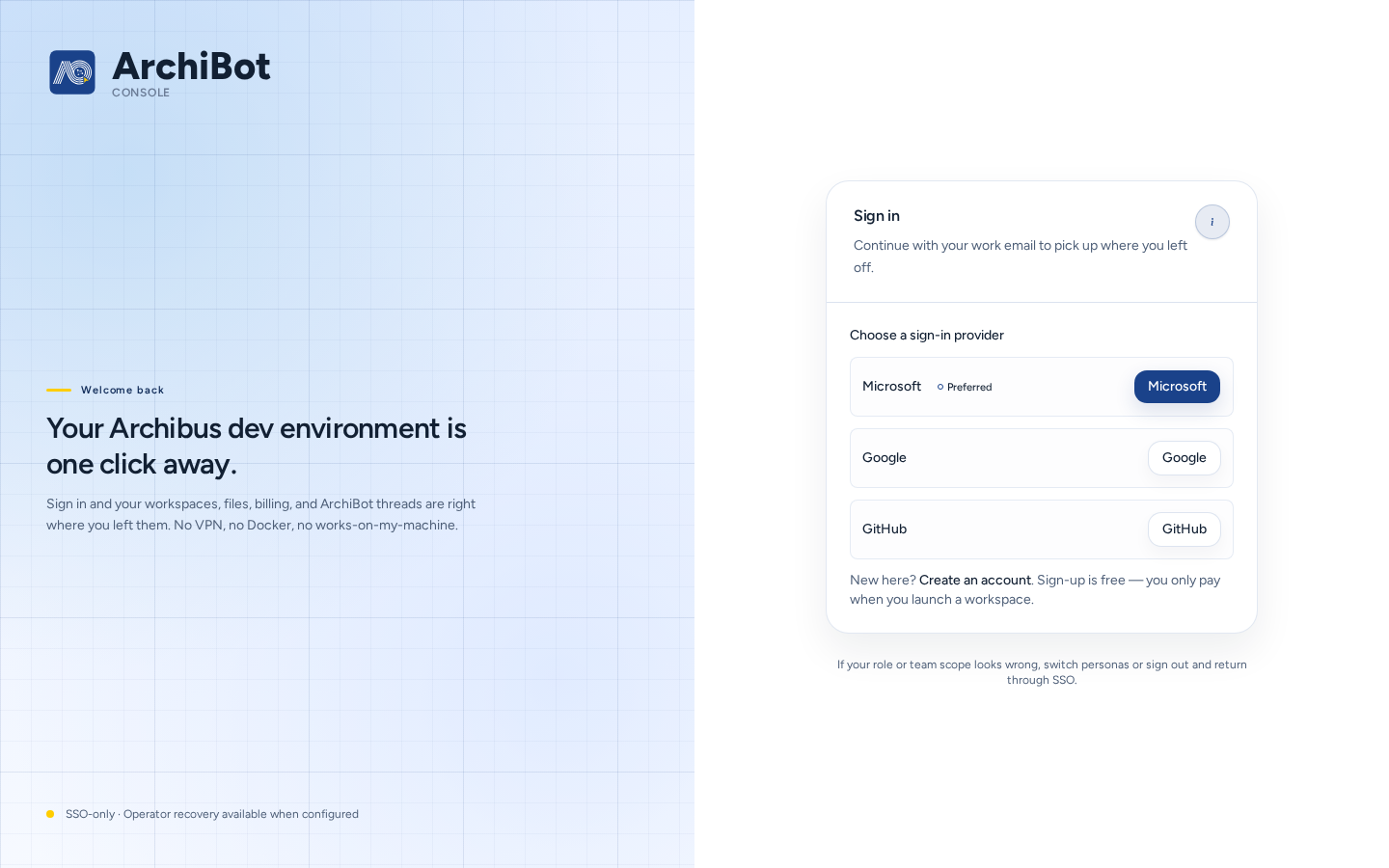
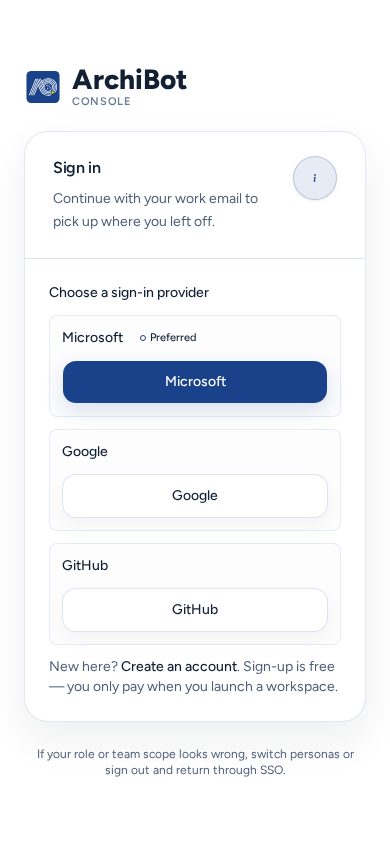
Open Console and choose Sign in to Console on the “How do you want to continue?” page, or go straight to Sign in (/login).
- Under Choose a sign-in provider, pick the provider your organization uses. Your organization’s main provider is usually marked Preferred, and older options are marked Legacy. Many organizations use Login via IdP (single sign-on).
- Sign in with your work identity, the one your team admin invited or your organization’s SSO manages.
- Console opens your workspaces, or account setup if your login isn’t linked to a team yet.
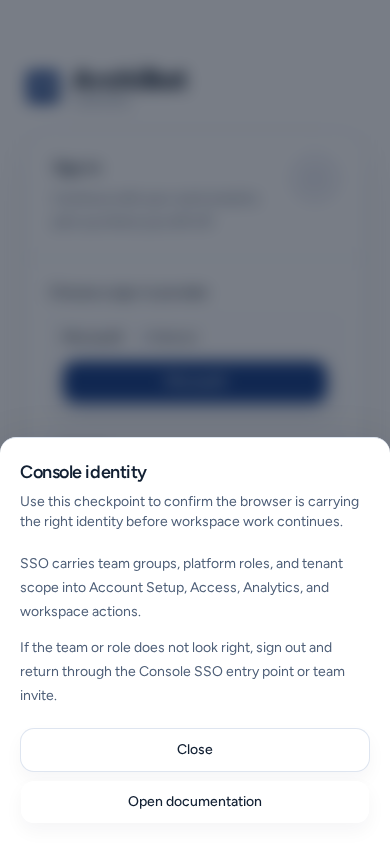
SSO carries your team groups, platform roles and tenant scope into Console. If your team or role looks wrong after sign-in, sign out and come back through the same SSO entry point or your team invitation. Console identity help (the (i) next to Sign in) explains this and links here.
Other choices on the sign-in page:
- Create an account starts a new organization. It doesn’t join an existing team. To join a team, use its invitation instead.
- Forgot password only applies to password logins. SSO passwords are managed by your identity provider.
- Operator recovery is only for when an ISM operator asks you to use it, where SSO is unavailable.
Your team admin decides whether your team uses SSO or email invitations. To set up SSO for your team, see Customer admin setup.
If sign-in fails
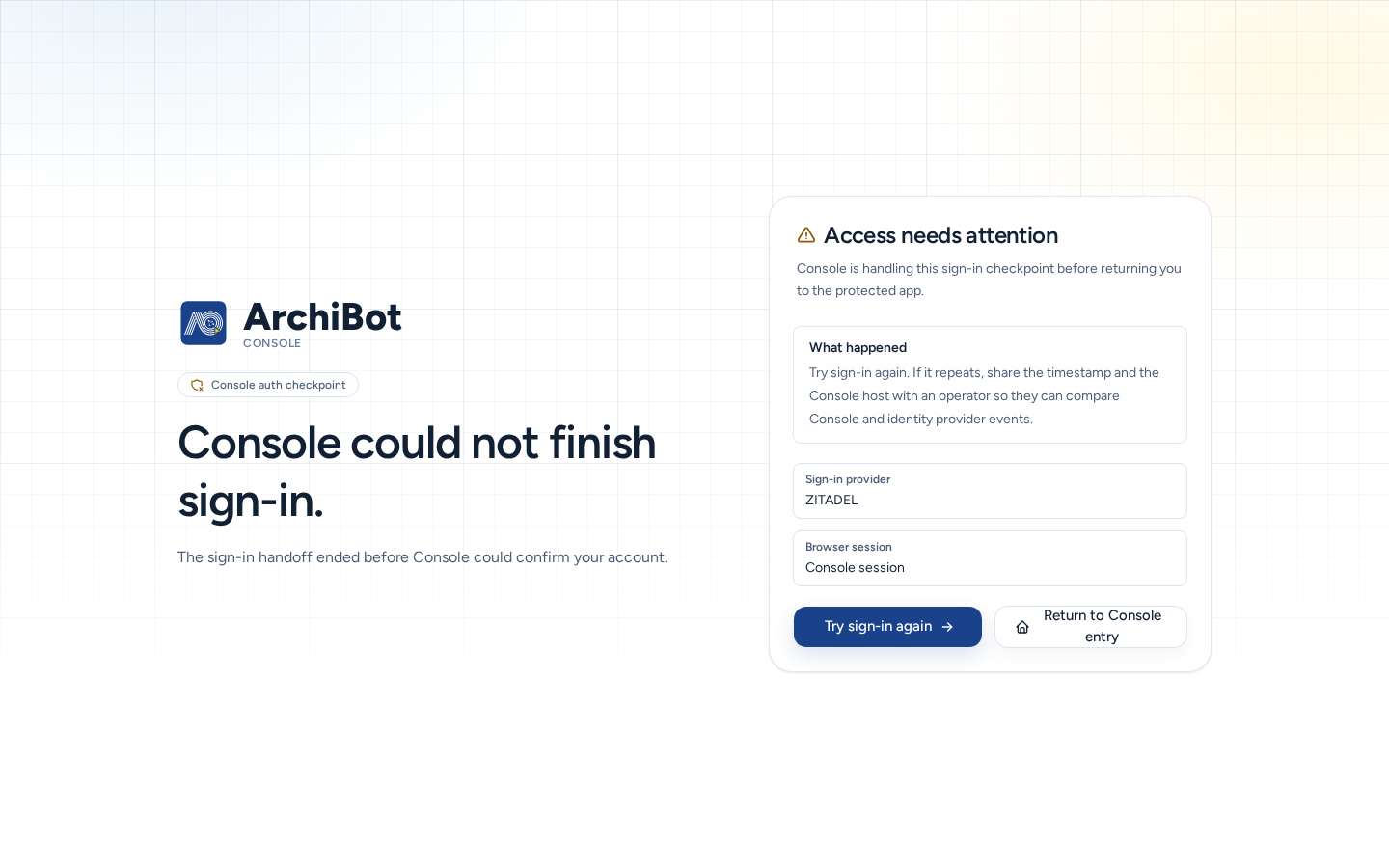
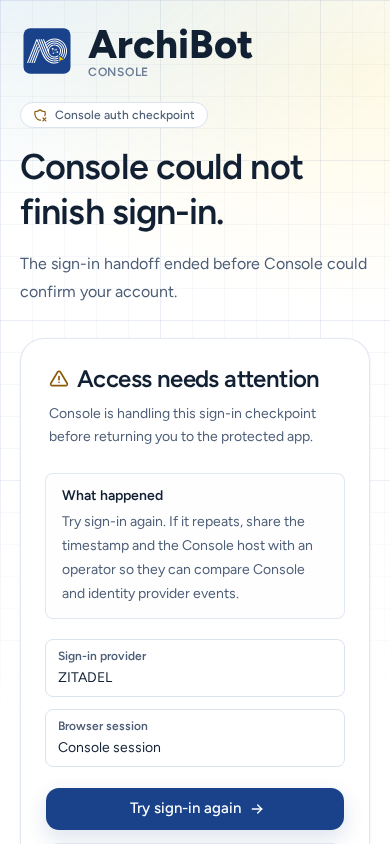
Console shows Access needs attention (/auth/error) with What happened and the options that fit the problem:
- Try sign-in again, or Choose another provider if you picked the wrong one.
- Use an already connected login, if your account has another linked login.
- Sign out and switch account, if the browser is signed in as someone else.
- Open invitation checkpoint, if you are accepting an invitation.
- Review account access, to see how Console sees you.
If it keeps failing, note the time, the page and the visible error text, and contact your team admin or support. Never send cookies, tokens or invitation links.
Read your access
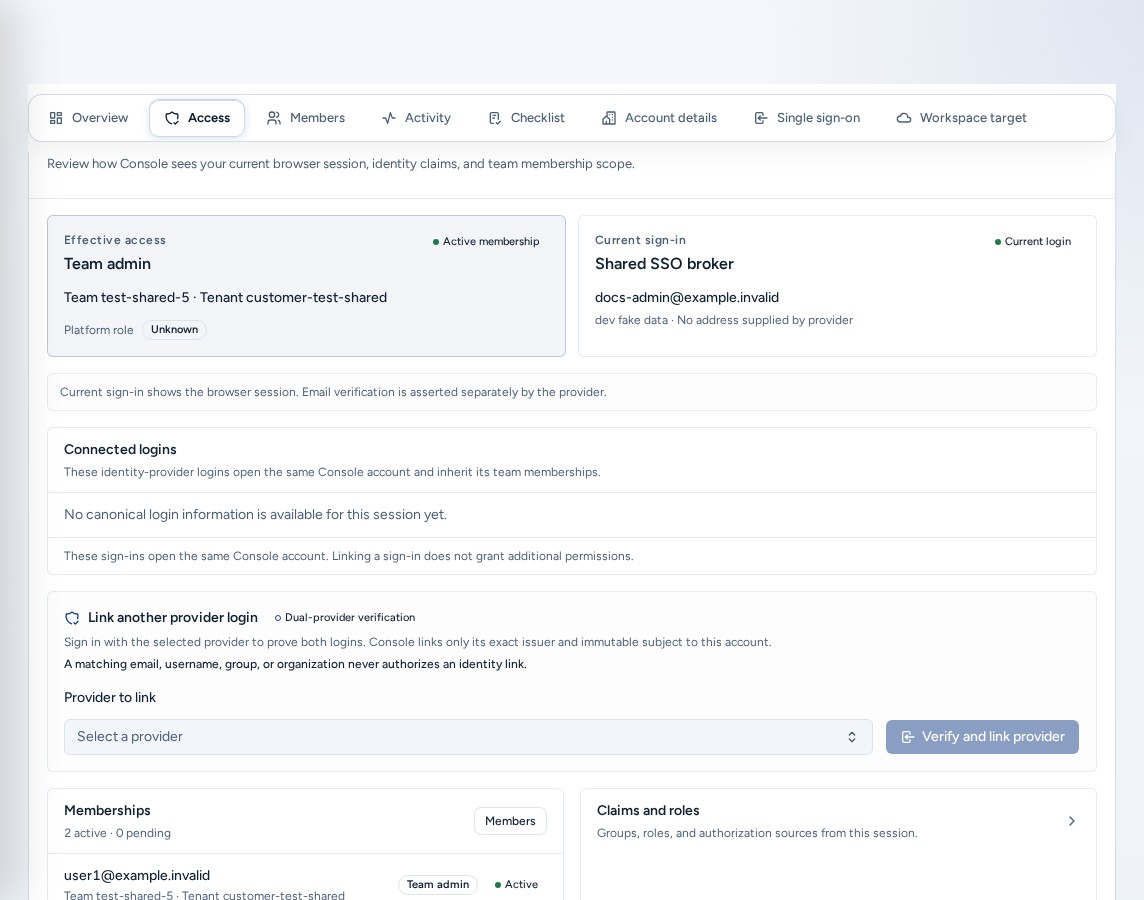
Members & access in the navigation opens your access view. Team members go to Account access (/account/access). Team admins go to Account setup, where Access is one of the sections. Platform operators go to the Access admin page.
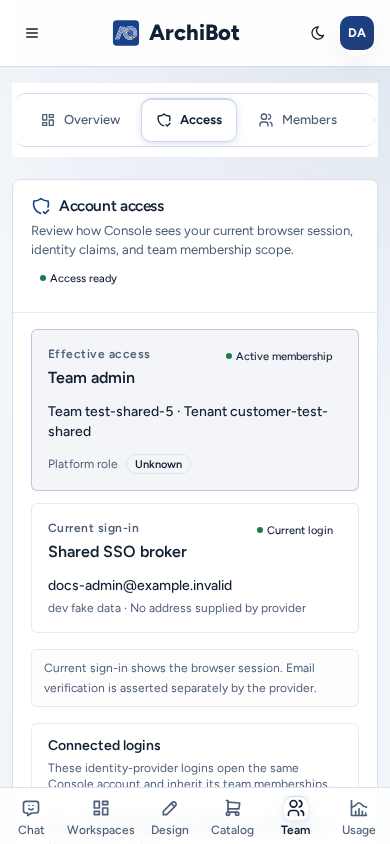
Account access is read-only. It shows how Console sees your session and never shows tokens, cookies or provider secrets.
- Access ready or Scope needed: whether at least one active membership is attached.
- Effective access: your platform role, if any, and whether you have an active membership.
- Current sign-in and Connected logins: the identity-provider logins that open this same Console account. Link another provider login → Verify and link provider lets you prove a second login (for example a second SSO provider). Linking never grants extra permissions, and a matching email alone never links accounts.
- Change password: shown when your identity provider supports it. It opens the provider’s page, and Console never stores your password.
- Claims and roles: the Groups, Roles and Provider that came with this session.
- Memberships: each team and tenant membership with its role and status (“N active · N pending”). Team admins also see a Members button here.
- Technical details: your Console account, login method IDs and setup status, for support.
Roles
| Role (as shown in Console) | Can do | Doesn’t see |
|---|---|---|
| Team member | Chat, workspaces, backups, Design, environments, CI & Review, Shared Drive, usage and Settings for the team. | Account setup, Catalog, Bots, Operations and platform admin pages. |
| Team viewer | Read-only visibility for support or audit. | Actions that change things. |
| Team admin | Everything a member can do, plus account setup, members, billing, Catalog, Bots, Operations and Workspace Help. | Other teams and platform-wide controls. |
| Platform operator | Onboard and support teams: the Access admin page, Billing Help, and every team they are assigned to. | Platform-admin-only controls. |
| Platform admin | Platform-wide settings and policy. | — |
Tenant roles map onto these: a Tenant admin “can manage account setup, invites, and team-scoped Console operations”, and a Tenant member “can use assigned Console and workspace surfaces without setup administration”.
A login that hasn’t joined a team yet only sees Chat and account setup.
Team members and invitations
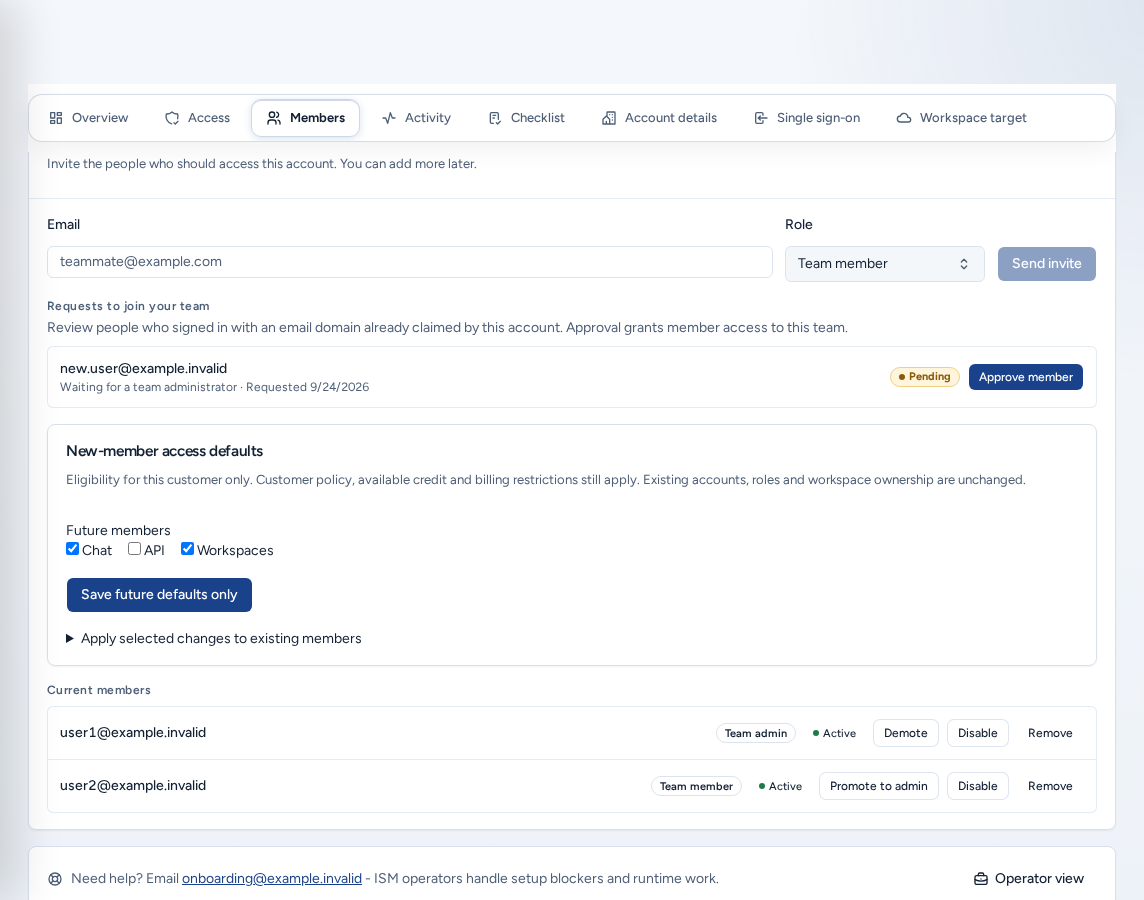
Invite a member (team admins)
- Open Members & access, then Members (
/account/members). - Enter the person’s work Email (for example
new.user@example.invalid), choose a Role (Team member or Team admin) and choose Send invite. - Console confirms “Invite sent to …”. The person appears under Current members as Invited until they accept.
Keep at least two admins so you always have a backup. To take someone off the team, choose Remove on their row.
Requests to join your team lists people who signed in with an email domain your account has claimed. Approving grants member access. A matching domain on its own never grants access.
New-member access defaults chooses whether future members may use Chat, API and Workspaces. You can also apply changes to selected existing members. Use Preview selected changes, then Confirm selected members and changes, or Save future defaults only.
Platform operators manage members for any tenant or team from the Access admin page. See Tenant admin for operators.
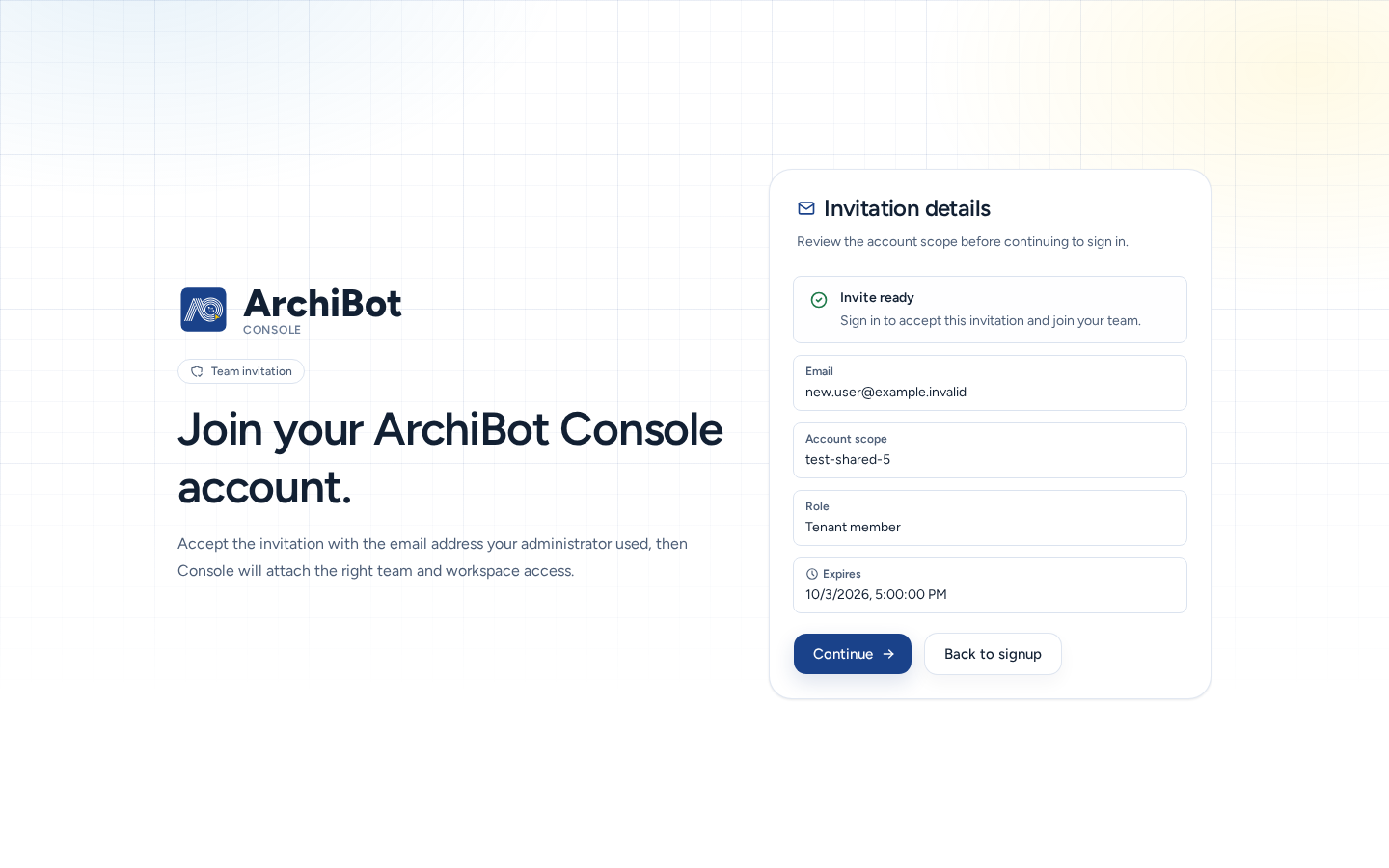
Accept an invitation
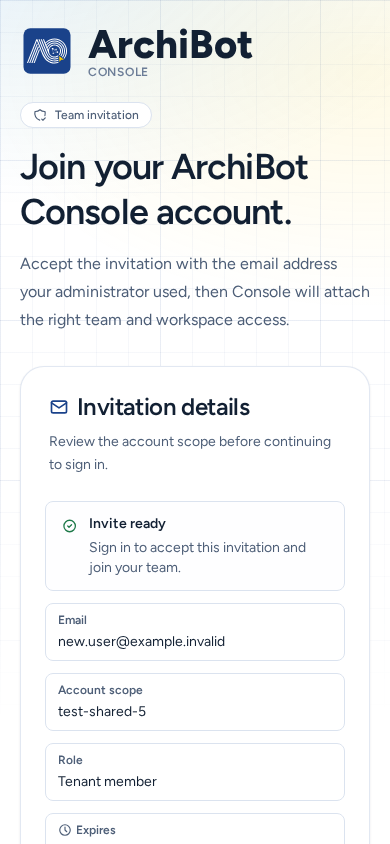
- Open the invitation. The Team invitation page shows Invitation details: Email, Account scope, Role and Expires.
- Choose Continue and sign in with the email address the invitation was sent to.
- Console attaches your team and workspace access.
If the page says “This invitation could not be loaded”, ask your admin to send a new invitation rather than forwarding the old link.
Signed in, but no team yet
If your email domain belongs to an existing organization, Console offers Request team access. The request stays pending (“Your access request is pending”) until a team admin approves it. You don’t need to sign up again. Choose Check again after you hear back.
On a phone
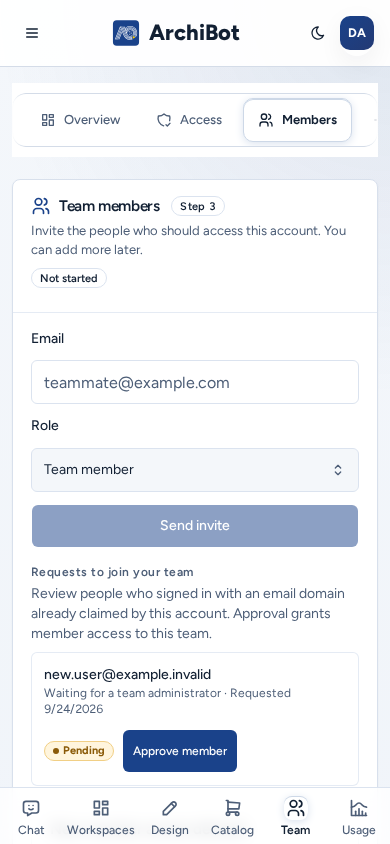
- The sign-in, invitation and sign-in error pages fit the phone with full-size buttons.
- Account access is a single column.
- In Members, the invite form and member actions have full-size tap targets, and select lists fit the screen.
- Platform operators can manage members on the Access admin page on a phone too. See Tenant admin for operators.
Troubleshooting
- A page or menu item is missing: check Account access. Scope needed or “No membership records are attached to this identity yet.” means you aren’t on a team yet. Ask a team admin.
- Your role looks wrong: sign out and back in, because groups and roles are read at sign-in. If it’s still wrong, ask a team admin to check Members.
- The invitation doesn’t work: sign in with the invited email address. Expired invitations need a new invite.
- Sign-in keeps failing: follow If sign-in fails, then contact support with the time and error text.
Related guides
Done When
- You signed in with the identity your team uses.
- Account access shows Access ready and the team you expect.
- New members get the narrowest role that fits.