


Common Fixes
Troubleshooting
Triage sign-in, setup, Git, workspace creation, launch, logs, update, billing-readiness and phone issues from the Console workspace surfaces.
Last updated
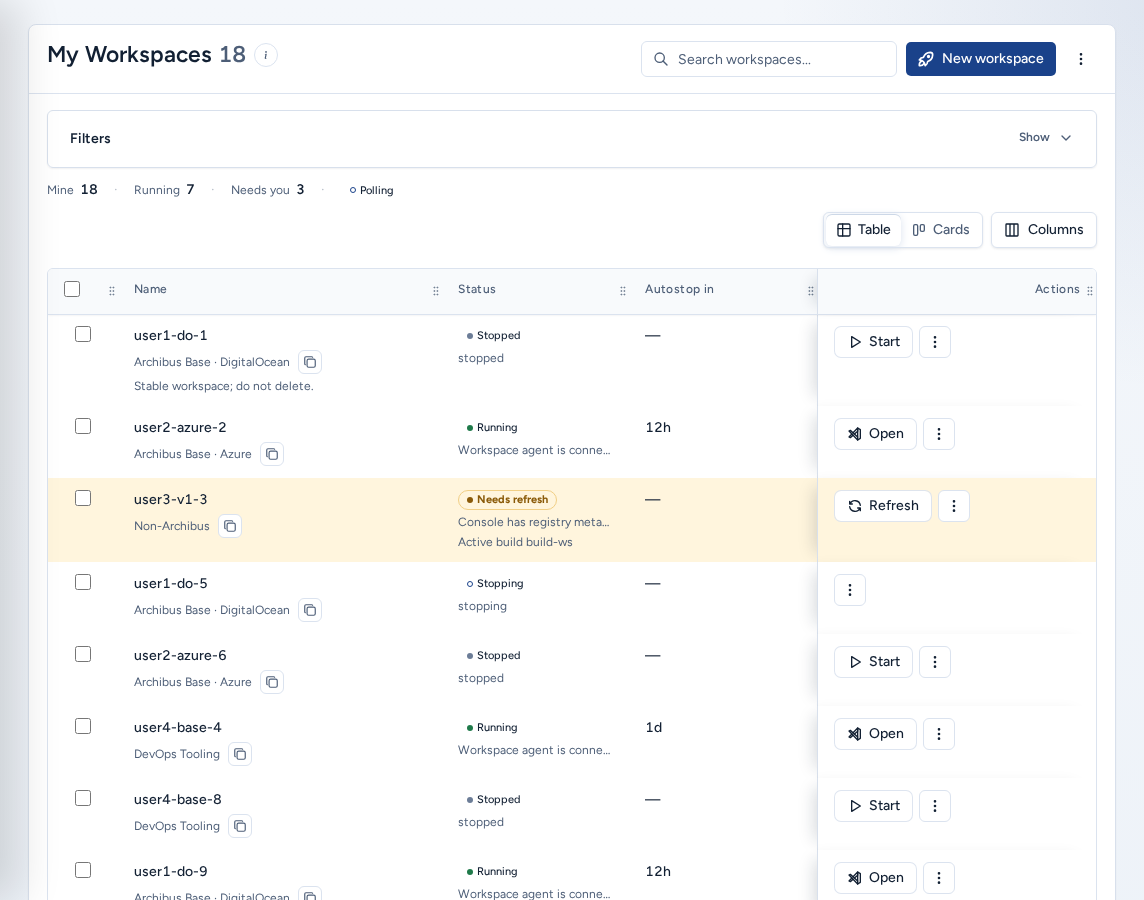
Most workspace problems show their cause right in Console: a status pill, a blocker message, or the build and runtime logs. This guide walks the triage order — read the signal first, then take the matching action — and points you to the dialogs that carry the detail you will need when you escalate.
If you are reporting a Console workspace problem, start with the workspace Support dialog and the Logs view described below before you open a support case. They give you the exact status, build id, and agent readiness to include in the handoff.
Read the workspace status first
Open My Workspaces from the left navigation. Each row shows a status pill —
Running, Stopped, Dormant, an active build, or an attention state such as
Unhealthy. The header above the grid also surfaces how many workspaces need
attention in the current view, so you can spot trouble before you scroll.
Each row carries inline actions on the right: start, stop, the Connect menu, Logs, and the overflow menu (Open workspace actions) with update, edit schedule, and delete. Which actions are enabled depends on the workspace state and your role. Use the status pill to choose the right next section below.
For the full meaning of each state and action, see Manage workspaces.
Open the Support dialog for a workspace
The Support dialog is the primary triage surface for a single workspace. It gathers health checks, runtime agent readiness, storage and Shared Drive posture, managed-access references, and recent usage in one place.
- Find the workspace in My Workspaces.
- Open the row’s overflow menu (Open workspace actions).
- Choose Support.
- Review the Health checks, Runtime agents, Storage, and Workspace integrations sections.
- Use Runtime logs or Build logs from the dialog to open the matching log stream.
If you do not see Support for a workspace, ask a team admin to open it for the affected workspace. Support details are scoped: only people with access to a workspace can see them, and managed-access references stay protected — no secret values are shown.
When you escalate, include the workspace name, the visible health signal, and
the agent-ready count (for example 1 / 1 ready). Do not include session
tokens, cookies, or private prompts.
Read workspace logs
Logs are the fastest way to see why a workspace failed to start, stalled during provisioning, or behaved unexpectedly after launch.
- Open the Logs action on the workspace row, or use Runtime logs / Build logs from the Support dialog.
- While a workspace is provisioning, Console shows the Build log. It switches to the main Agent tail runtime stream as soon as it is available.
- Use Refresh now to reload, and Download logs to save the current stream as text.
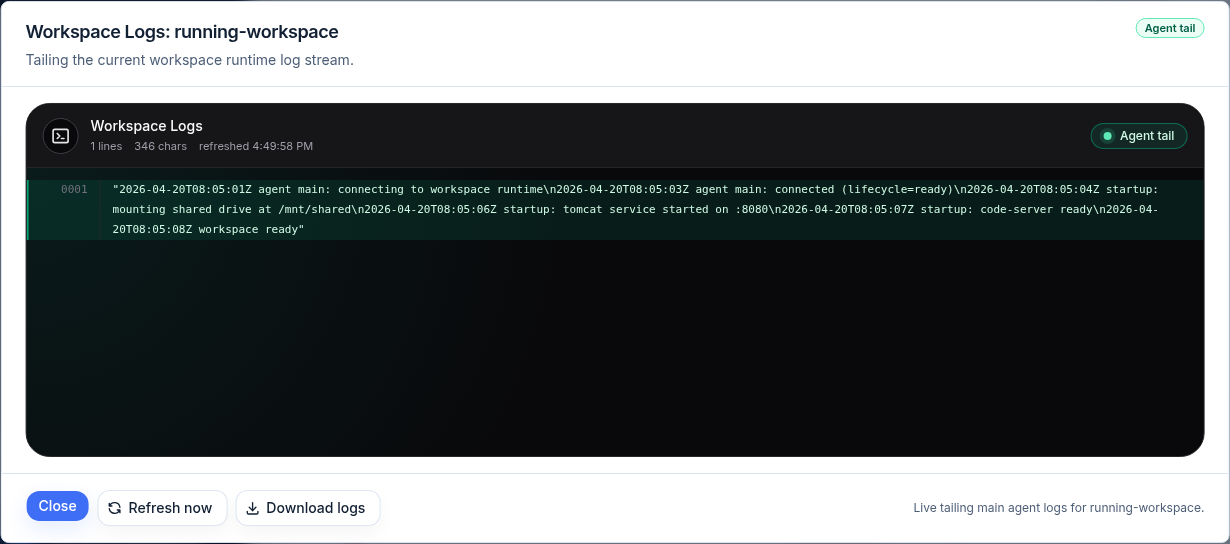
The footer confirms what is being tailed (for example, “Live tailing main agent logs for your workspace”). When you attach logs to a support case, download the text rather than pasting screenshots, and do not include tokens or cookies.
Create asks you to set up Git
If Create shows Set up Git to create a workspace, none of your Git connections are usable. Choose Set up Git, connect GitLab, GitHub, Bitbucket or Azure DevOps in Settings → Git Access, then choose Return. If you only need a packaged WebCentral baseline, turn on Create from a WAR file instead. If you clone with an SSH key or a token for this workspace only, choose Use an SSH key or a one-time token for this workspace. See Create a workspace.
Create Workspace is blocked
The Create Summary lists what is left (“N things left: …”) before it lets you create. Read it, resolve it, and only then retry. Common blockers:
| Blocker | Who resolves it |
|---|---|
| Missing billing approval | Team admin or ISM billing |
| Not enough ArchiBot Credits | Team admin (Product Catalog) |
| Missing operator-managed target or template aliases | ISM support |
| Incomplete SSO setup | Team admin |
| Unavailable template alias | ISM support |
| Failed workspace user provisioning | ISM support |
Team members should escalate billing and setup blockers to a team admin. For target, alias, or provisioning blockers, escalate to ISM support. See Create the first workspace and Catalog and readiness for the upstream setup that clears these.
Create fails after provisioning starts
If a build starts and then fails, do not manually delete storage. Open the Logs view in Build mode to read the failure, then ask a team admin or operator to decide whether to retry, cancel, stop, or delete through Console. Manual runtime cleanup is an operator fallback, not the normal customer path.
A build is stuck and blocks other actions
Start, Stop, Update, and Delete cannot run while a build is active. If a workspace is stuck building, cancel the active build so another action can run.
- Open the workspace row’s overflow menu.
- Choose Cancel build.
- In the Cancel active build dialog, confirm with Cancel build, or keep it running with Keep build running.
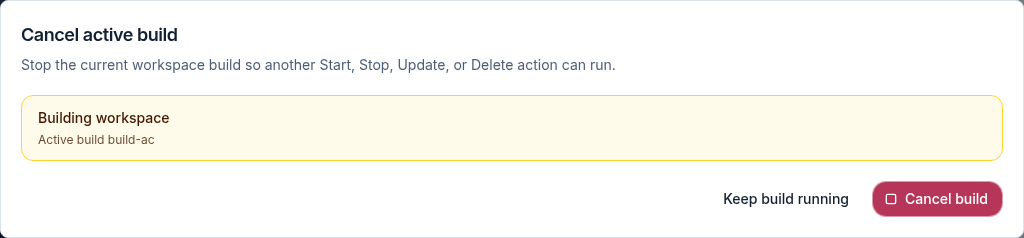
The dialog names the active build so you can confirm you are cancelling the right one. After it cancels, the row’s other actions become available again.
Update review shows extra parameters
When you update a workspace, the active template usually preserves your saved parameters. If it cannot, Console opens an update review so you can confirm the proposed values before the build starts.
- From the row’s overflow menu, choose Update.
- If a review is needed, Console shows Review parameters with the Update reasons and, under Update requirements, only the values it could not resolve on its own. Otherwise the update starts straight away.
- Confirm the values, then choose Run update. Console validates server-side before starting the build.
- Use Close update review to back out without starting an update.
Update can refresh saved workspace credentials during the build without exposing any secret values. After Run update, the status updates automatically — open Logs to watch the build.
A workspace went dormant
Workspaces can be marked dormant by the customer account’s dormancy policy after
a period of inactivity. A dormant workspace shows a Dormant pill and its row
offers an activate action. Starting it brings it back.
Dormancy and cleanup policy itself — mark-dormant and delete-dormant windows — is managed by platform operators and lives under the customer plan. Customer admins and members do not apply dormancy policy; if a workspace was cleaned up unexpectedly, escalate to ISM support with the workspace name and the date it disappeared.
Workspace launch opens the wrong place
Use the row’s Connect menu to launch. Browser opens the in-browser editor through the public workspace URL, Archibot Desktop, Coder Remote (legacy) and JetBrains Gateway use editor deep links, and Logs shows the Console-side startup stream. Windows workspaces add a Remote Desktop option through a private tunnel.
If a launch action opens an internal service address or a browser-unreachable location, report it with the workspace name, the launch option you chose (Browser, Archibot Desktop, JetBrains Gateway, or Remote Desktop), and the visible URL host. Do not include session tokens or cookies.
ArchiBot tooling looks stale in a running workspace
Running workspaces keep the ArchiBot tooling and editor extensions from the image they started with. If a workspace is missing a recently announced ArchiBot behavior, editor change, or tooling update, run the supported Update path (above) or create a fresh workspace.
For support, include the workspace name and which client is affected (Browser, Archibot Desktop, or JetBrains Gateway). Do not include session logs, cookies, tokens, or private prompts. See Workspace ArchiBot and Shared Drive for what the in-workspace assistant can reach.
ArchiBot cannot use workspace tools
Tool use depends on the workspace profile, connected services, and available credentials. If ArchiBot answers without using tools when tools should be available, retry with a direct request such as “search the workspace for…” or “run a SQL count for…”, and include the visible request or session id if you escalate.
If OneDrive is involved, confirm the connection in Console before retrying — OneDrive access is owned by the workspace user, and the Support dialog notes when a reconnect is needed. If Shared Drive is involved, confirm the drive is visible and that your request references the folder or file area you want ArchiBot to use.
Can I use a personal secondary-AI login in an ArchiBot workspace?
Not through Console-managed workspace setup. ArchiBot-managed workspaces do not store, copy, or route personal provider account-login files through the workspace harness, and managed secondary-AI options are not exposed as customer-facing setup choices.
If you need another provider-specific assistant today, use that provider’s official CLI in your own workspace shell and log in there directly, outside the ArchiBot-managed credential flow. This keeps customer billing attribution separate from personal provider subscriptions and avoids uploading account-login payloads from your home directory or shell environment.
For ArchiBot-style pair programming, use the managed ArchiBot entrypoint in the workspace. Personal provider logins stay separate and do not change billing attribution.
Missing Account Setup or Analytics navigation
Sign out and sign in again. If the expected navigation is still missing, the account may not be mapped to the team admin role. Escalate with the user email, company or customer account, expected role, the navigation items you do see, and the approximate sign-in time. See Access roles for what each role can reach.
Team member cannot see credit amounts in Analytics
That is expected. Team members see usage without credit amounts, and the Members and Credit caps tabs belong to team admins and platform operators. Ask a team admin for a team-level review. See Usage and analytics.
Analytics looks empty
Check, in order:
- The selected team.
- The selected period.
- Reconciliation status.
- Whether the workspace was running during the period.
- Whether provider usage is still delayed.
If the period is correct and usage is still missing, send support the selected period and the visible reconciliation status.
Invite lands on access denied
- Sign out of the identity provider.
- Reopen the invite.
- Complete the invite acceptance flow.
- Open Console directly after acceptance.
If the invite was already consumed or expired, ask a team admin or operator to reissue it. Do not paste the invite link into support chat.
A workspace link shows an error
Links of the form /w/<workspace-id> show Opening Workspace, then redirect.
If they show an error with Retry and Back to Workspaces, the workspace is
usually stopped, deleted, or not yours to open. Start it in My Workspaces, then
choose Retry. See Open a workspace.
Something is hard to use on a phone
Console areas work on phones: wide tables become labelled cards or scroll sideways inside their own box, most dialogs open as sheets from the bottom of the screen, and long forms pin their main button to the bottom. If a control is still hard to reach, note the page, the phone model and browser, and what you tapped, and send it with Feedback. Chat-based pages such as Billing Help keep their own layout.
Account Setup, Workspace target shows Waiting on ISM
For shared-hosted tenants, Workspace target is a review-only page. Team admins confirm the operator-managed target and template-alias readiness there, but do not register or edit target credentials themselves.
If it still shows Waiting on ISM, send support the customer or tenant name,
whether Workspace target is empty or shows a non-ready target, and any visible
template-alias or readiness message. See Customer admin
setup.
Still stuck
Collect the workspace name, the visible status and any blocker message, the build id from the Support dialog, and a downloaded log file. Then open a case with the detail in Support handoff. Keep secrets, tokens, cookies, and private prompts out of anything you attach.
Done When
- You read the blocker or status message before retrying.
- You signed out and back in after any role change.
- Team members escalated setup and billing blockers to a team admin.
- Team admins escalated target, runtime, SSO, or billing review blockers to ISM support.