


Your Preferences
Console settings and accessibility
Use Settings for your ArchiBot account (setup, Git access, integrations, API keys, CI and review, support, activity, billing, spending caps) and for this browser's language and appearance.
Last updated
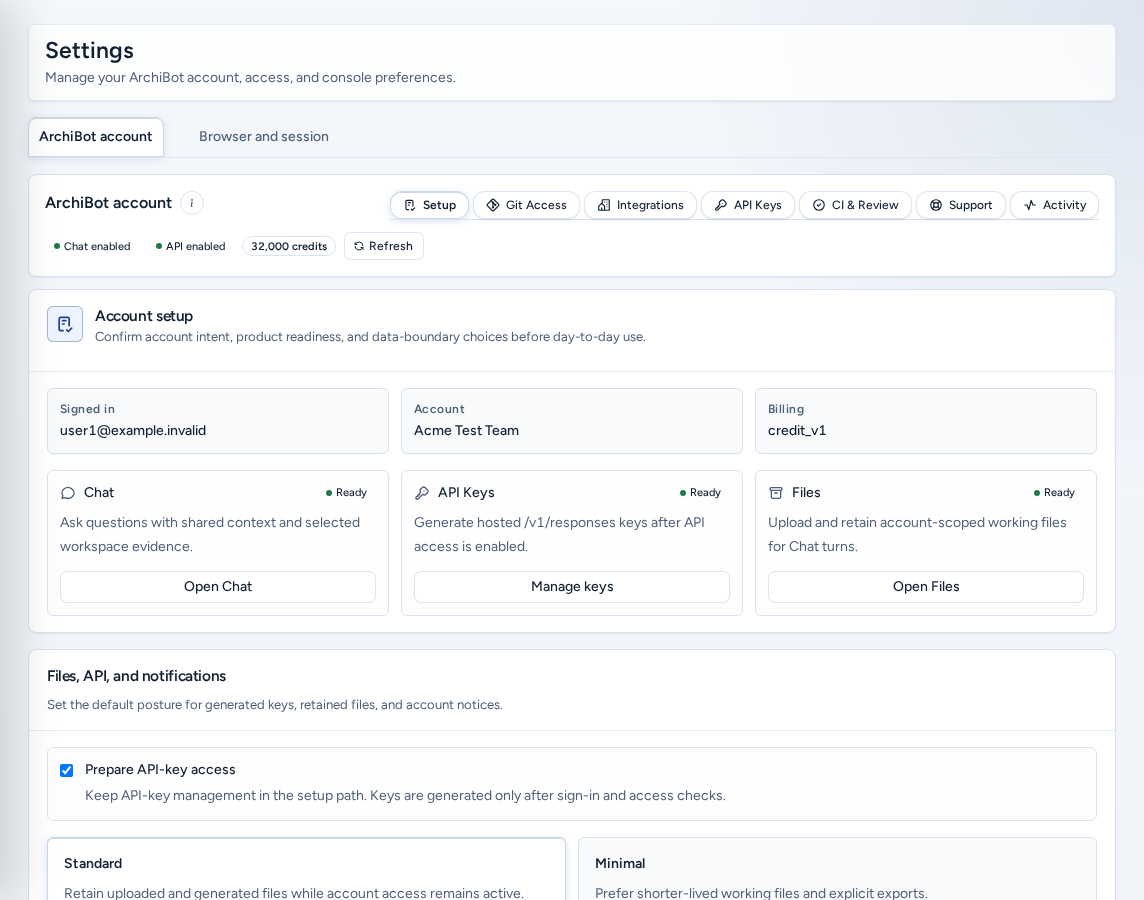
Settings (/settings) is your own home for ArchiBot account tools and for how Console looks in this browser. It never changes anyone else’s preferences. Open it from Settings in the navigation.
Who can see it
Everyone with a team can open Settings. Billing and Spending caps only appear for team admins and platform roles. Everyone else sees the other seven sections. A login that hasn’t joined a team yet finishes account setup first.
Settings has two tabs, ArchiBot account (the default) and Browser and session.
ArchiBot account tab
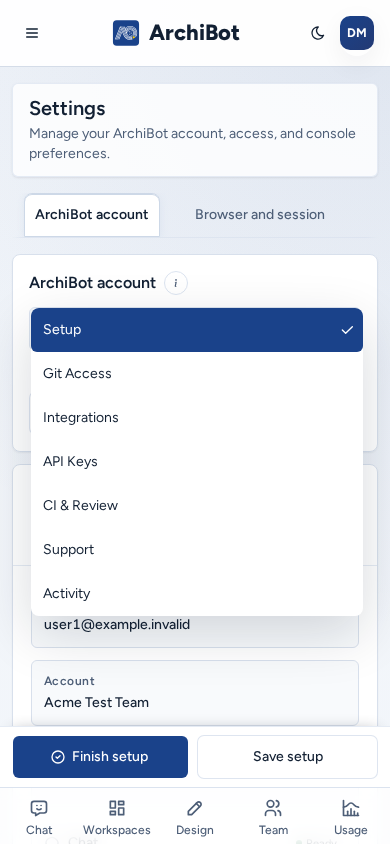
“API access, support, activity, and billing live here instead of inside the Chat workspace.” Choose a section with the pills at the top. Every section has its own address, /settings?view=<section>, which Console uses when it sends you here from another page.
| Section | Address | What it does |
|---|---|---|
| Setup | view=setup | Confirms account intent, readiness and data-boundary choices, with Finish setup and Save setup. |
| Git Access | view=git-access | Connects Git providers for repositories, workspaces and CI. |
| Integrations | view=integrations | Reusable connections: ArchiBot AI, OneDrive, Shared Drive, Linear, Jira. |
| API Keys | view=api-keys | Keys for the public ArchiBot API outside managed workspaces. |
| CI & Review | view=ci-review | A summary of CI and review, with Open CI & Review. |
| Support | view=support | Send a support request from Console. |
| Activity | view=activity | Account activity, with export. |
| Billing | view=billing | The team’s ArchiBot Credits wallet. Admins only. |
| Spending caps | view=spending-caps | Monthly caps per service. Admins only. |
(i) ArchiBot account explains this tab and links here.
Setup
Setup confirms what the account is for: whether you’re signed in, the account and billing status, quick links to Chat, API keys and files, your intended use and notification choices. Choose Save setup to keep a draft, or Finish setup when it’s complete. For the Chat side of setup, see ArchiBot Chat setup.
Git Access
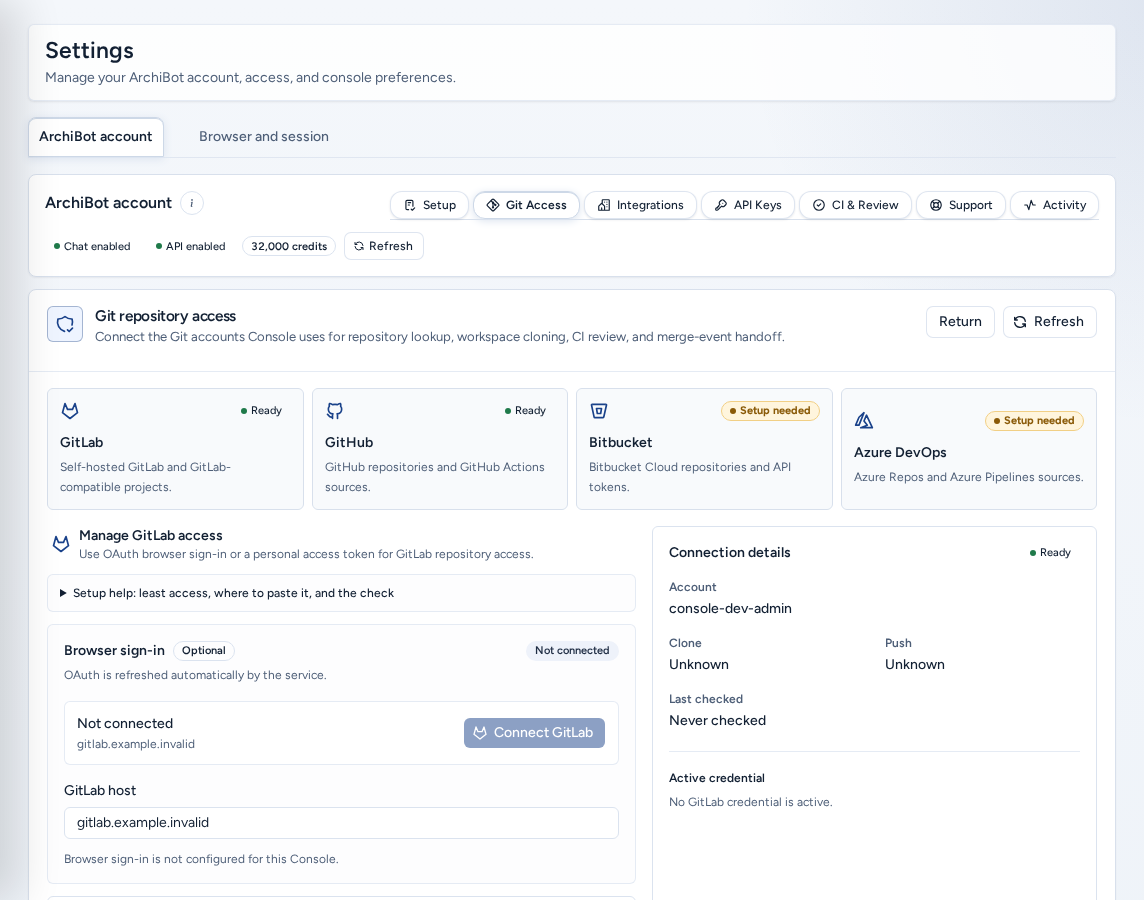
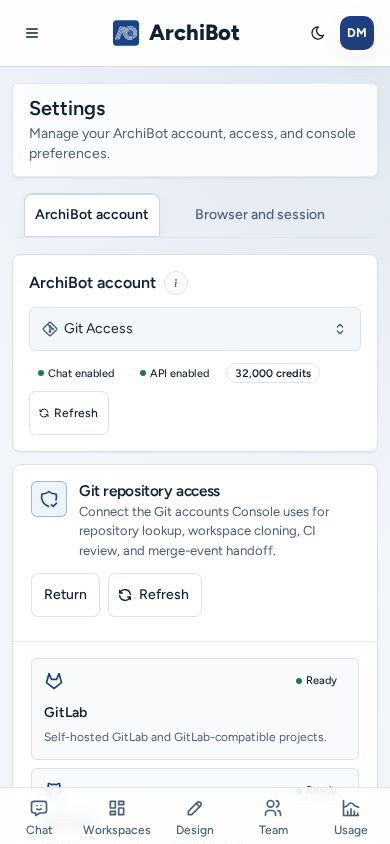
Git repository access (“Connect the Git accounts Console uses for repository lookup, workspace cloning, CI review, and merge-event handoff”) lists GitLab, GitHub, Bitbucket and Azure DevOps. Each provider shows a Status: Ready, Saved, Needs review, Invalid or Setup needed.
- Choose a provider.
- Connect it. For GitLab, choose Connect GitLab (Browser sign-in, refreshed automatically), and optionally save a Backup token that matches the same host and account. For the other providers, save a Personal access token (or an App password for Bitbucket) and, for Azure DevOps, the organization URL. Open token page opens the provider’s token page.
- Choose Save access, then Refresh status. Check Required scopes and the Clone / Push capabilities.
- If you came from Create or Account Setup, choose Return to go back.
Remove access deletes a saved credential. Saved secrets are never shown again. See Create a workspace for why Create needs Git.
Integrations
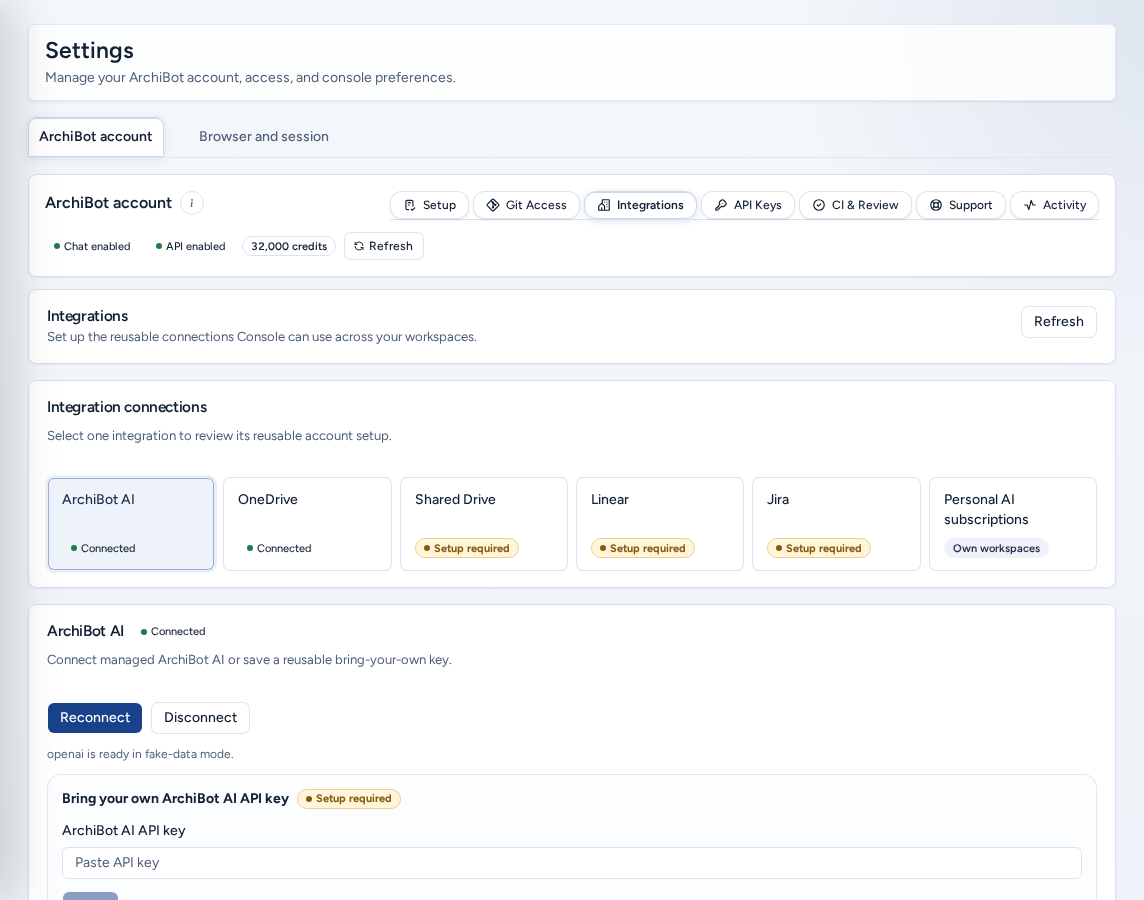
Integration connections: choose one integration to set up its reusable account connection.
- ArchiBot AI: connect managed ArchiBot AI, or save a Bring your own ArchiBot AI API key.
- OneDrive: connect your Microsoft account.
- Shared Drive: Manage Shared Drive access. Which drive and folder a workspace mounts is still chosen in Create.
- Linear: a personal Linear API key.
- Jira: your Jira email, site and API token. Project, ticket and branch choices stay in Create.
API Keys
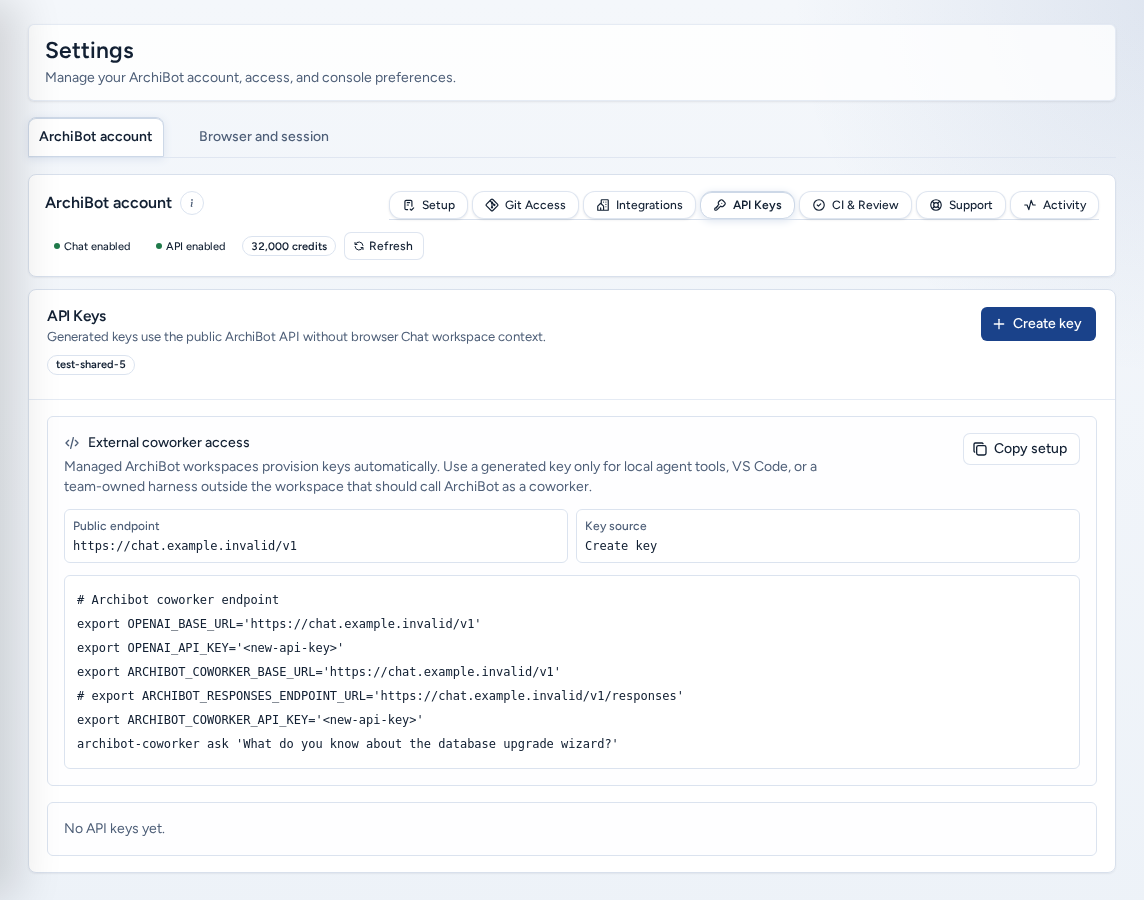
Keys call the public ArchiBot API without browser Chat workspace context. Managed ArchiBot workspaces get their key automatically, so only create one for local tools such as VS Code.
- Choose Create key.
- Copy it right away: “Copy this key now. It will not be shown again.”
- Store it in a password manager or secret store, never in chat or tickets.
If you see “API access is not enabled for this account.”, ask a team admin. More detail: ArchiBot Chat API keys.
CI & Review
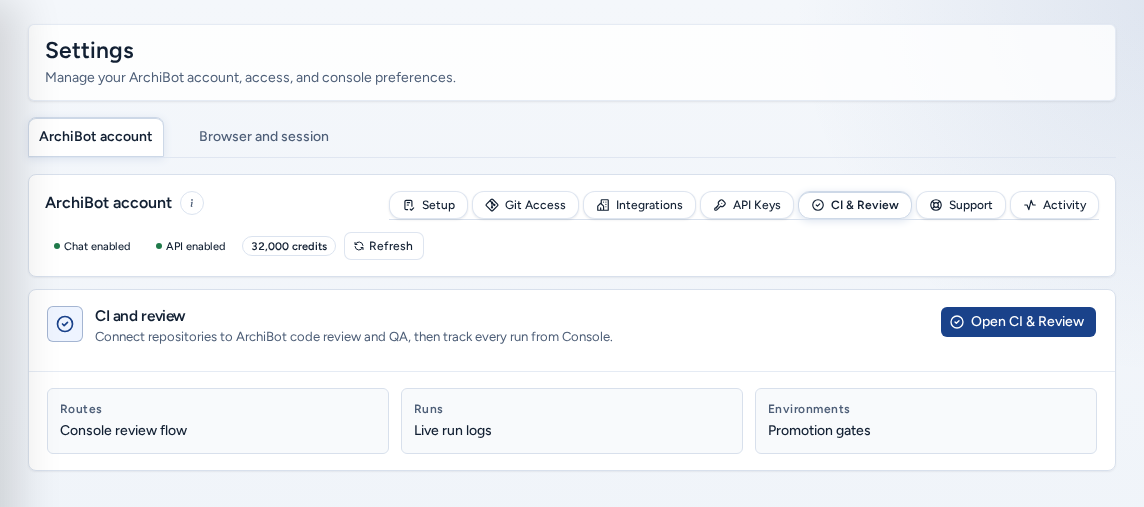
CI and review (“Connect repositories to ArchiBot code review and QA, then track every run from Console”) summarizes routes, runs, live logs, environments and promotion gates. Open CI & Review goes to the full page. See Environments and CI & Review.
Support
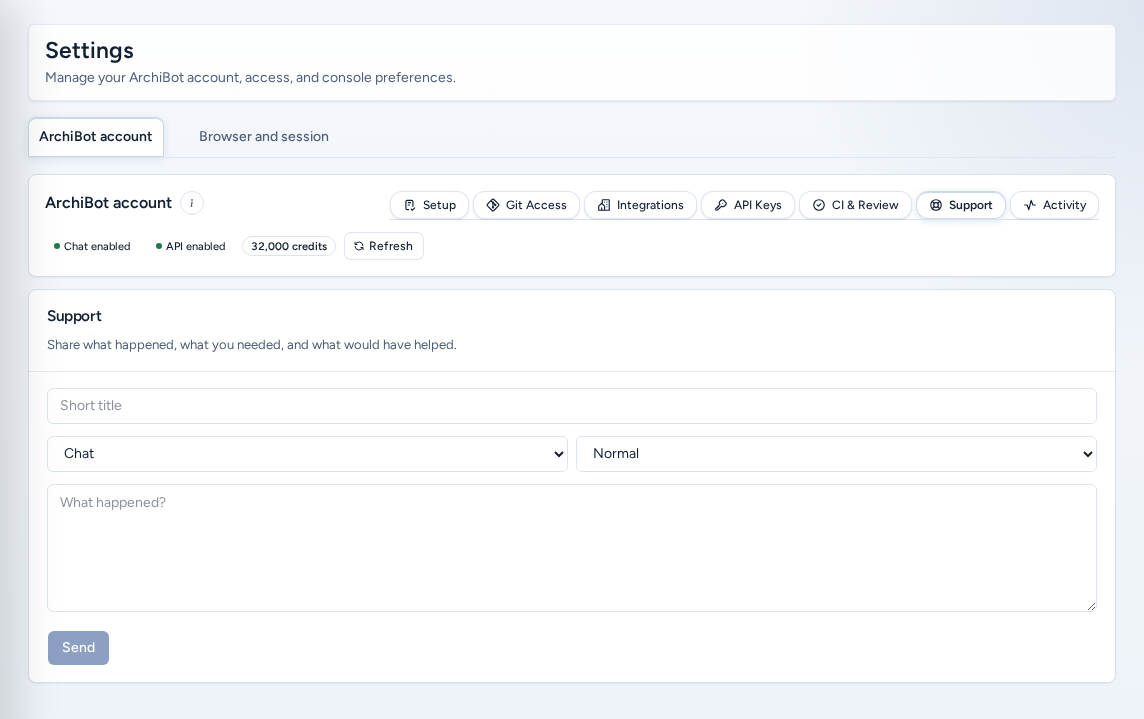
“Share what happened, what you needed, and what would have helped.” Enter a Short title, choose a category and severity, fill in What happened?, then choose Send. Console confirms “Sent as ID.” Include the page, action, time and visible error. Never include keys, credentials or invitation links. See Support handoff.
Activity
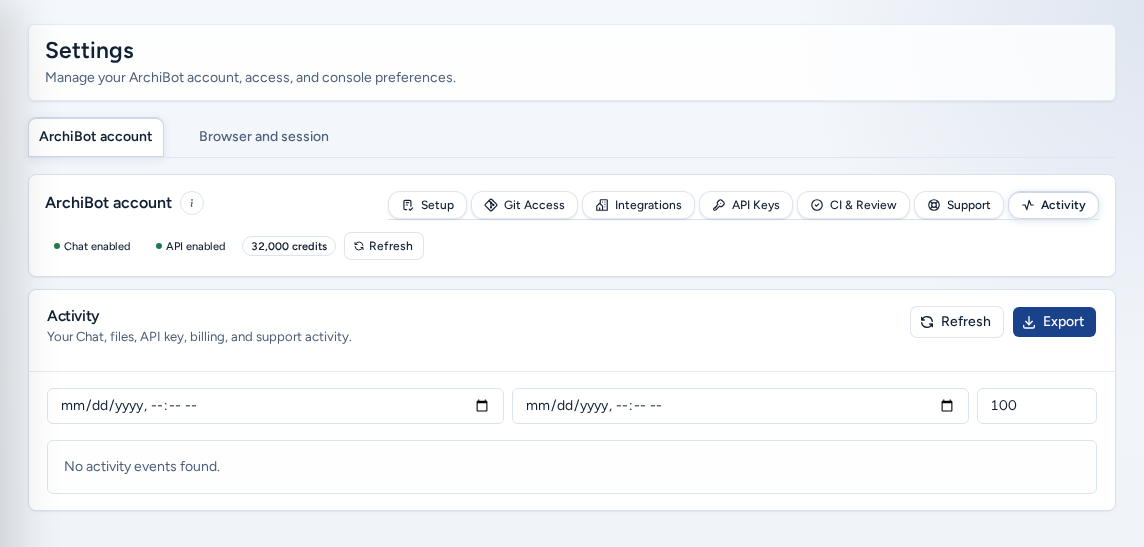
Account events and notifications, with filters, Refresh and an export. See Account activity.
Billing
The team’s ArchiBot Credits wallet: balance, covered services, expiry policy and auto-recharge controls. See Billing.
Spending caps
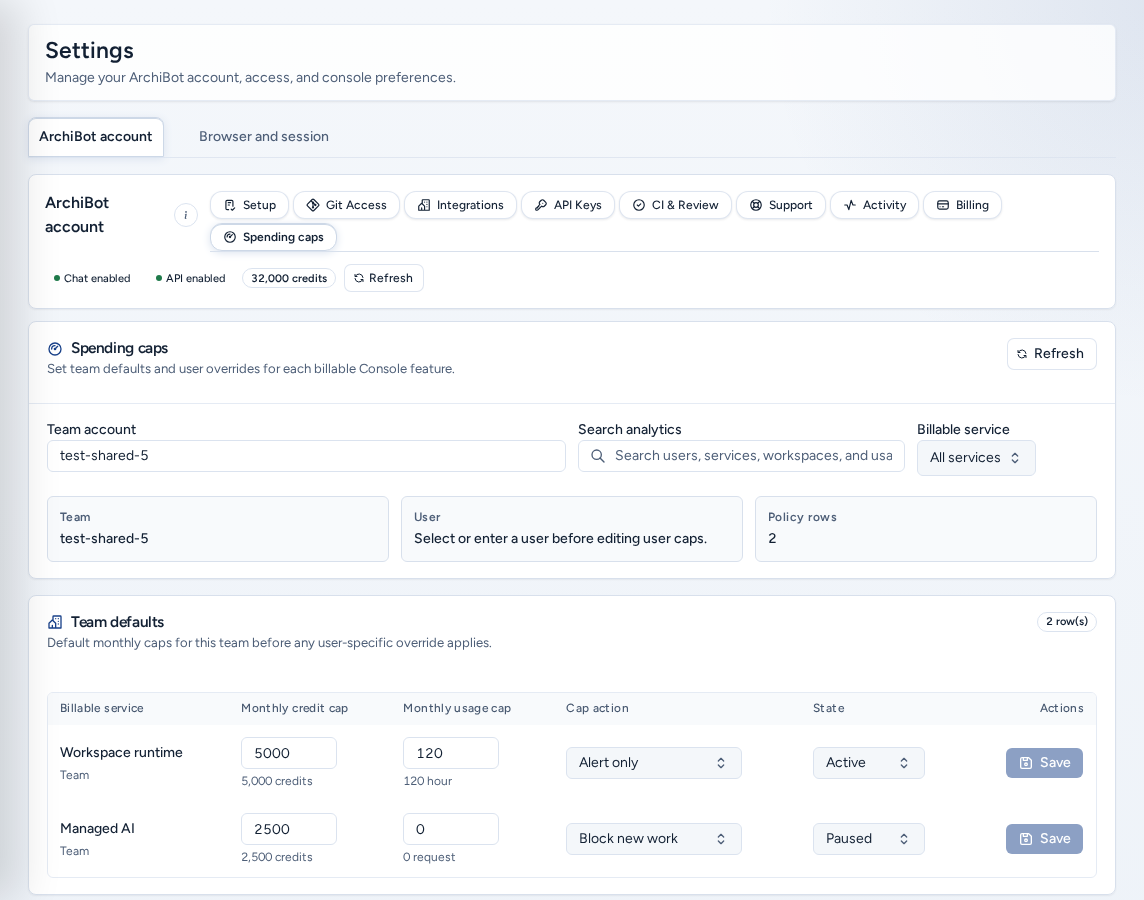
“Set team defaults and user overrides for each billable Console feature.” Team admin or platform access is required.
- Choose the Team account.
- Optionally filter by billable service, or search.
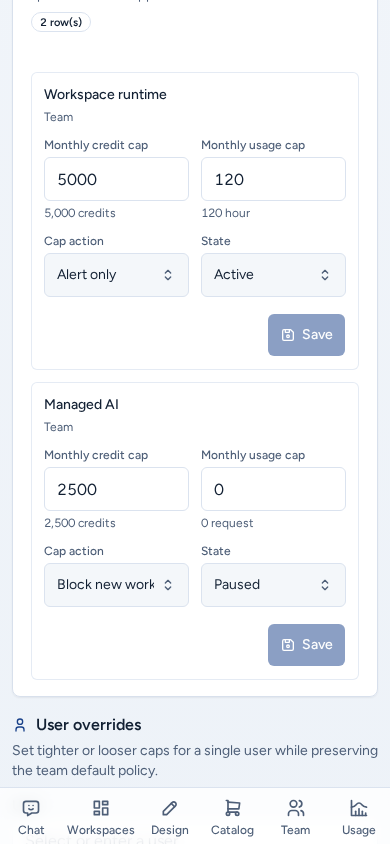
- In Team defaults, set each service’s monthly caps, Cap action (Alert only, Block new work or Disabled) and state (Active or Paused).
- For one person, pick a User (“Select or enter a user”) and edit User overrides.
Each row saves when you change it. The Credit caps tab in Analytics edits the same policies. Caps are limits, not credentials. Don’t put payment details or secrets in them.
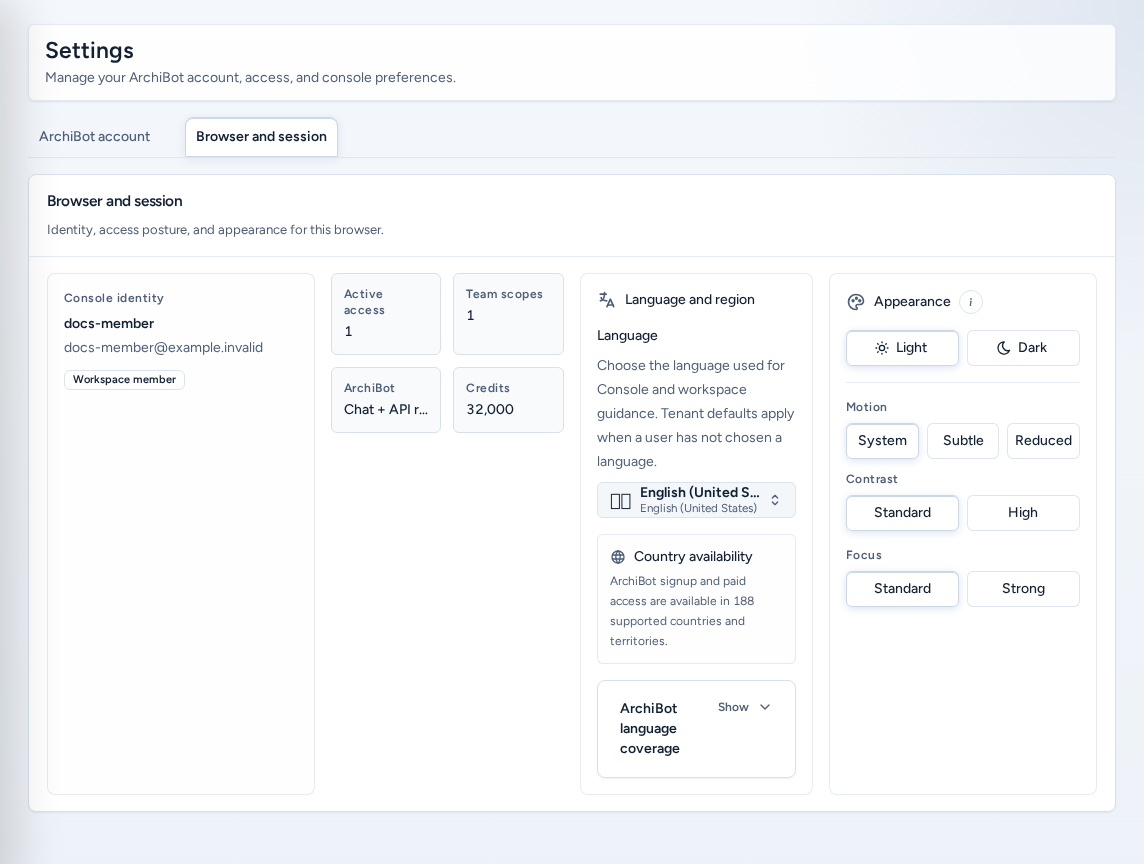
Browser and session tab
“Identity, access posture, and appearance for this browser.”
- Console identity: your username, email and role badges.
- Access tiles: Active access, Team scopes, ArchiBot readiness and Credits.
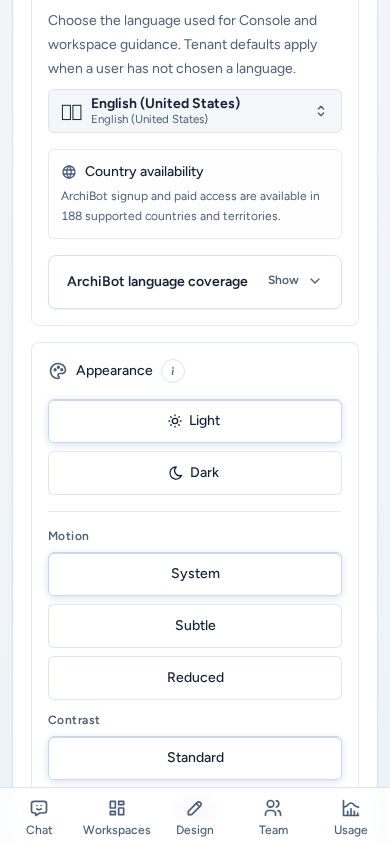
- Language and region: the Console language for this browser (also in the sidebar). The team default applies until you choose. The ArchiBot language coverage panel lists which languages browser chat, workspace chat and the editor extension support.
Appearance and accessibility
Appearance is on the Browser and session tab. It applies only to this browser. The theme button in the header is a quick toggle, and this is the stable place for your display settings.
| Setting | Options | Use it when |
|---|---|---|
| Theme | Light, Dark | You prefer a lighter or darker Console. |
| Motion | System, Subtle, Reduced | Animations should follow your device, be calmer, or be minimized. |
| Contrast | Standard, High | You need stronger separation between text and background. |
| Focus | Standard, Strong | You want more visible keyboard focus. |
If you use a keyboard or are sensitive to motion, choose Reduced motion and Strong focus. The (i) next to Appearance explains these options and links here.
On a phone
Settings works on a phone:
- Instead of the pill row, a full-width section picker chooses the ArchiBot account section. Its options are full-size.
- Setup keeps Finish setup and Save setup pinned at the bottom of the screen, above the navigation bar.
- Spending caps shows one card per policy row instead of the wide table.
- Git Access is a single column with full-size buttons, and Return takes you back to Create.
- Help (i) buttons open as sheets from the bottom of the screen.
Troubleshooting
- Billing or Spending caps is missing: you need team admin or platform access.
- A Git provider shows Invalid or Needs review: reconnect it or save a new token, then Refresh status. The token must match the host and account.
- You lost an API key: keys are only shown once. Create a new key and revoke the old one.
- Language or theme didn’t carry over: these settings are per browser. Set them again on each device.
Related guides
Done When
- At least one Git provider shows Ready under Git Access before you create Git workspaces.
- API key values are copied once and stored in a secret manager.
- Spending caps are only edited by team admins or platform roles.