


Usage And Credits
Usage and analytics
Read workspace runtime, managed AI and platform resource usage in ArchiBot Credits, compare members and workspaces, and set credit caps.
Last updated
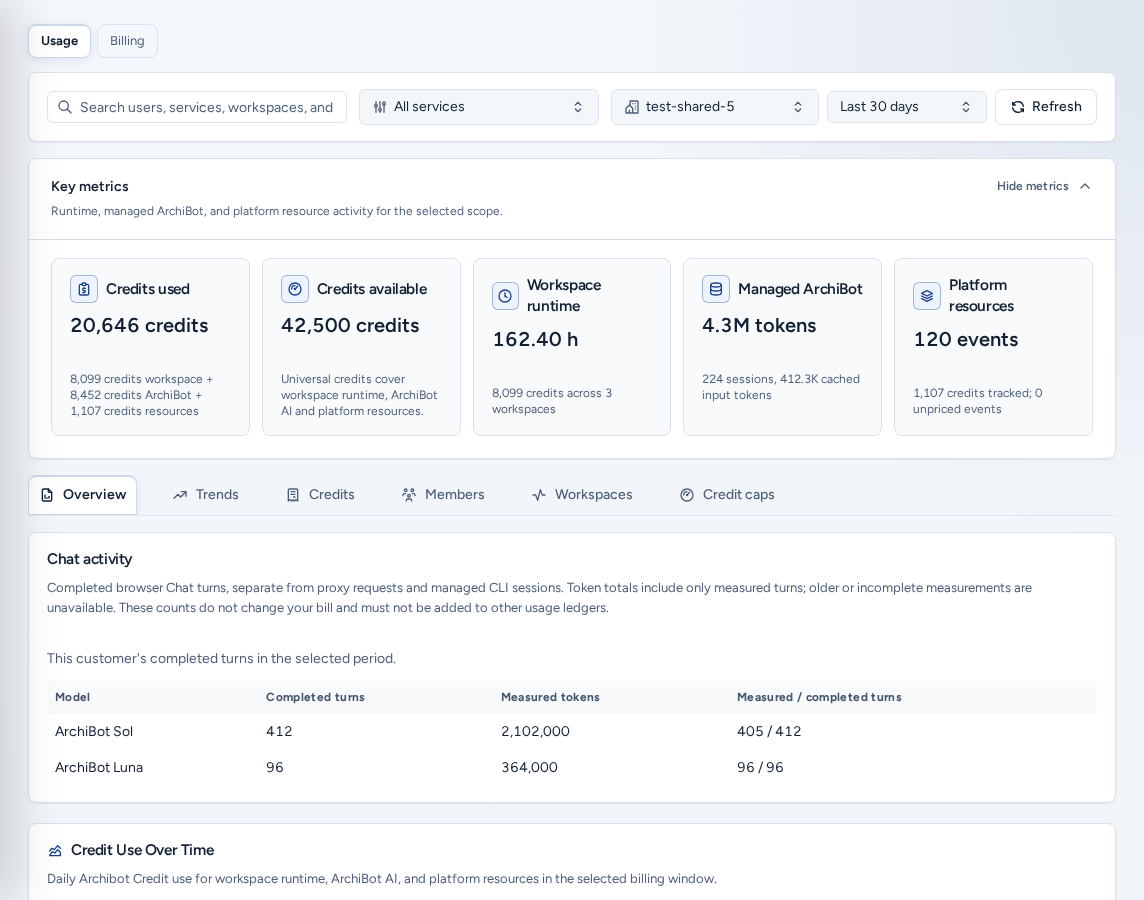
Analytics (/analytics) shows how a team uses ArchiBot: workspace runtime, managed ArchiBot AI and platform resources such as CI, review, QA, persistent environments and Shared Drive. Amounts are in ArchiBot Credits. Open it from Usage & billing in the navigation (Usage in the phone bottom bar).
Team admins see a Usage / Billing switch at the top of the page. Billing opens the team’s billing section. See Billing.
Who can see what
| Role | What Analytics shows |
|---|---|
| Team member | Your team’s usage without credit amounts. Tabs: Overview, Trends, Usage, Workspaces. |
| Team admin | Your team, with credit estimates. Tabs: Overview, Trends, Credits, Members, Workspaces, Credit caps. |
| Platform operator / admin | Any team, or All visible teams, for onboarding, support and billing handoff. Billing operators also see provider credit equivalents. |
A login that hasn’t joined a team yet can’t open Analytics. Finish account setup first.
The window and filter bar
The bar at the top drives every tab:
- Time window: Last 7, 30 or 90 days (30 by default).
- The service filter: All services, or one service such as workspace runtime or managed AI.
- The team selector (admins and operators): All visible teams or one team. The Members, Workspaces and Credit caps tabs use this team.
- Search, to narrow users, services, workspaces and rows.
- Refresh, to reload usage and caps.
Key metrics
Key metrics (“Runtime, managed ArchiBot, and platform resource activity for the selected scope”) summarizes the window. Collapse it with Hide metrics.
| Card | Meaning | Who sees it |
|---|---|---|
| Credits used | The team-facing credit estimate for the window. | Admins and operators |
| Workspace runtime | Observed workspace hours. | Everyone |
| Provider credit equivalent | Provider-side cost in credits. | Billing operators |
| Managed ArchiBot | Managed ArchiBot AI usage from session metadata. | Everyone |
| Platform resources | CI, review, QA, persistent environment and Shared Drive events. | Everyone |
The tabs
- Overview: daily credit use (or usage for members) over the window, and Utilization across the team, which shows top members and how the total splits.
- Trends: daily series for spotting spikes (“Use this to spot spikes before reading provider line items.”).
- Credits (Usage for members): each charge line with its usage and estimate, then Resource Showback, Actor and resource attribution and Resource Allowances with any estimated overage.
- Members: runtime, managed AI and resource events per member (Member Breakdown).
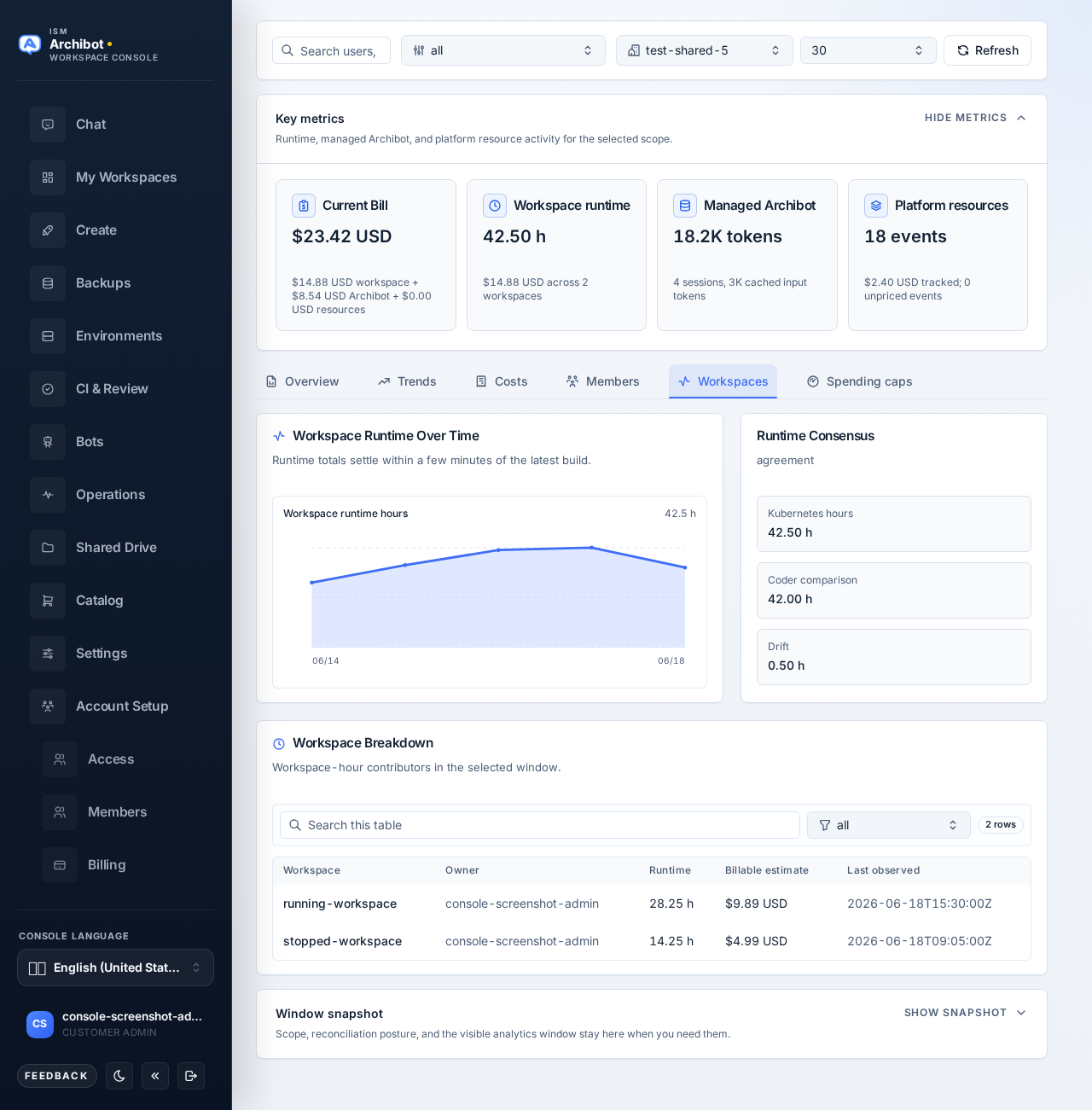
- Workspaces: Workspace Runtime Over Time, Runtime Consensus (the ledger compared with build history) and the Workspace Breakdown table.
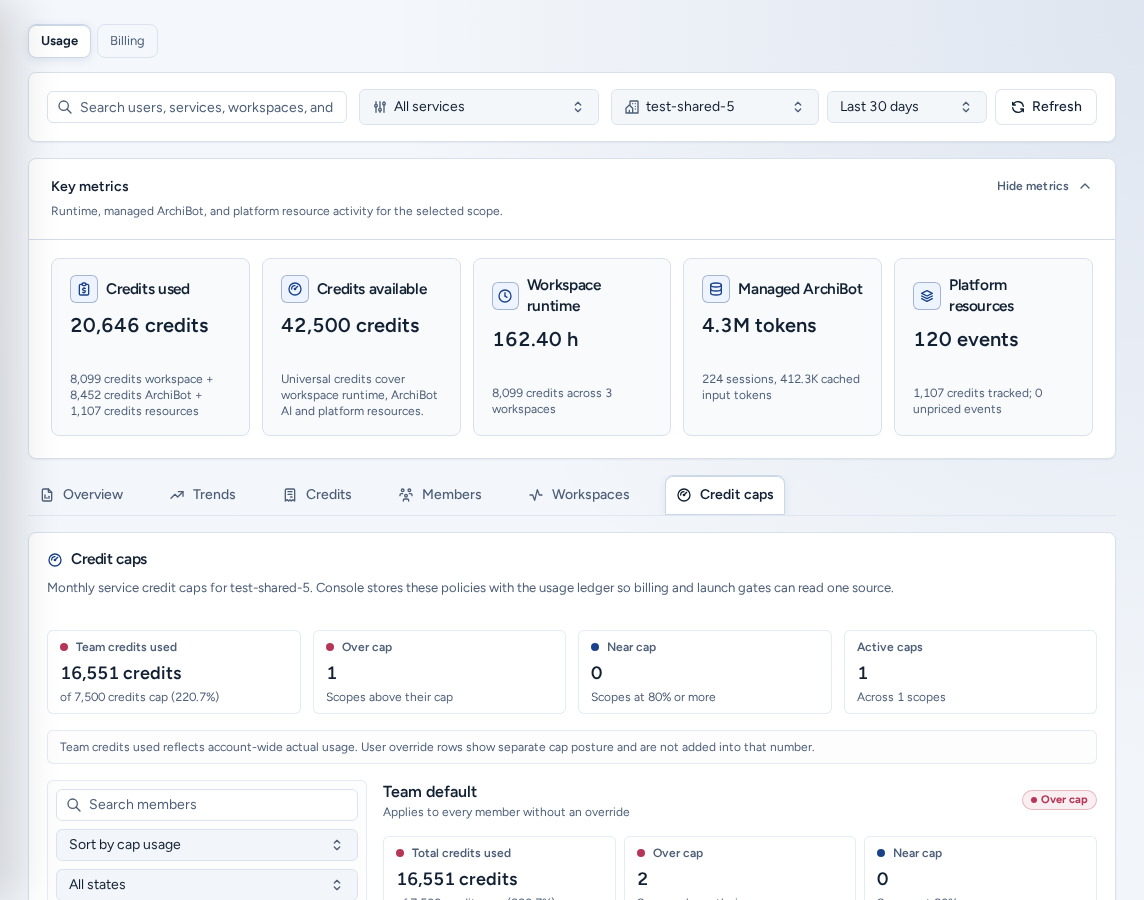
- Credit caps: monthly caps per service. See below.
Credit caps
Credit caps limit monthly use per billable service. Choose a single team in the filter bar first.
- The rollup cards across the top show Total credits used, Over cap, Near cap (80% or more) and Active caps.
- In the roster on the left, pick Team default (it applies to every member without an override) or a member. Use Search members, Sort by cap usage / Sort by name, and the state and enforcement filters.
- On the right, each service card has Monthly credit cap, Monthly usage cap, Cap action (Alert only, Block new work or Disabled) and state (Active or Paused). A badge shows Within cap, Near cap, Over cap or No cap set.
- Change a card and choose Save on that card. Each service saves on its own.
Data gaps lists services that still lack attribution or pricing. Keep those on Alert only, because Block new work needs accurate data. Team rollup by service compares every scope’s use with its caps.
Team admins can also set caps from Settings → Spending caps. Both screens edit the same policies.
How to read the numbers
- Estimates are showback for the selected window. The invoice is settled later from Stripe meter exports and credit debits. See Billing.
- Managed AI enters the estimate once reconciliation completes. Provider windows can lag by about a day, so a recent window can read low.
- Failed AI calls without usage counters are not charged.
- Runtime comes from the billing-grade Kubernetes ledger when available, otherwise from build history. The Workspaces table labels the source.
- Analytics never stores prompts, responses, transcripts, provider keys or secrets, and team views hide provider project IDs.
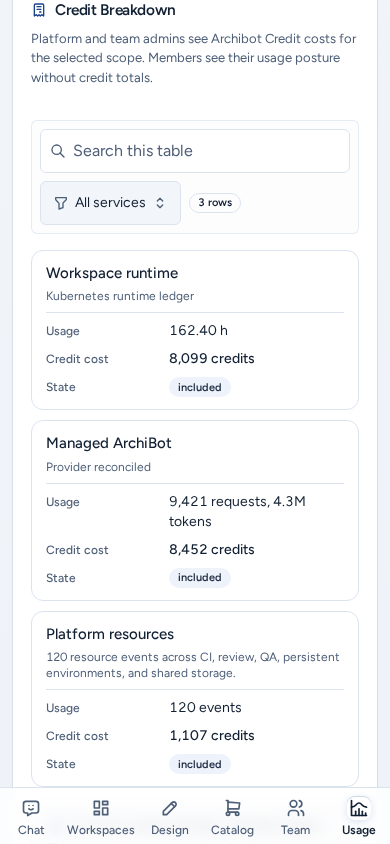
On a phone
- The tabs scroll sideways in one row, and all controls have full-size tap targets.
- Tables become labelled cards: the charge lines, resources, actors and allowances on Credits, the member table on Members and the workspace table on Workspaces. Each card shows the same columns as label and value pairs.
- Credit caps lists the roster and the service cards one below the other.
Troubleshooting
- A number looks low: check the window and the team, then allow for the reconciliation delay above.
- “Credit totals didn’t load for this scope, so this isn’t 0.” Choose Refresh, or check Billing.
- Credit caps asks for a team: select one team instead of All visible teams.
- Billing questions: include the team, the window, the visible totals and the time you checked. Don’t include payment details. See Support handoff.
Related guides
Done When
- The time window and team scope match the question you are answering.
- Estimates are read as showback, not as the final invoice.
- Credit caps use Alert only until attribution data is complete.