

Usage And Credits
Billing
Check a team's billing state, ArchiBot Credit balance, invoices and usage attribution, and know where to buy credits or get billing help.
Last updated
Billing answers three questions: can the team start work, how many ArchiBot Credits are left, and what was invoiced. It appears in three places:
| Where | Address | Who |
|---|---|---|
| Usage & billing → Billing | /account/billing | Team admins |
| Settings → ArchiBot account → Billing | /settings?view=billing | Team admins, platform operators and admins |
| Billing Help | /billing-help | Platform operators only. See Billing Help. |
Team members don’t see billing amounts. Their Usage & billing item opens usage without credits. See Usage and analytics.
Check billing state
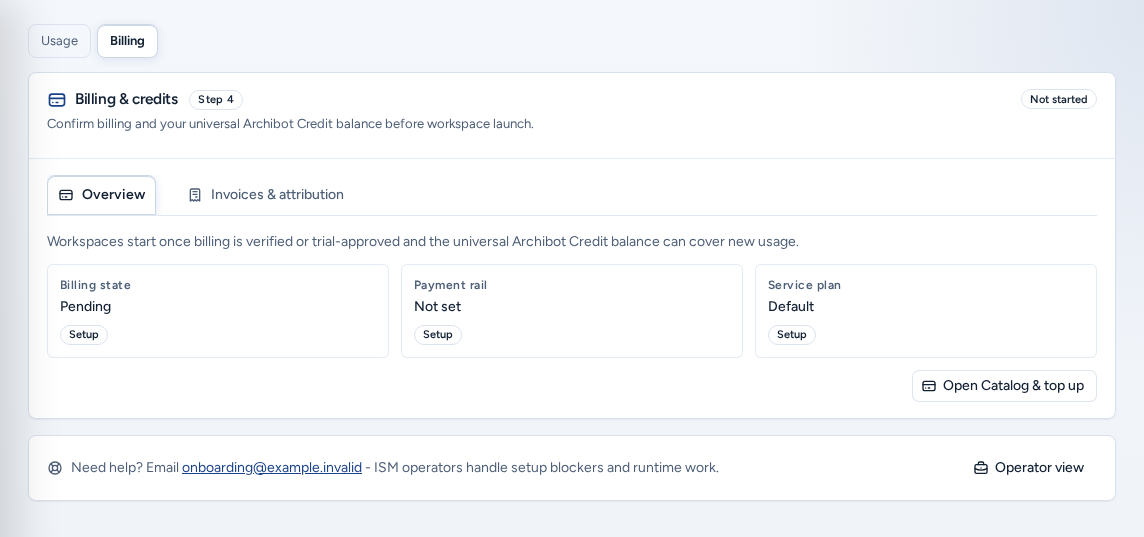
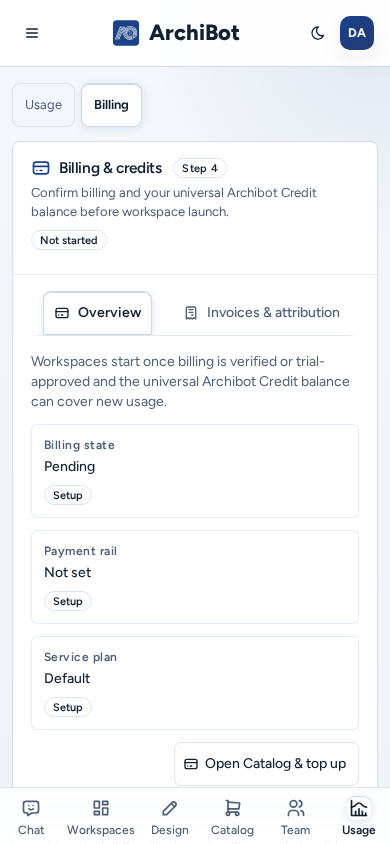
Open Usage & billing and choose Billing in the Usage / Billing switch, or go to /account/billing. The Overview tab shows:
- Billing state: for example Unverified, Checkout pending, Manual review, Trial approved, Verified, Active or Billing failed. “Workspaces start once billing is verified or trial-approved and the universal Archibot Credit balance can cover new usage.”
- Payment rail: how the team pays, such as Stripe invoice, ACH, wire, prepaid or trial.
- Service plan: the shared-hosted tier or a dedicated plan.
Open Catalog & top up opens the Product Catalog to buy credits.
Check the credit balance
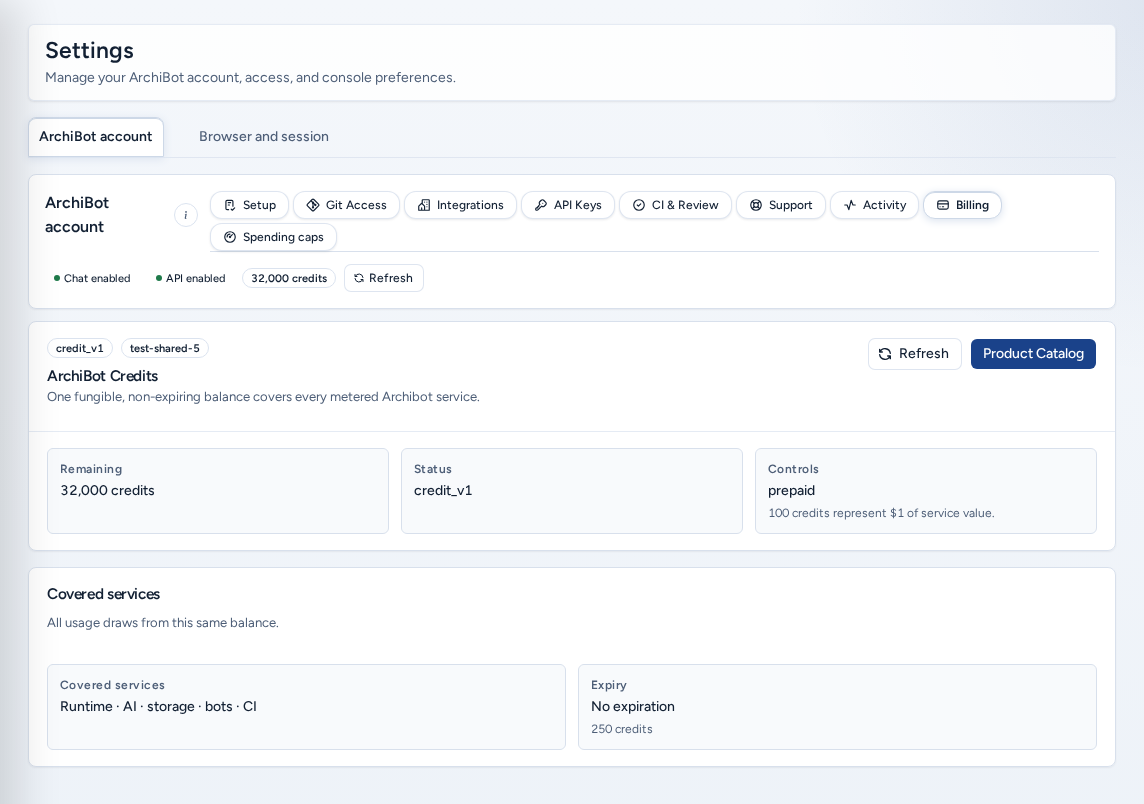
Settings → ArchiBot account → Billing shows the team’s ArchiBot Credits wallet. It lists the available and reserved credits, Covered services (“Runtime · AI · storage · bots · CI”), the Expiry policy (“Purchased and granted Archibot Credits do not expire under the current policy.”) and Controls for auto-recharge. Choose Refresh after a purchase, or open the Catalog to buy more.
If it shows Credit migration required, an operator must move the account to universal credits first.
Invoices and attribution
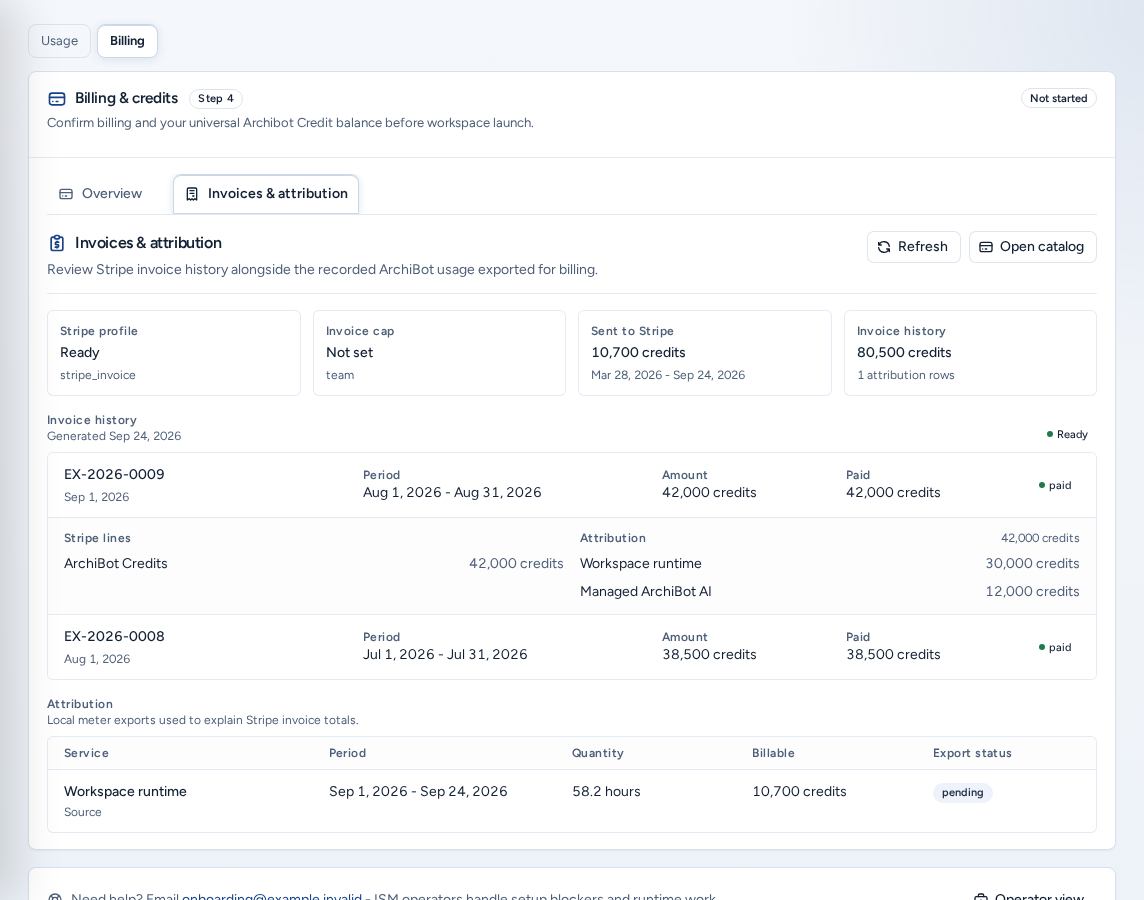
The Invoices & attribution tab (“Review Stripe invoice history alongside the recorded ArchiBot usage exported for billing”) shows:
- Stripe profile (Ready or Pending), and any Invoice cap.
- Invoice history: each Invoice with its Period, Amount and Paid status, Open invoice, and Stripe lines.
- Attribution: the recorded usage rows behind the invoice, by Service, Quantity, Billable amount, Export status and Source.
- Recorded billing periods: local meter exports that explain the Stripe totals.
“No invoices yet” is normal until the first Stripe billing period closes.
Limits and caps
- Monthly caps per service: Settings → Spending caps or the Credit caps tab in Analytics.
- Invoice accounts are capped per UTC month by their tier. Alerts go out at 80% and when new usage would go over the cap.
On a phone
- Billing works on a phone in a single column. The Overview / Invoices & attribution tabs sit in one row.
- The summary tiles and Invoice history stack into cards. The Attribution table keeps its columns and scrolls sideways inside its own box: swipe the table, not the page.
- The Usage / Billing switch at the top of the page moves between Analytics and Billing.
Troubleshooting
- Billing is missing from the navigation: only team admins and platform roles see it. Team members should ask a team admin.
- Workspaces won’t start because of billing: read Billing state. Checkout pending or Manual review means ISM hasn’t approved the account yet.
- “Stripe invoice history is not available for this account yet.” Console shows recorded billing exports until Stripe is connected.
- Usage and invoice disagree: compare the same team and period in Analytics. Estimates settle after provider windows and meter exports close.
For a billing question, send the team name, the period, the visible totals and the time you checked, and no payment details. See Support handoff.
Related guides
Done When
- Billing state is Verified, Trial approved or Active.
- The ArchiBot Credit balance can cover new usage.
- Invoice totals match the recorded usage attribution for the period.