

Prepaid Access
Product Catalog and readiness
Use Product Catalog to confirm billing details, buy universal ArchiBot Credits, accept the terms, check out, and read orders, credit lots and balance activity.
Last updated
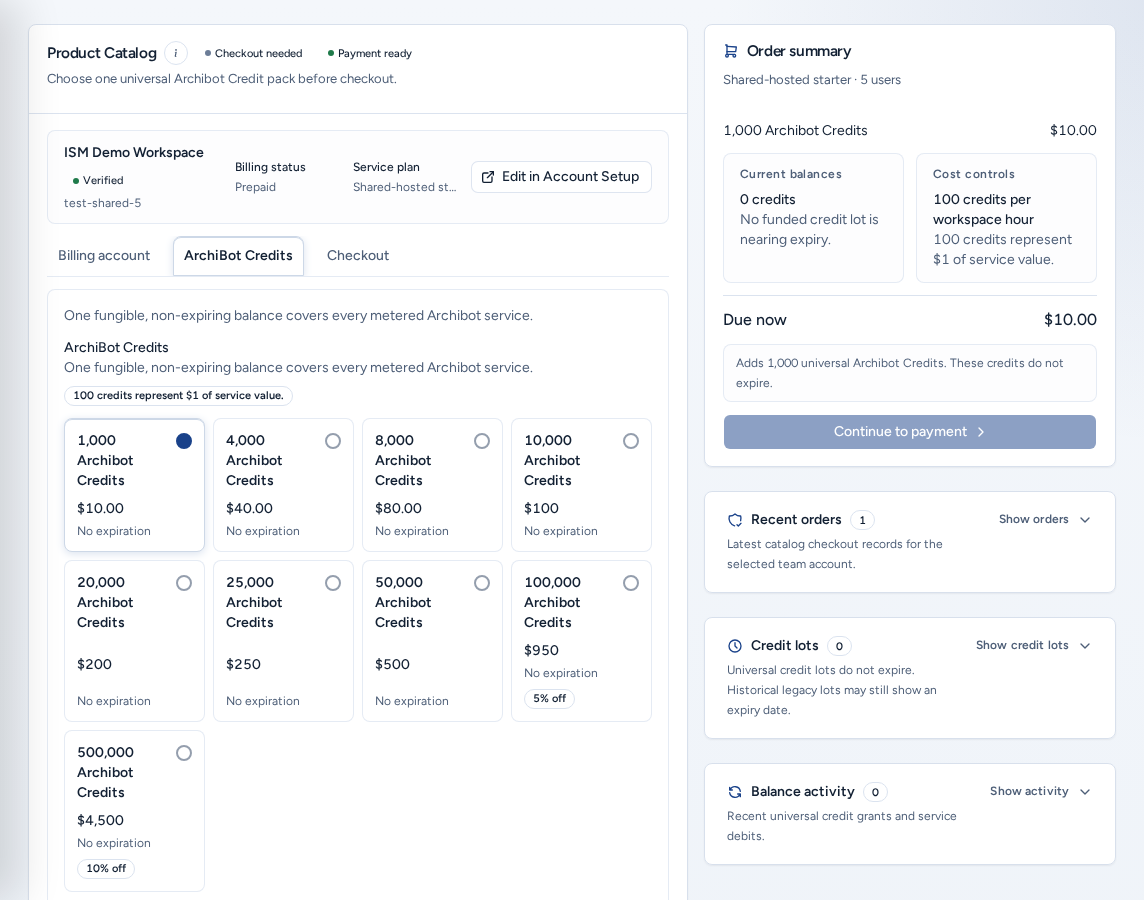
Product Catalog (/catalog, Catalog in the navigation) is where a team admin confirms billing details, buys ArchiBot Credits and checks that the team is ready before anyone opens Create.
One balance covers everything. “One fungible, non-expiring balance covers every metered Archibot service”: workspace runtime, AI, Shared Drive storage, bots and CI. 100 credits represent $1 of service value. Purchased and granted credits don’t expire under the current policy. Older lots may still show an expiry date.
Who can see it
- Team admins buy for their own team. The team account comes from your membership and can’t be changed at checkout.
- Platform operators and platform admins can choose a Team account and also see Stripe catalog alignment.
- Team members don’t see Catalog. Ask a team admin.
Read the badges first
Next to the Product Catalog title are a readiness badge and a payment badge (Payment ready or Payment setup pending).
| Readiness badge | Meaning | Next step |
|---|---|---|
| Ready for workspaces | Billing and the credit balance are ready. | Create a workspace. |
| Checkout needed | Billing details or checkout are missing. | Add billing details, then check out. |
| Checkout pending | Checkout isn’t finished, or ISM hasn’t approved the account yet. | Finish checkout, or wait for approval. |
| Add prepaid balance | There is no credit to start metered work. | Buy an ArchiBot Credits pack. |
| Credit migration required | An older account needs an operator to move it to universal credits first. | Ask ISM. |
Add billing details
If Add billing details before checkout appears, the team is missing a team ID, billing email or technical email. Choose Set billing details to complete them in Account Setup. The Billing account tab then shows them, with Edit in Account Setup.
Buy ArchiBot Credits
- Open the ArchiBot Credits tab and choose a pack. Recommended marks the usual choice.
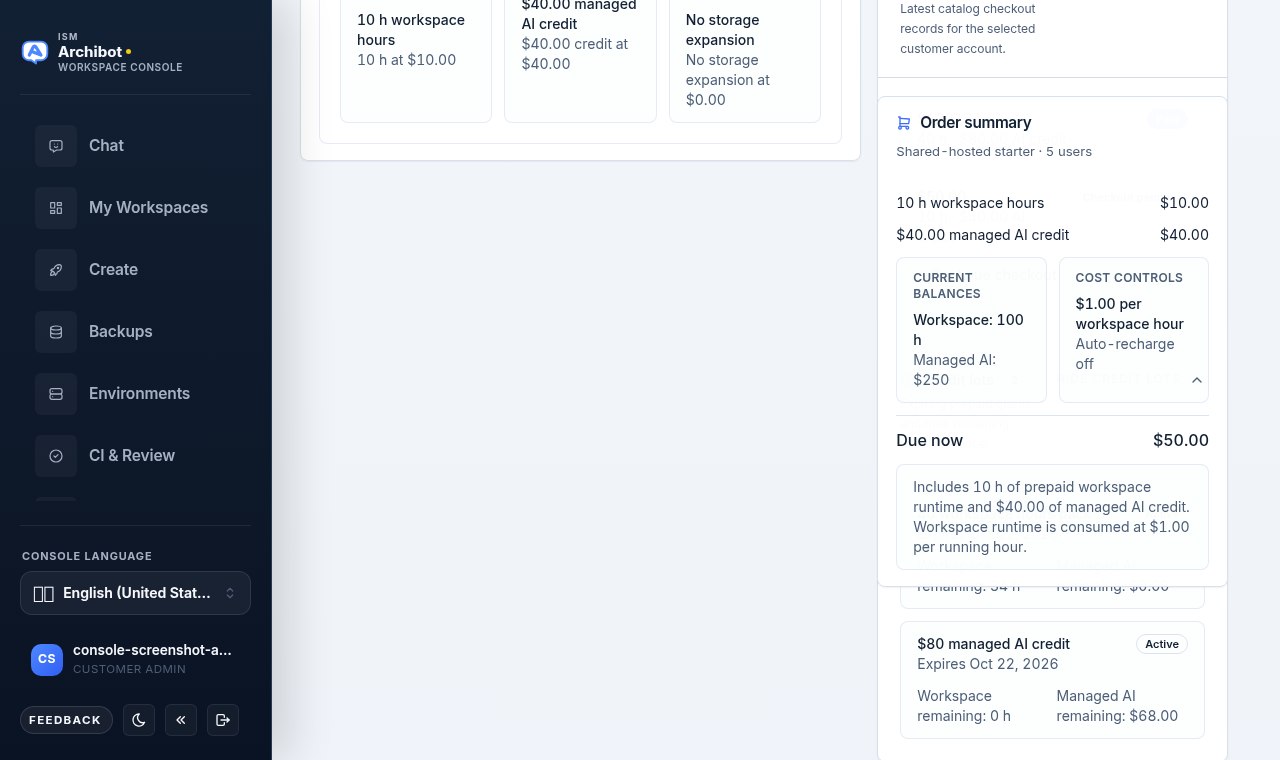
- Check the Order summary: the pack, any Bulk commitment discount, Current balances, Cost controls and the amount due now.
- Open the Checkout tab.
- Optional: under Controls, turn on Auto-recharge Archibot Credits. Choose a Recharge pack and a Recharge threshold (or a Preset choices amount). This opts in to automatic charges to your saved card when the balance reaches the threshold.
- Under Legal acceptance, tick I agree to the Privacy Policy and I agree to the End User License Agreement. The Terms version is shown underneath.
- Choose Continue to payment and finish the secure Stripe checkout.
Continue to payment stays disabled until a pack, the billing details and both acceptances are in place. If you leave during payment, Secure checkout pending appears at the top of the page with Continue to payment.
For Shared Drive capacity, open /catalog?focus=storage.
Monthly invoice billing
On the Billing account tab, Billing status shows the billing state, tier, Payment rail and any monthly cap. Monthly invoice billing shows one of the following:
- Switch to monthly invoices, when the account qualifies.
- A locked message. Invoices unlock after Stripe verifies the starter credit purchase, or when a platform operator enables them.
- A message to finish checkout or review first.
- Invoice billing active, when invoices are already on. Usage stays capped by the invoice tier.
Orders, credit lots and activity
The side panels each show a count and can be opened or closed:
- Recent orders: each checkout with its total and status (Paid, Checkout pending, Checkout started, Failed, Canceled). Orders waiting for payment show Continue checkout.
- Credit lots: each grant, with “N of M credits remain” and Does not expire or its expiry date.
- Balance activity: recent credit grants and service debits, such as a catalog order or workspace runtime.
Don’t paste payment data, prompts or credentials into support tickets about balances. See Usage and analytics for how usage uses credits.
Stripe catalog alignment (operators)
Platform operators see Stripe catalog alignment, which compares the products Console expects with the prices in Stripe (Matched, Missing, Mismatch, Unchecked, Deferred). It is read-only. Refresh runs the check again.
On a phone
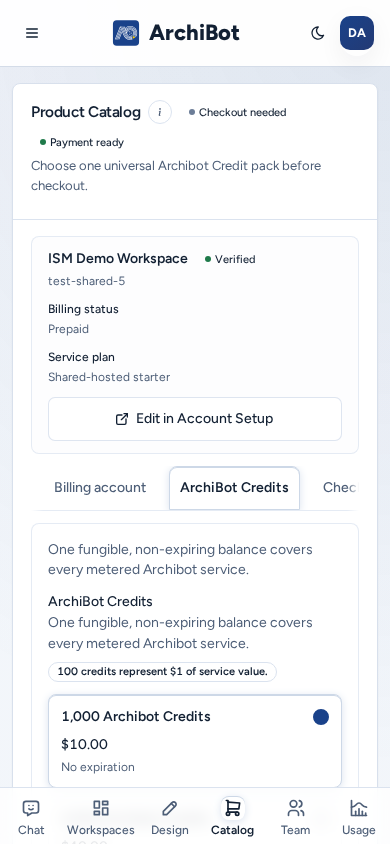
- The Catalog is a single column. Order summary and the side panels come after the workbench.
- The Billing account / ArchiBot Credits / Checkout tabs scroll sideways, and every button, checkbox and select has a full-size tap target.
- Continue to payment is at the end of the Checkout tab. Scroll down to reach it.
Troubleshooting
- “Select a team account to continue.” (operators): choose the team that will own the purchase.
- “A different plan is already active”: manage the plan in Account Setup before checking out.
- “No team account is linked to your Console identity.”: finish Account Setup or ask ISM.
- Order stays pending: check Recent orders and use Continue checkout rather than starting a new order.
- Catalog says Ready but Create is blocked: read the Create Summary. The blocker is usually Git, a target or a template, not billing.
Related guides
Done When
- Billing details (team ID, billing email, technical email) are complete.
- The readiness badge shows Ready for workspaces.
- Privacy Policy and End User License Agreement are accepted before checkout.
- Checkout completed, or an order is waiting for payment or review.