


API
ArchiBot Chat API keys
Create, copy, and revoke customer-bound generated API keys, and wire an external coworker tool to the public ArchiBot endpoint.
Dernière mise à jour
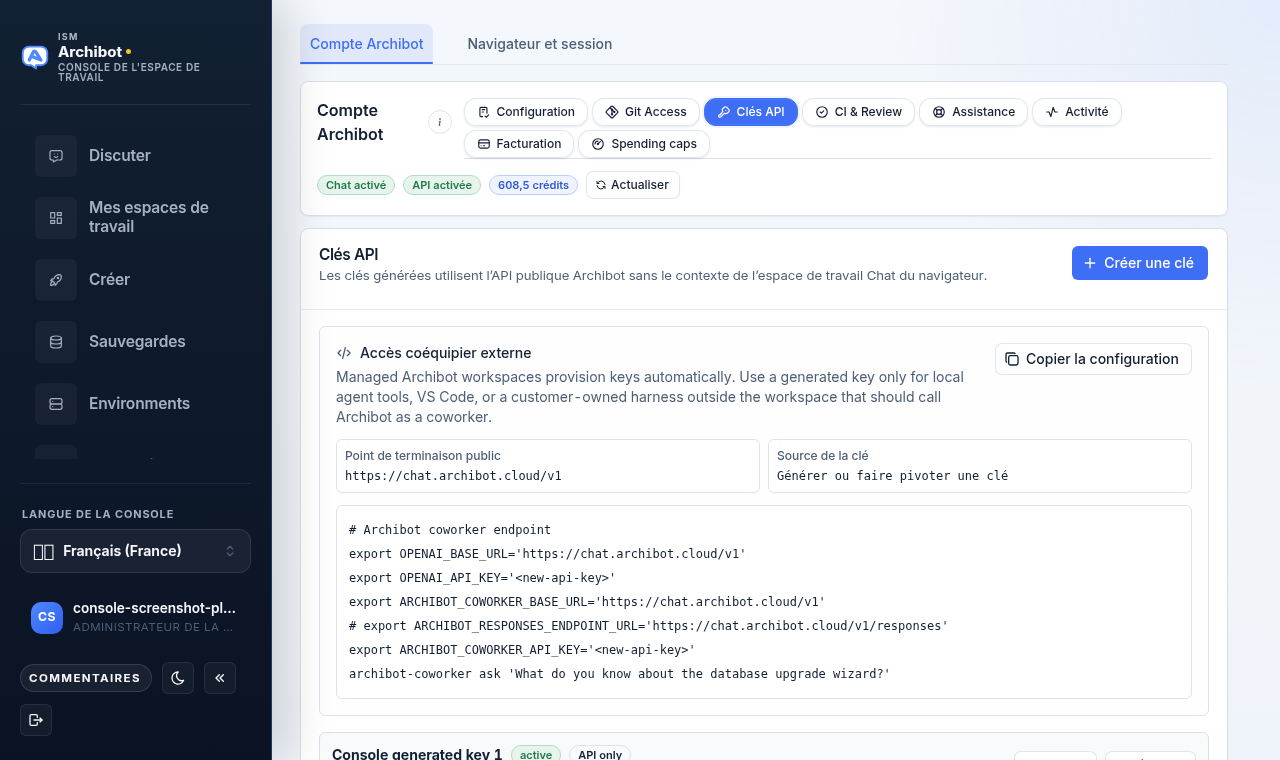
API keys let you call the public ArchiBot endpoint from scripts, local agent tools, and integrations that run outside a managed workspace. Browser Chat does not use a hidden API key; Console sends a short-lived, customer-bound assertion for each proxied request.
Managed ArchiBot workspaces already provision their own keys automatically. Use a generated API key only for local agent tools, an editor extension, or a customer-owned harness that should call ArchiBot as an external coworker.
When to use API keys
Create a generated key when you need to:
- Call ArchiBot from a script or scheduled job.
- Connect a local agent tool or editor extension to the endpoint.
- Run an OpenAI-compatible client against the ArchiBot endpoint.
- Wire a customer-owned harness outside the workspace to ArchiBot.
For interactive questions, use the browser Chat screen instead. See Using ArchiBot Chat.
VS Code quick start
Release status: this focused path is source-complete, but it is not live until the matching Console, Universal Credits, Chat, and extension releases are deployed and smoked in the target environment.
For a local VS Code window, let the extension open the shortest onboarding route:
- Run Archibot: Connect ArchibotChat from the Command Palette.
- Choose Create Generated API Key.
- Continue through secure sign-in. Existing customer and ISM membership is reused. For a new user, Console creates and funds a personal API account from the verified identity; it does not require the team questionnaire or a workspace.
- On API Keys, choose Create key and copy the one-time value.
- Return to VS Code and paste it into the waiting prompt. If that prompt is gone, run Archibot: Set Generated API Key.
The focused browser entrypoint is
Console’s VS Code API quick start.
It uses the signed signup-intent and SSO flow, then returns to
Settings > ArchiBot account > API Keys. It never creates a key during the
redirect.
Do not use this flow inside a managed ArchiBot workspace. Managed workspaces
provision credentials automatically. Generated /v1 keys are for local VS Code
and other external tools, and they do not include selected-workspace or Shared
Drive context.
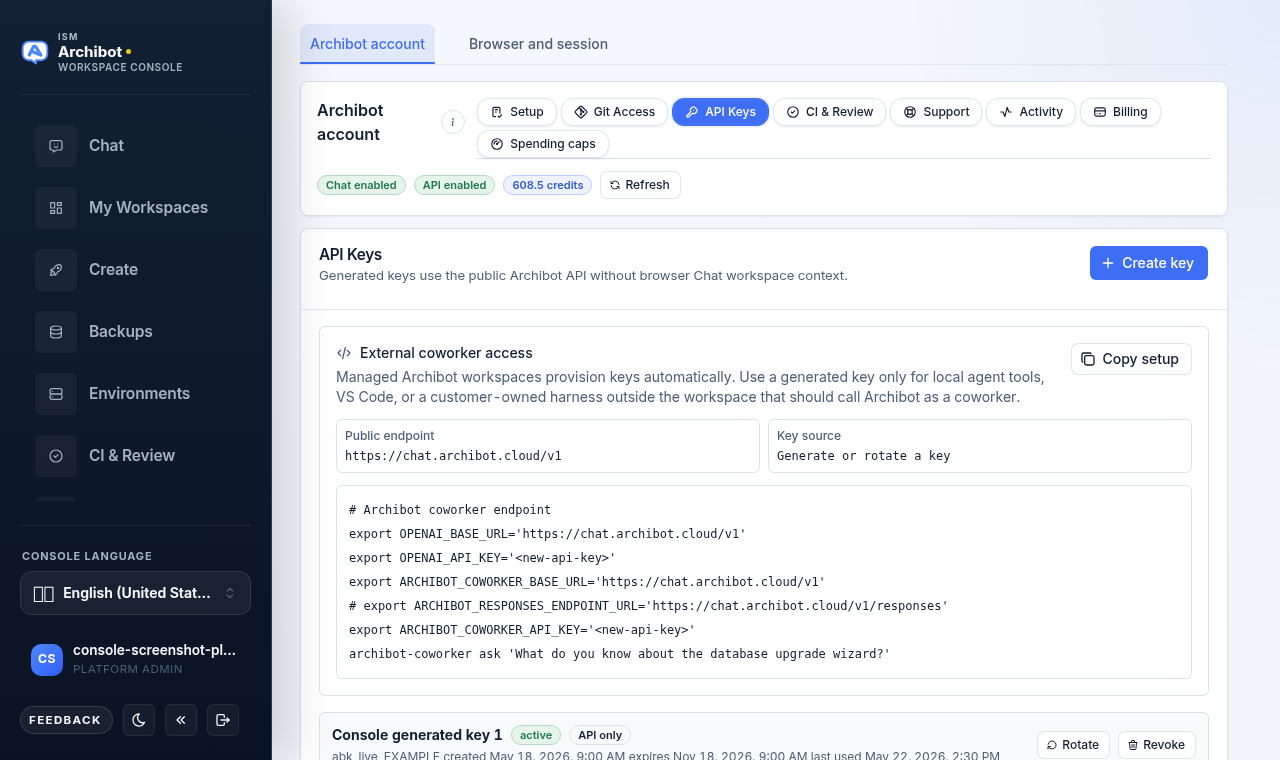
Open the API Keys tab
- Open Settings from the left navigation.
- Select the
ArchiBot accountview. - Open the
API Keystab.
The tab sits in the same row as Setup, Git access, CI & Review, Support, Activity, and Billing. A funded credit_v1 wallet enables generated-key setup for its customer admin without a separate legacy product entitlement. If an older account does not have API access, the tab shows API access is not enabled for this account. and disables Create key; ask a customer admin or ISM to reconcile that account first. See ArchiBot Chat setup.
Create a key
- On the
API Keystab, chooseCreate key. - The new key appears at the top of the list, and its full value is shown once in a highlighted callout that reads
Copy this key now. It will not be shown again. - Choose
Copynext to the key value. - Store it in your approved secret manager or runtime environment.
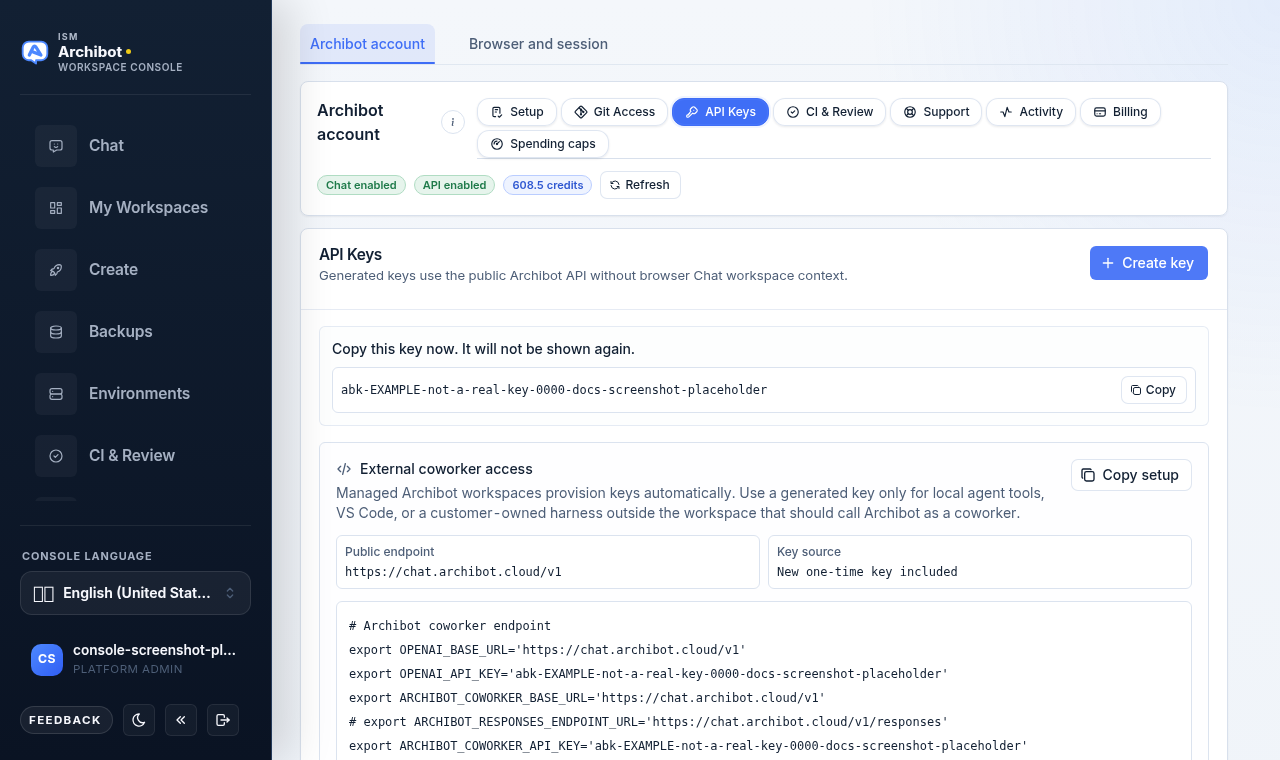
Keys are named automatically (for example, Console generated key 1) and given the api scope. The raw value is shown only in this callout. Once you leave the tab or create another key, only the key prefix and metadata remain visible.
If the copy button cannot reach your clipboard, the tab shows Clipboard copy unavailable. Select the key text manually and copy it before navigating away.
Wire an external coworker tool
The External coworker access card builds a ready-to-run setup script so you do not have to assemble environment variables by hand.
The card shows two reference fields:
| Field | What it shows |
|---|---|
| Public endpoint | The base URL your integration should call, for example https://chat.archibot.cloud/v1. |
| Key source | New one-time key included right after you create a key, otherwise Create key. |
Below those fields, a preview shows a shell script that exports the endpoint and key environment variables and runs a sample coworker command. When you have just created a key, the script includes that one-time key value; otherwise it uses a <new-api-key> placeholder.
- Create a key so the
Key sourcefield readsNew one-time key included. - Choose
Copy setupon theExternal coworker accesscard. - Paste the script into your local shell, secret manager, or tool configuration.
The script sets standard OpenAI-compatible variables (OPENAI_BASE_URL, OPENAI_API_KEY) alongside ArchiBot coworker variables so OpenAI-compatible clients and the ArchiBot coworker tooling both pick up the same endpoint and key. Use the production endpoint URL provided by ISM for your account rather than inferring it from a local example.
Use a key
Use the key as a bearer token against the ArchiBot OpenAI-compatible endpoint.
curl https://chat.example.archibot.cloud/v1/responses \
  -H "Authorization: Bearer $ARCHIBOT_API_KEY" \
  -H "Content-Type: application/json" \
  --data '{
    "model": "archibot",
    "input": "Summarize this Archibus request queue export."
  }'
The endpoint forwards OpenAI-compatible Responses API fields such as tools, tool_choice, reasoning, metadata, and structured input content to the ArchiBot endpoint after API-key and credit checks pass.
For streamed responses, send stream: true:
curl -N https://chat.example.archibot.cloud/v1/responses \
  -H "Authorization: Bearer $ARCHIBOT_API_KEY" \
  -H "Content-Type: application/json" \
  --data '{
    "model": "archibot",
    "input": "Draft a short work plan for this Archibus data cleanup.",
    "stream": true
  }'
Streamed responses return billing evidence in X-ArchiBot-* response headers rather than rewriting every event chunk.
OpenAI-compatible model discovery uses the same bearer key:
curl https://chat.example.archibot.cloud/v1/models \
  -H "Authorization: Bearer $ARCHIBOT_API_KEY"
Model discovery does not draw from your usage allowance.
Rate limits
Generated API keys default to a per-key limit of 60 requests per minute. An approved key policy may set another limit, but the effective limit never exceeds the Chat service limit. Responses include X-RateLimit-Limit, X-RateLimit-Remaining, and X-RateLimit-Reset headers. When the limit is exceeded, the endpoint returns 429 with a Retry-After header.
The retired per-key monthly budget field is not an active spending authority. New keys must leave it unset; customer-level managed-AI spending caps are the canonical cap policy. A historical key with a nonzero legacy budget must be rotated before it can be used.
Expiry
Generated API keys expire one year after creation. Each key row shows its created, expires, and last-used dates next to the key prefix.
Expired keys stay visible by name, prefix, and metadata so you can audit old integrations, but they can no longer call model discovery or the responses endpoint. Expired-key rejections happen before any usage is reserved. Create a replacement key, update the integration, and then revoke the old key.
Revoke a key
Revoke a key when:
- It is no longer used.
- It was pasted into chat, email, a ticket, a repository, or a shared document.
- The owner leaves the team.
- The integration is replaced.
- On the
API Keystab, find the key by name or prefix. - Choose
Revokeon that key row. - Update or remove any script or integration that relied on it.
Revoke takes effect immediately and there is no separate confirmation dialog, so confirm the key is the right one before you choose Revoke.
Billing
Generated API keys reserve and debit the same Universal Archibot Credit wallet used by browser Chat, workspaces, storage, bots, and CI. The customer comes from the validated key record, never a caller-supplied header. Preflight rejection releases the reservation; a failed model attempt may capture the bounded failure amount shown by the response billing evidence. Buy additional non-expiring credits only through Product Catalog. See ArchiBot Chat billing and credits.
Security rules
- Never commit API keys to source control.
- Never paste API keys into support tickets or shared documents.
- Use environment variables or a secret manager, not inline values.
- Use one key per integration when you can.
- Replace keys regularly for long-running integrations.
- Revoke a key immediately if exposure is suspected.
Browser assertion versus API key
| Credential | Visible to user | Used for |
|---|---|---|
| Short-lived Console assertion | No | One customer-bound browser Chat request |
| Generated API key | Yes, once | Scripts, local agent tools, VS Code, and endpoint integrations |
The browser assertion cannot be copied into an external integration. Create an explicit generated key for that use.
Related guides
- ArchiBot Chat setup
- Using ArchiBot Chat
- ArchiBot Chat billing and credits
- ArchiBot Chat security overview
- ArchiBot Chat approved data use
Terminé quand
- API access is enabled for the account.
- The generated key value is copied and stored before you leave the tab.
- Integrations point at the ArchiBot Chat endpoint URL provided for the account.